

POS Stock Info
POS
Stock
Info
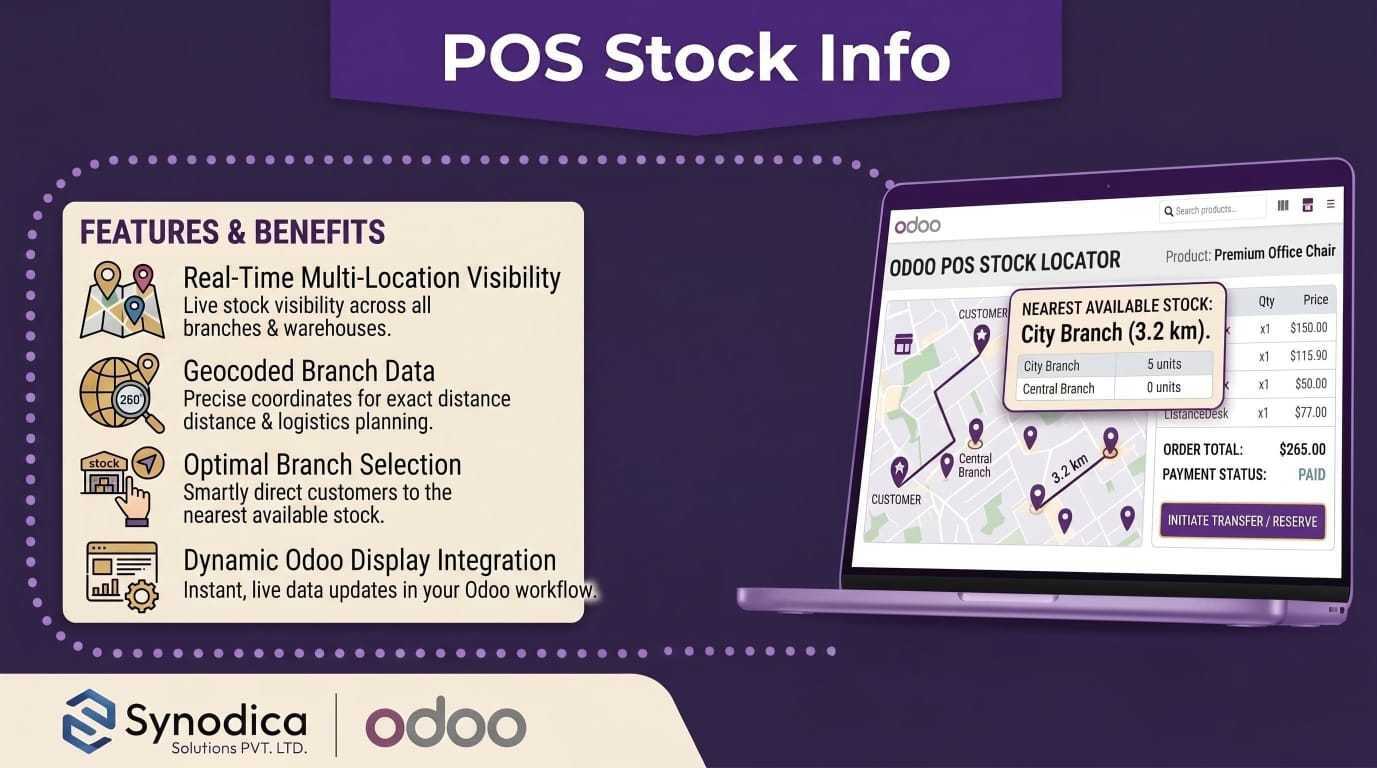
Real-time multi-location stock visibility directly inside the Odoo POS product screen. Show on-hand, reserved, outgoing, and incoming quantities per store — at a glance, from the product card, with zero developer effort.
How It Works
From installation to live stock data on every POS product card — in three simple steps.
Install & Configure Locations
Install the module, then go to POS → Configuration → Store Locations. Create a location record for each physical store and link it to an internal stock location.
Link POS & Enable Products
In each POS configuration, select its This Store Location. Then open any product form and enable the Show Stock in POS toggle to make its stock visible.
View Stock Live in POS
Open a POS session and tap any product — the stock panel instantly shows available qty at the current store, other shareable stores, and the nearest incoming purchase order.
Everything You Need
Real stock intelligence for your POS team — right at their fingertips, without leaving the product screen.
Live Stock on Every Product
See up-to-the-moment stock availability for any product directly on its card in the POS — no need to leave the session or open a separate screen.
Multi-Store Stock Visibility
Instantly see which other store locations have the product in stock, sorted by distance — so cashiers can redirect customers to the nearest available store in seconds.
Incoming Delivery Tracking
When a product is low or out of stock, cashiers can see exactly how many units are arriving and when — straight from the next confirmed purchase order.
Per-Product Control
Choose exactly which products display stock info in the POS with a simple on/off toggle on the product form — keeping your interface clean and focused.
See It in Action
A visual walkthrough — from initial store location setup to live stock display inside the POS session.
Navigate to Point of Sale → Configuration → Store Locations and create a record for each physical store. This record is the foundation of stock sharing across POS terminals.
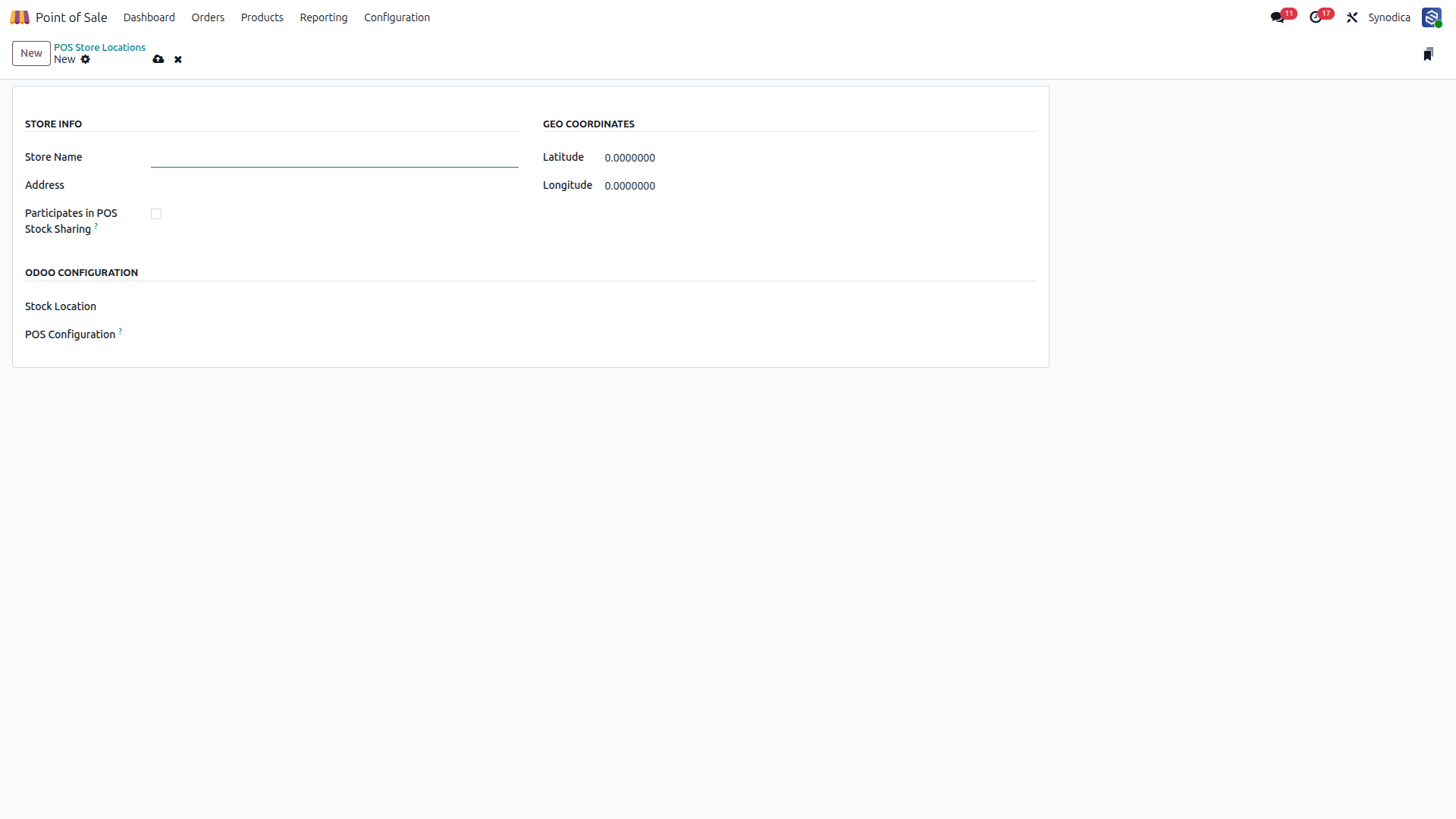
Fill in the store name and address, set Latitude / Longitude for distance calculation, and link an internal Stock Location. Enable Participates in POS Stock Sharing so this location can appear in “Other Locations”.
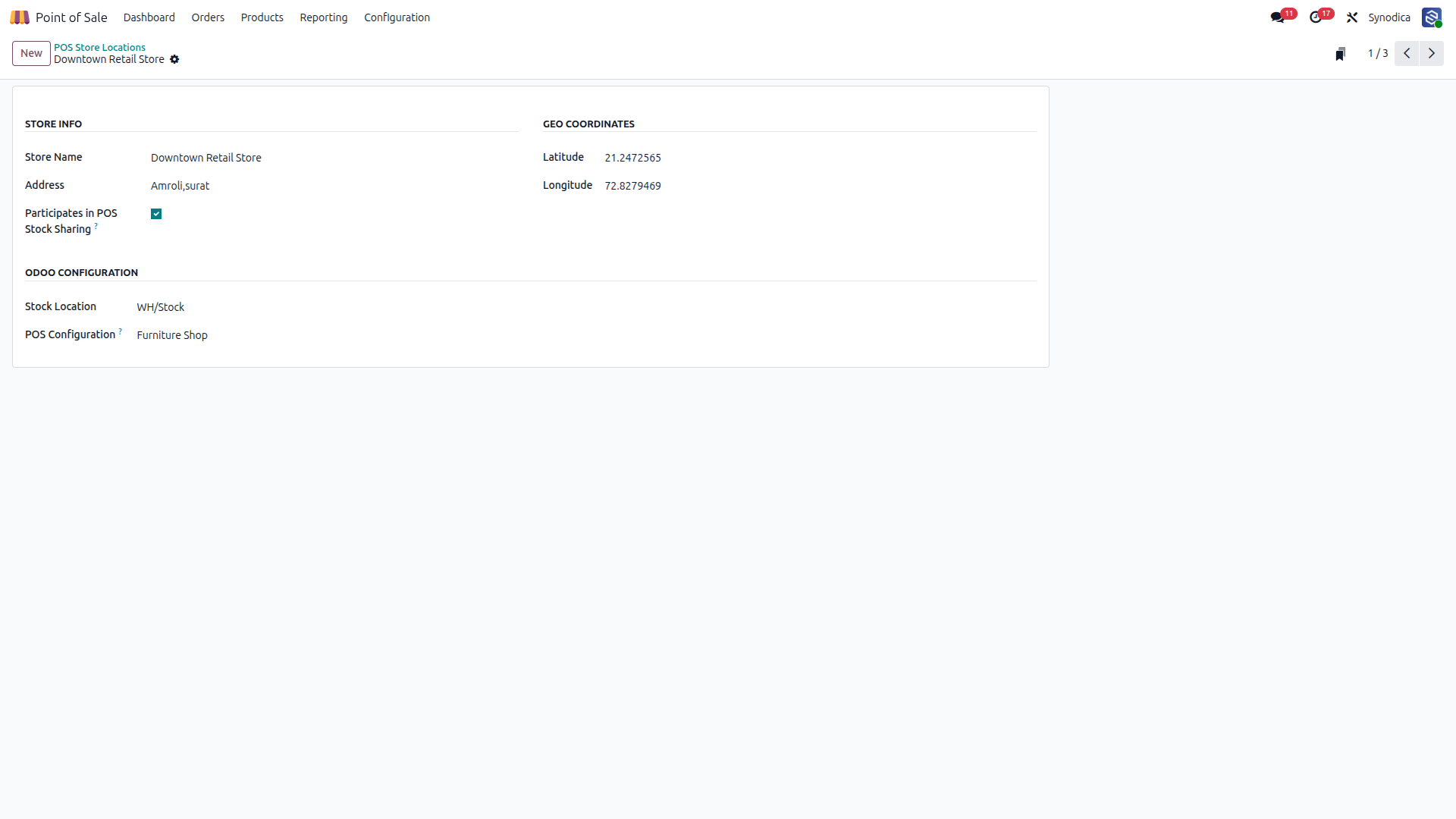
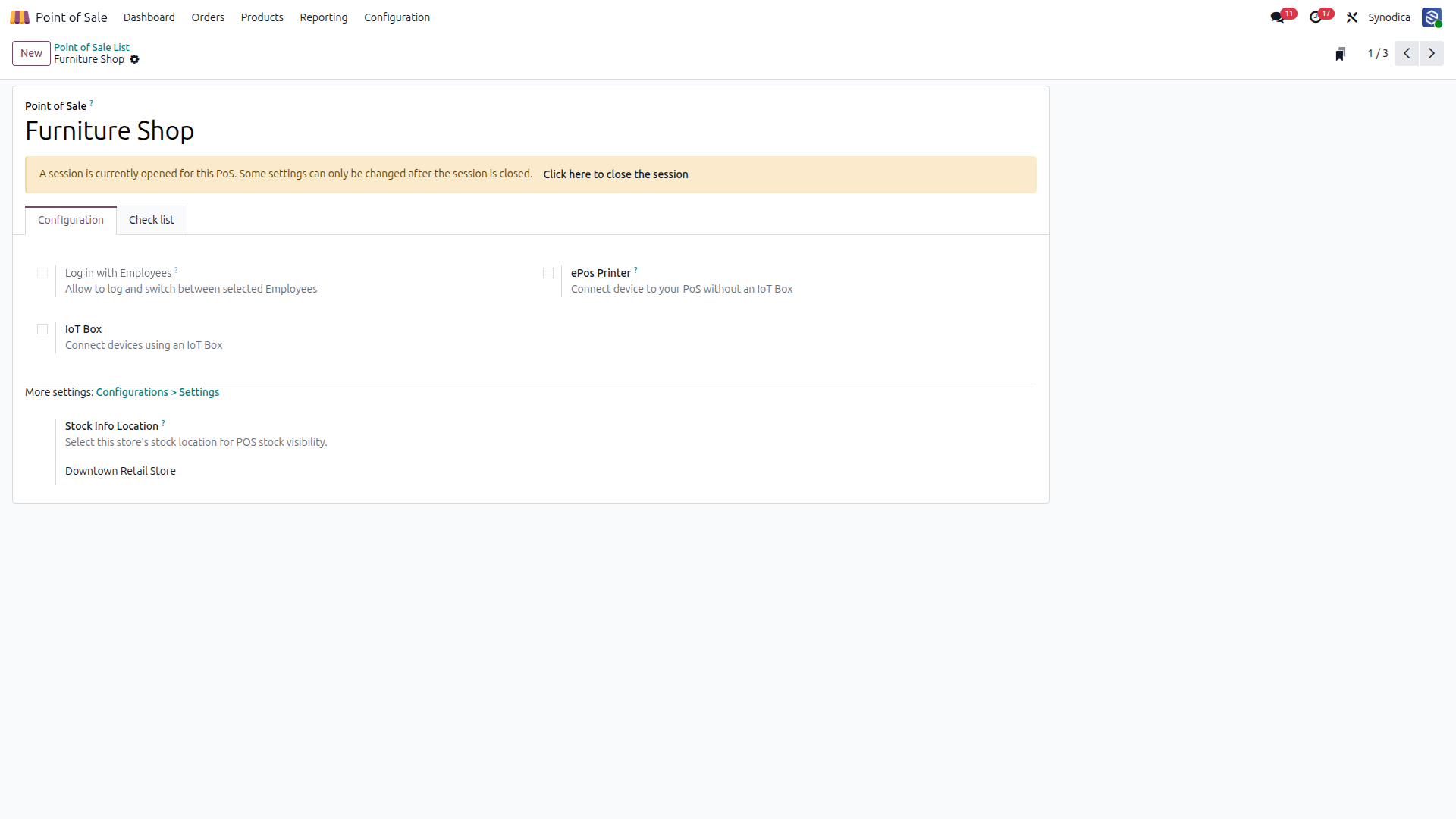
Go to Point of Sale → Configuration → Point of Sales to choose which POS configuration will use the Store Location you created.
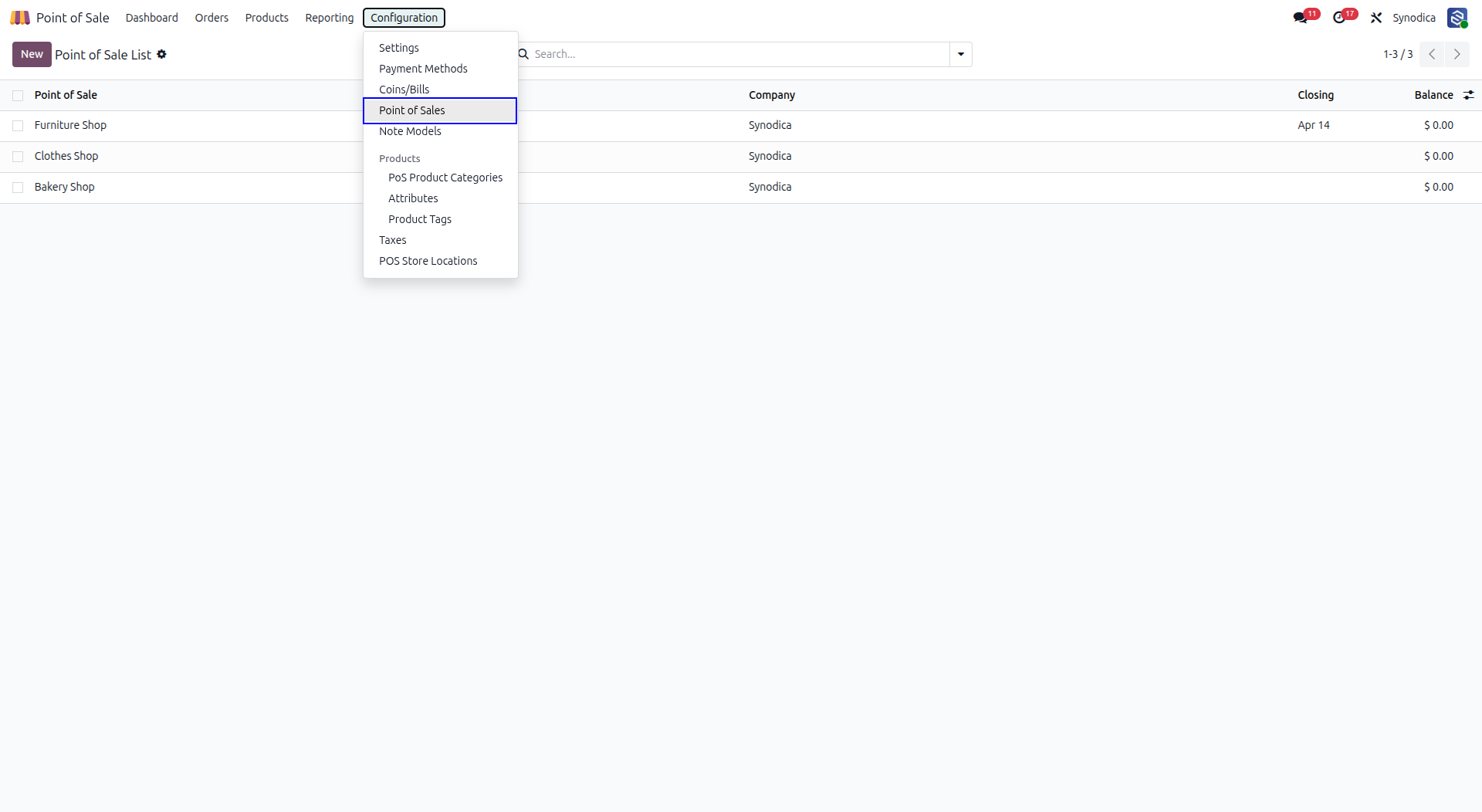
Open your POS configuration and set Stock Info Location (This Store Location). This tells the module which internal stock location should be considered “Current Store” in the POS stock popup.
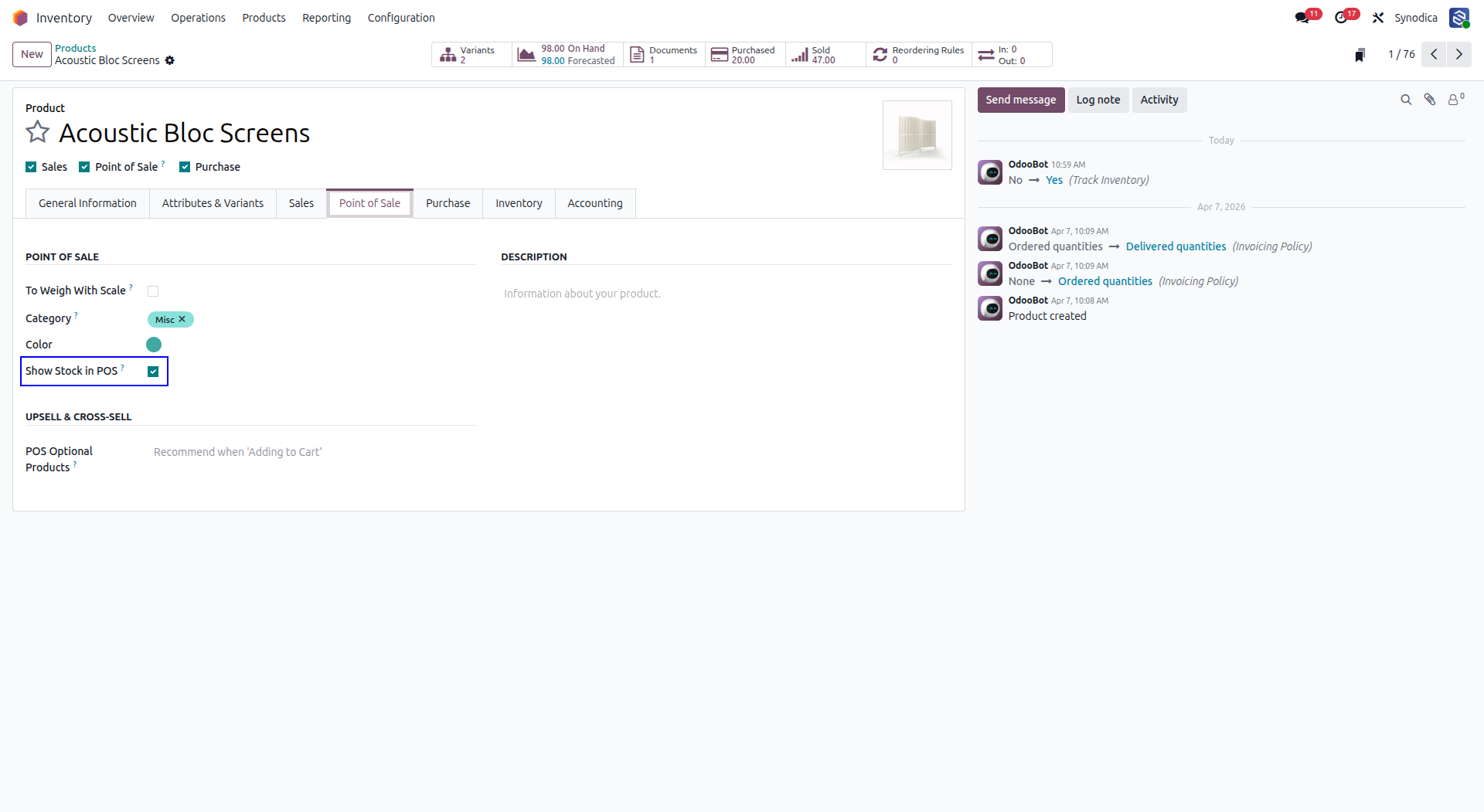
Open any product, go to the Point of Sale tab, and enable Show Stock in POS. Only products with this flag enabled will show the Stock Info icon and expose their stock details inside the POS interface.
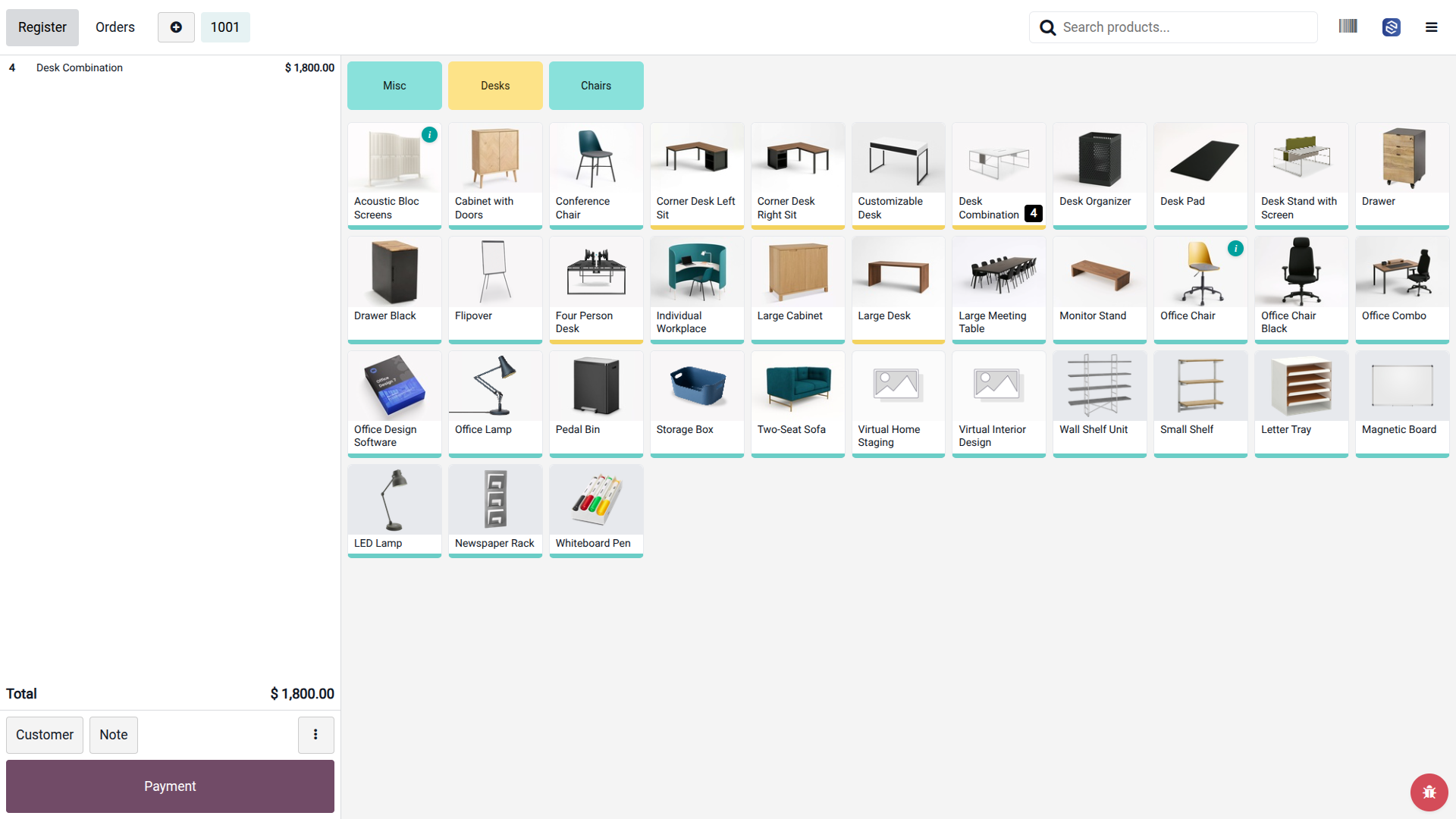
Start a POS session. On each product card where Show Stock in POS is enabled, you will see a small Stock Info icon on the card. Click/tap the icon to open the stock details popover.
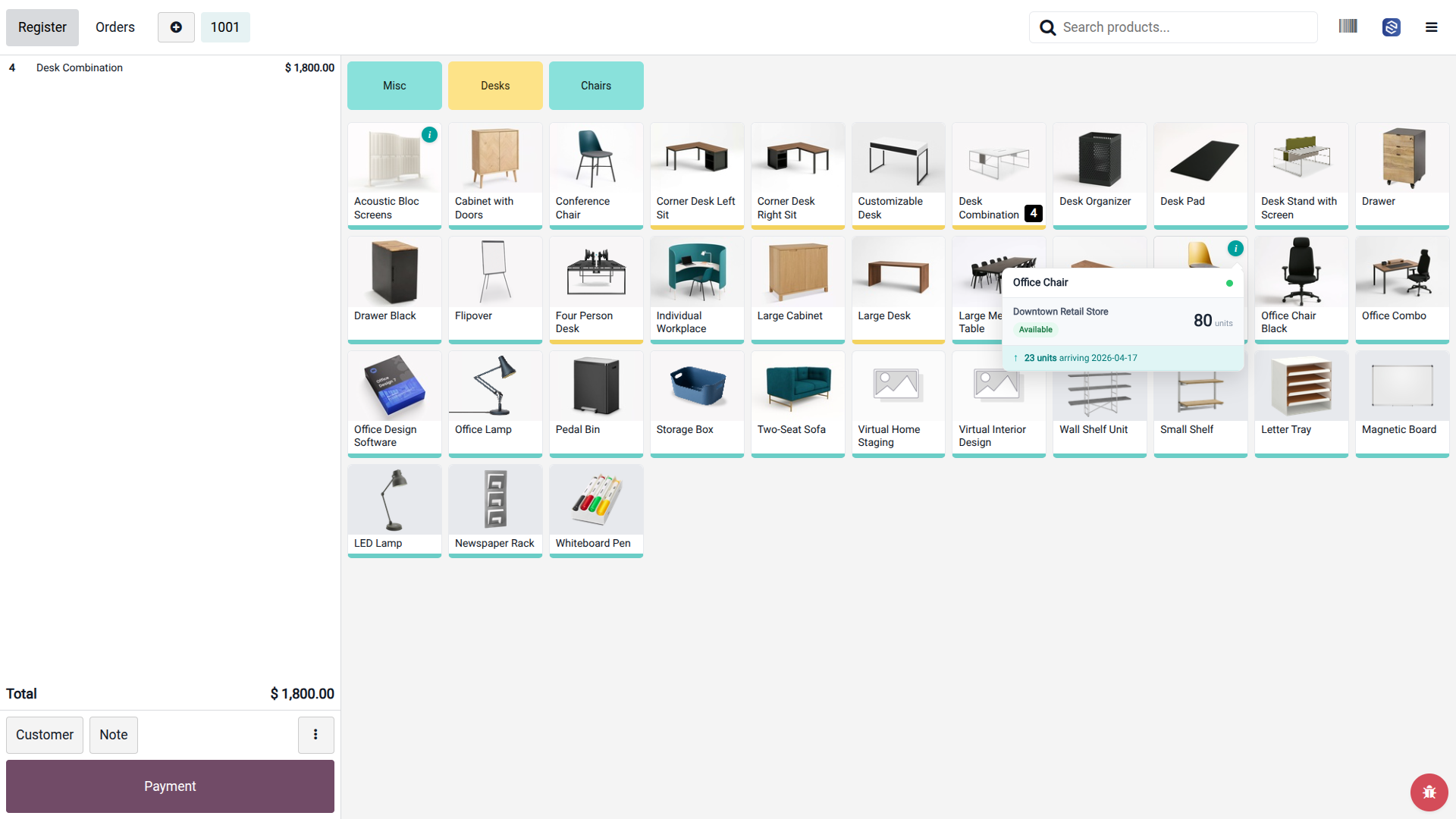
The popover shows the Current Store available quantity and, when Purchase Orders exist with remaining quantity, an Incoming message with the quantity and expected date. If no incoming stock exists, nothing is shown.
When the product is available in other shareable locations, the popover shows an Other Locations section with available quantities. Distance is shown only when both stores have valid latitude/longitude configured. Locations with zero stock are automatically hidden.
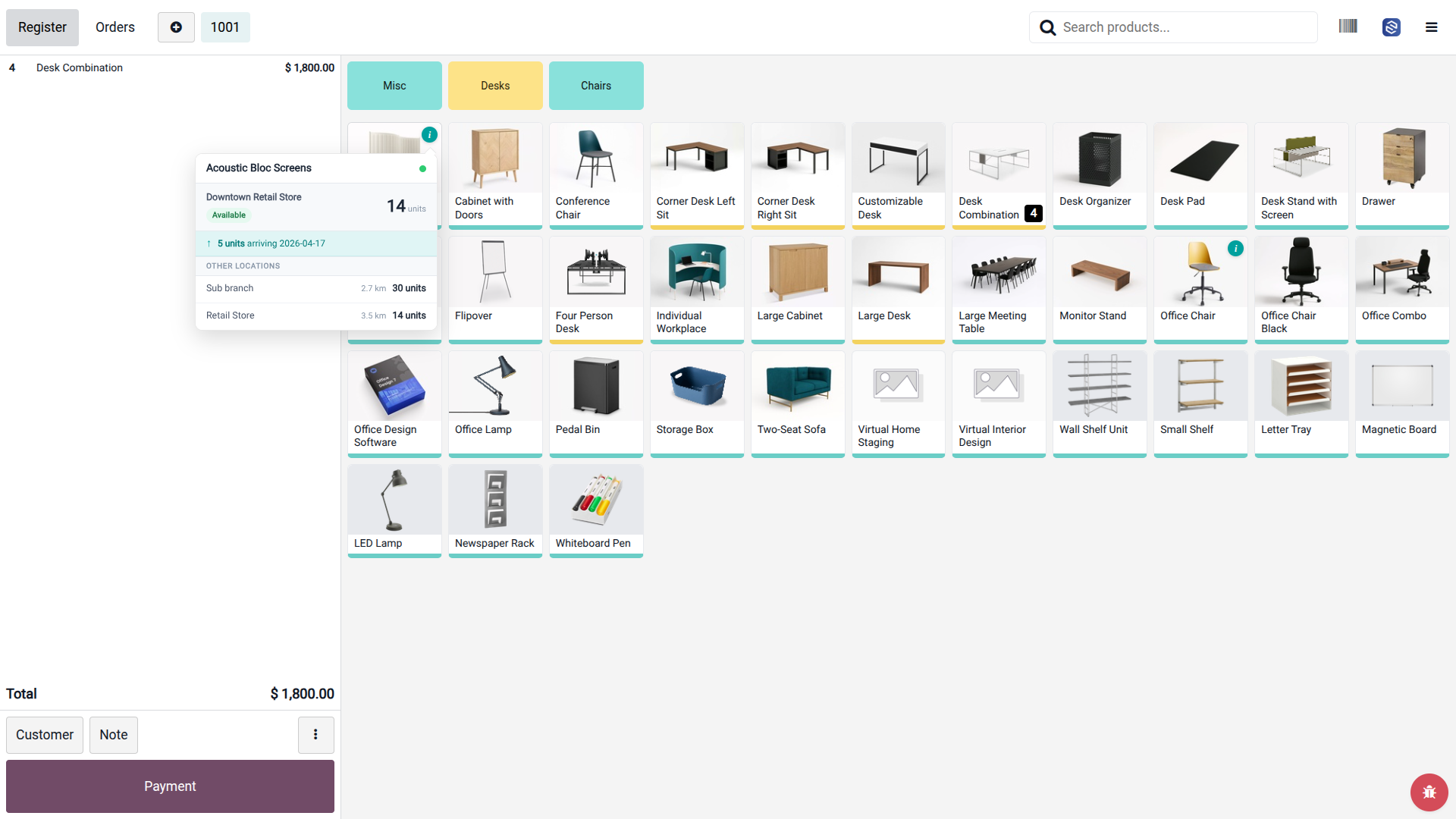
What You'll See
Every number in the stock panel has a clear meaning. Here's exactly what each one tells your cashier.
Quick Start Guide
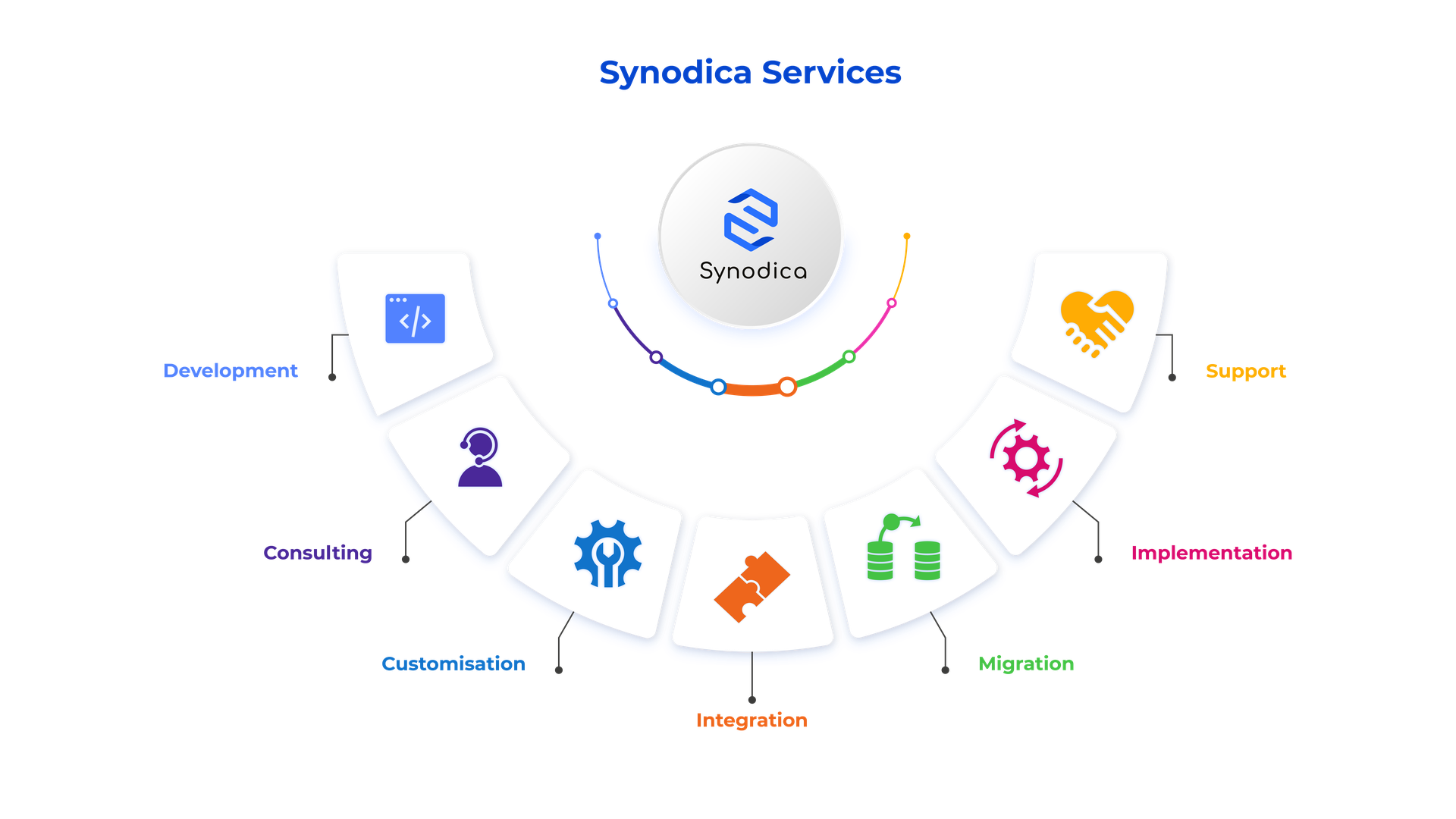
Specialized Odoo Services
We build, customize, and maintain Odoo solutions for businesses worldwide — from implementation to advanced integrations.
Need Custom POS Stock & Inventory Solutions?
Our experts can customize stock rules, POS workflows, and multi-location inventory flows to perfectly match your retail operations in Odoo.
support@synodica.comSupport & Contact
For support, customization requests, or bug reports, contact:
Synodica Solutions Pvt. Ltd.
© 2024–2026 Synodica Solutions Pvt. Ltd. — POS Stock Info — Licensed under LGPL-3
We create ERP solutions for you using Odoo ERP that will build a strong and efficient business for you. It's SYNODICA WAY