

Rapyd Payment Provider

RAPYD PAYMENT PROVIDER
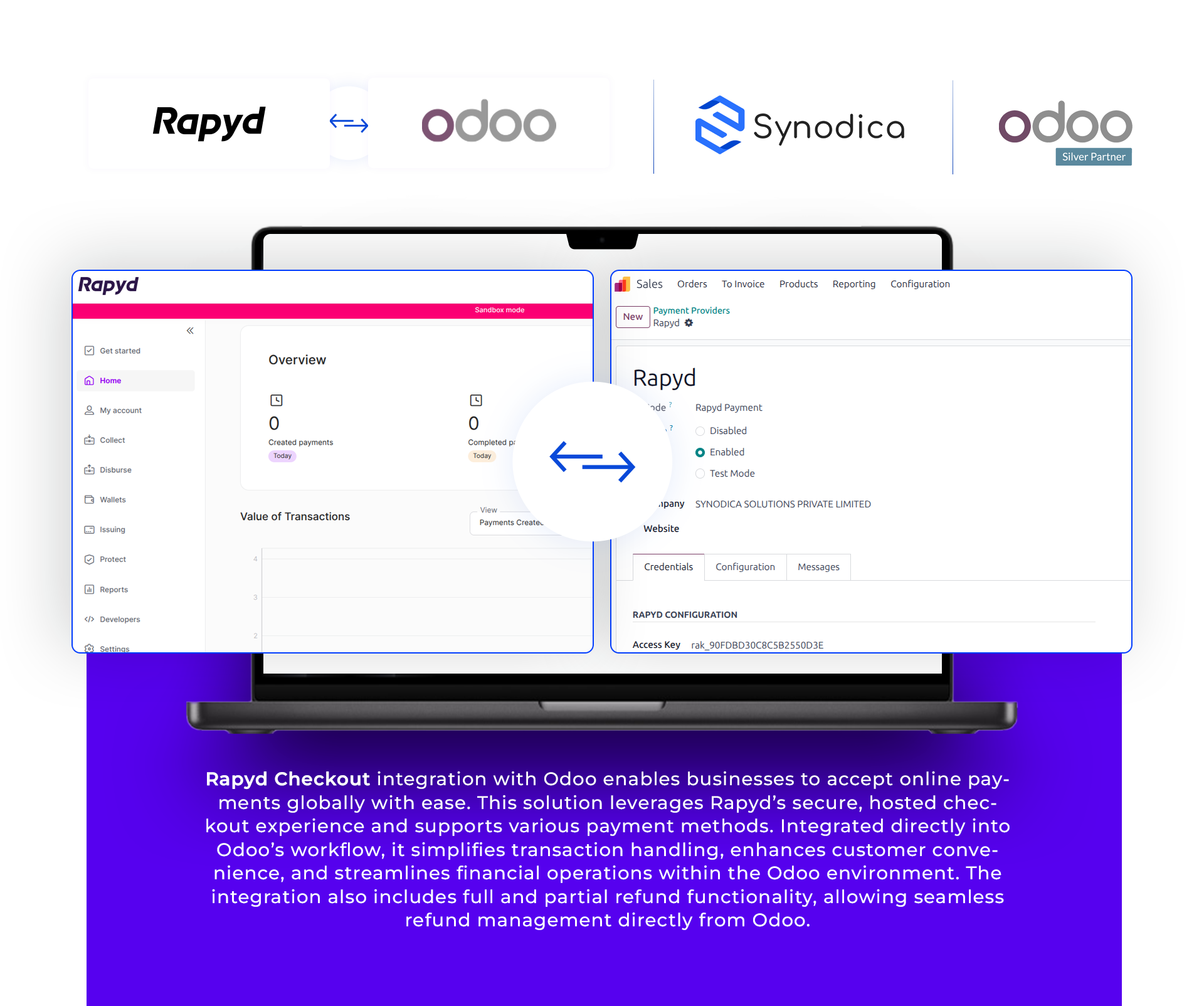




Easily set up Rapyd integration in Odoo with our straightforward configuration steps outlined in the Rapyd module.
Stay informed with real-time updates on payment statuses, seamlessly integrated into your Odoo dashboard.

Ensure smooth integration with Rapyd payment gateway, enabling secure and reliable transactions for your customers.

Easily process full or partial refunds directly from Odoo, with real-time status tracking synced from Rapyd.

Seamlessly process payments across Odoo portal, sales, and invoices for a unified user experience.

Secure, responsive Rapyd-hosted checkout page embedded into the Odoo flow—no need to handle sensitive payment data directly.

Payment From Website
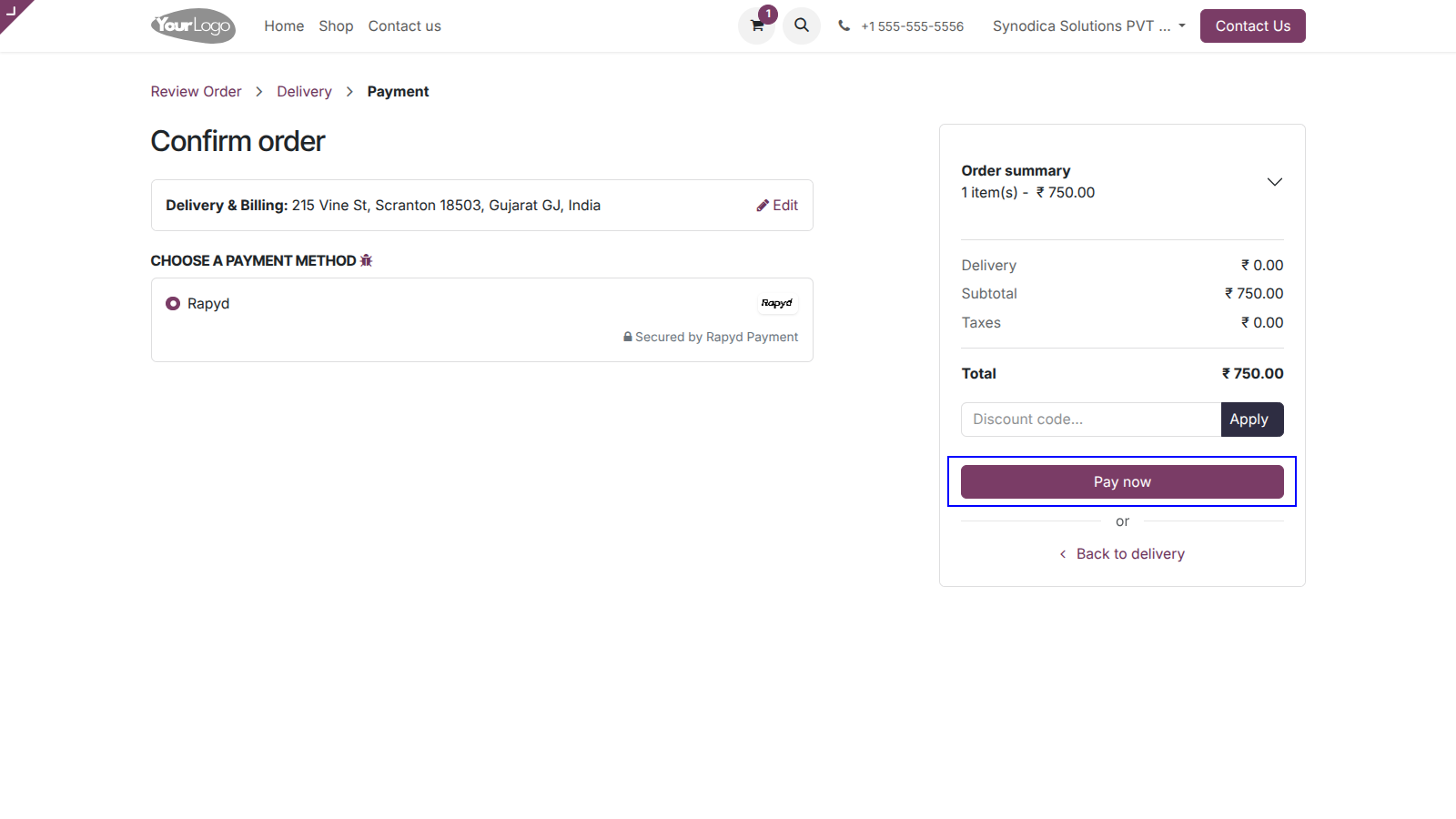
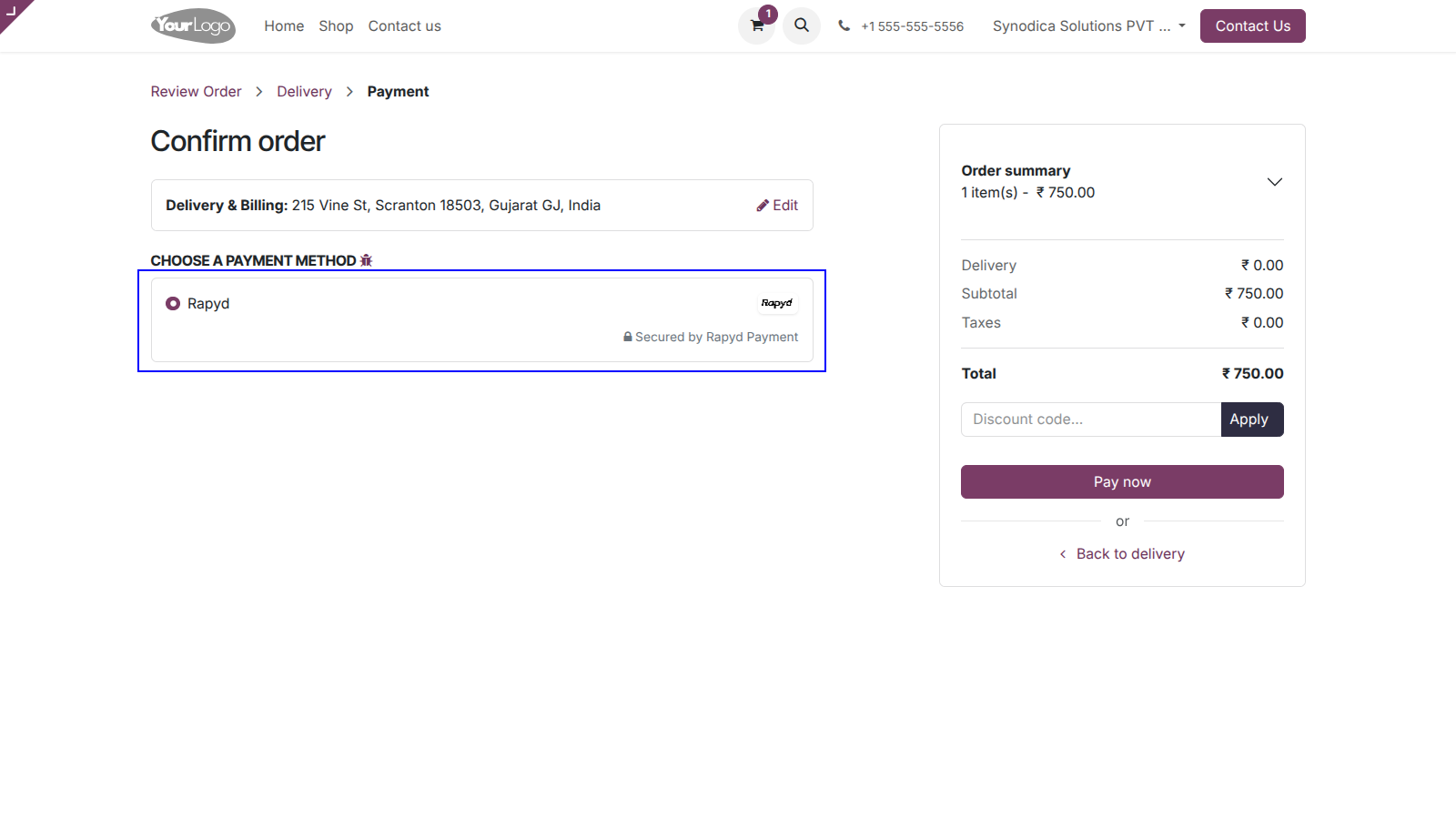
To pay with Rapyd, select Rapyd as payment method and Click Pay Now button. You will be redirected to Rapyd payment page.
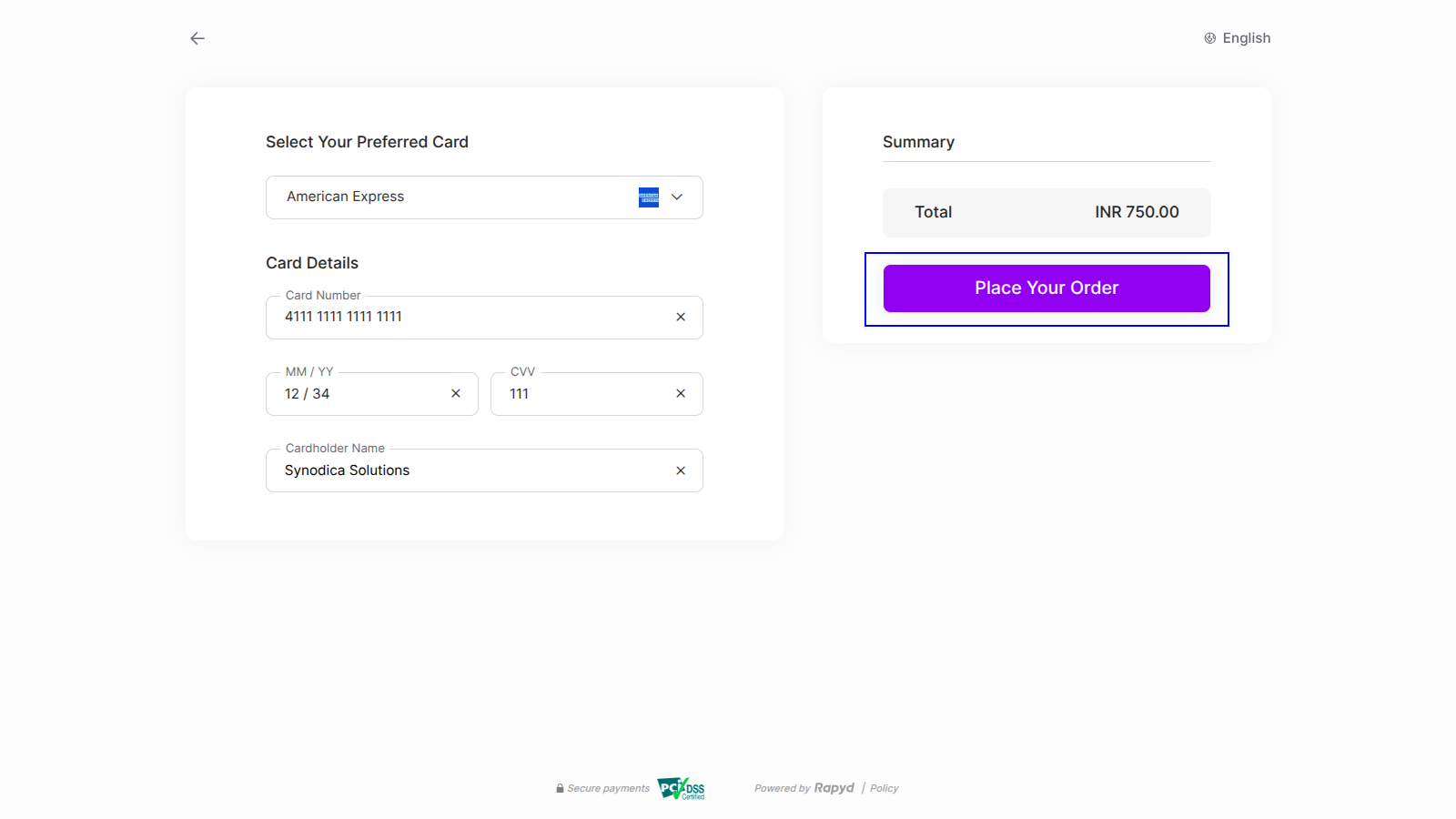
You will redirect the payment page. Fill the required details and click Secure Pay button.
After successful payment you will see payment successful screen. click on Finish Button.
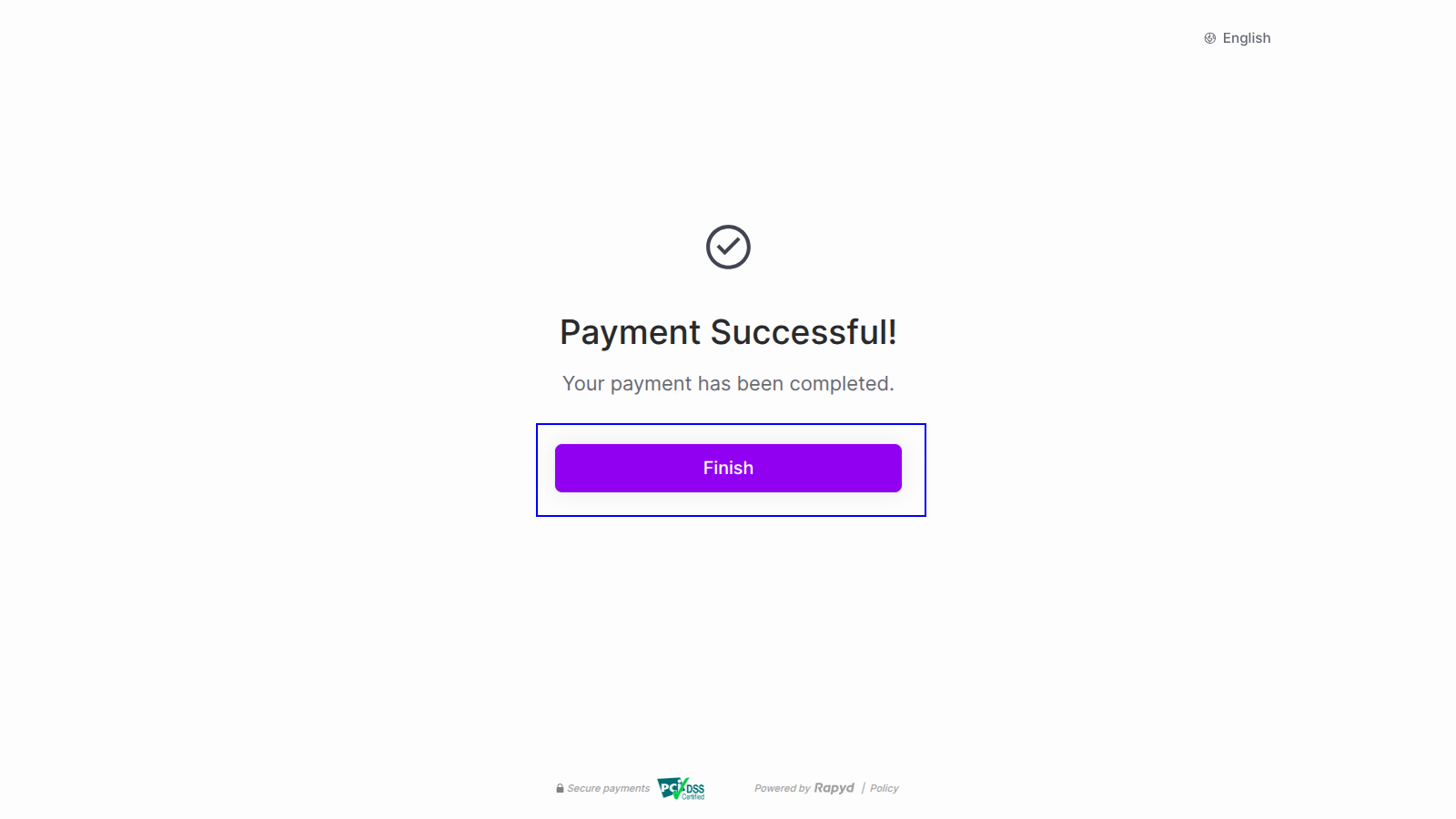
Upon finishing payment, you will be directed to the Odoo confirmation screen.
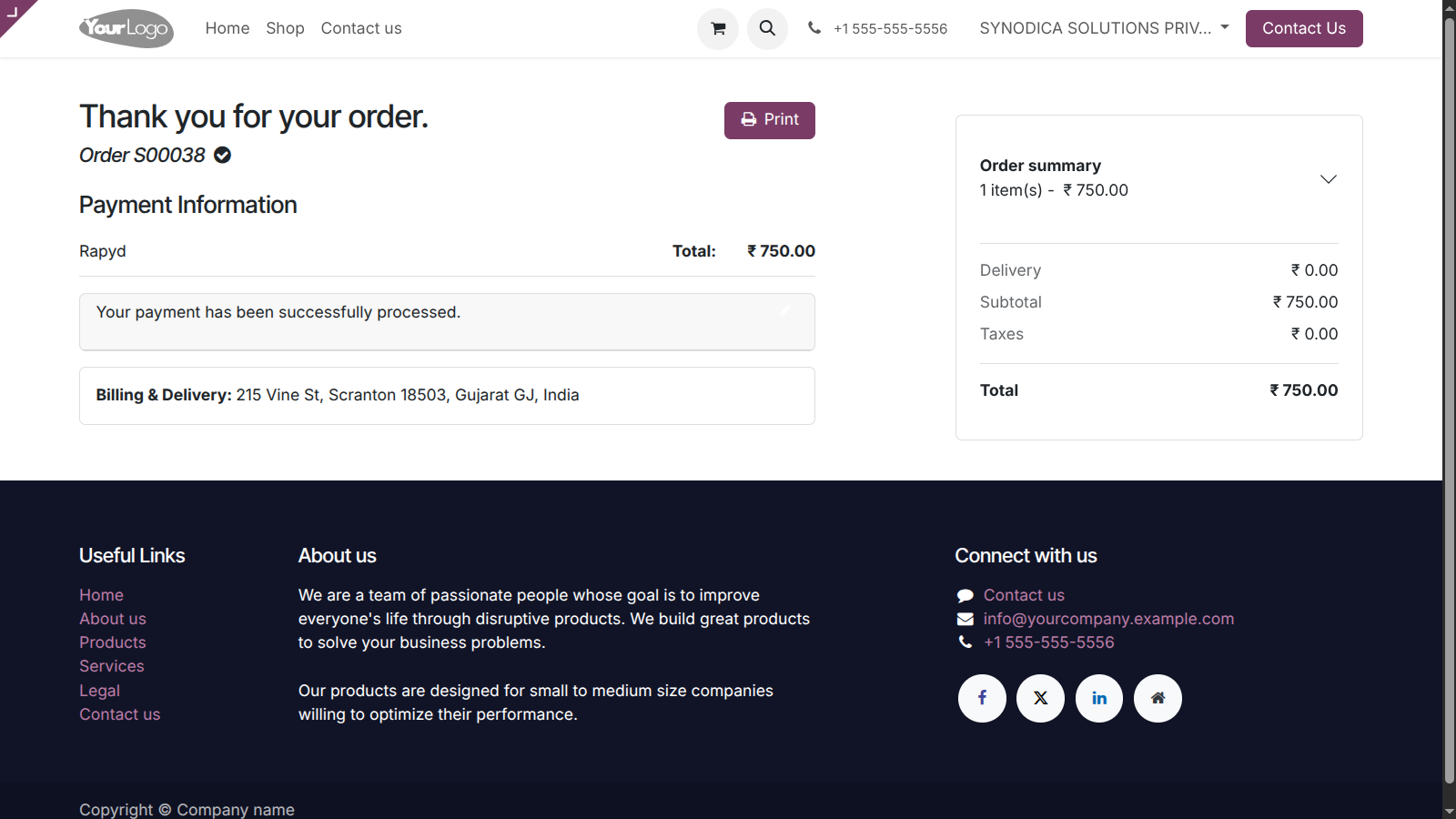

Payment From Sale Order
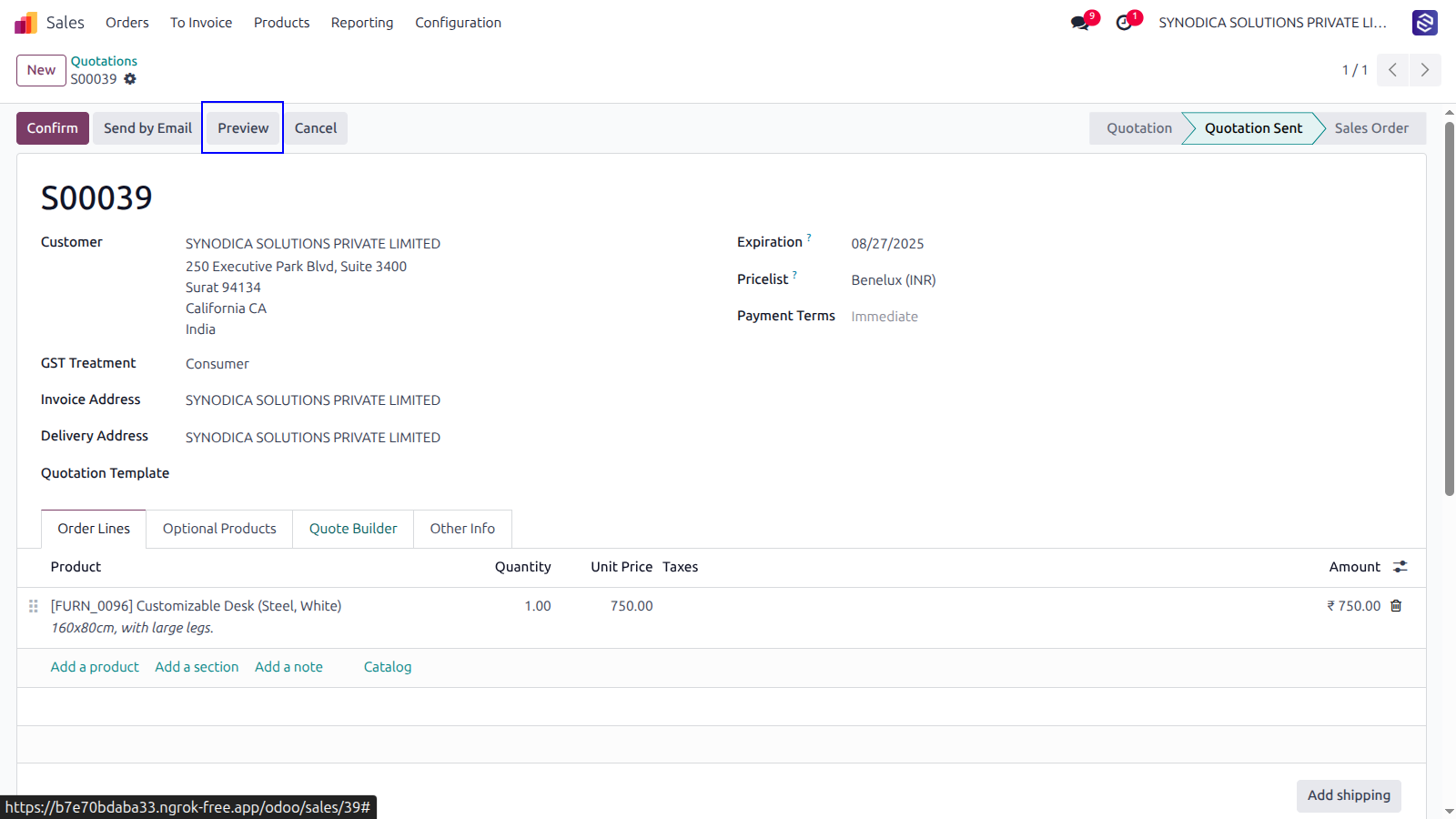
To pay with sale order, create sale order and click Preview button
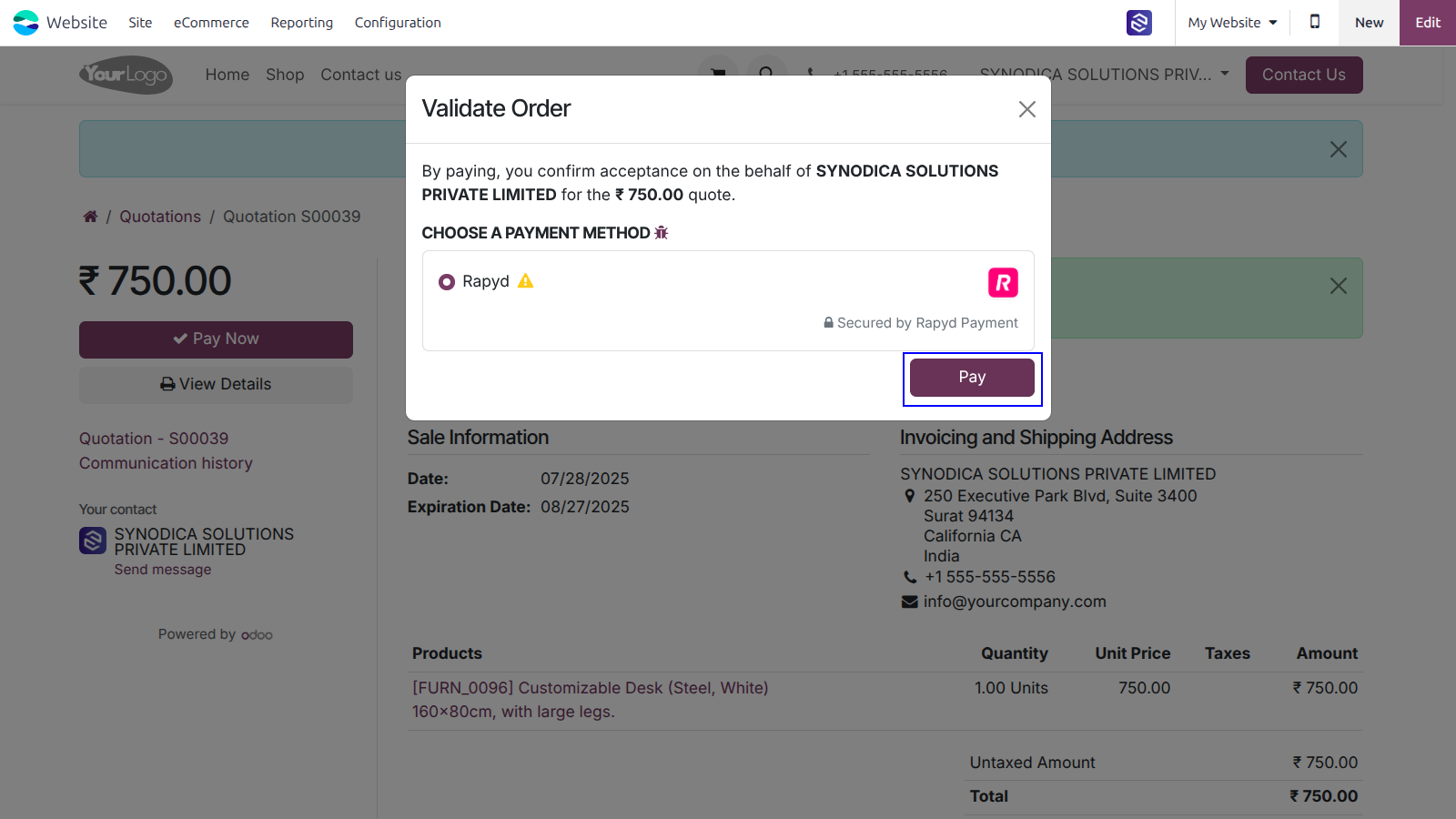
Now click Sign & Pay, Sign document and select Rapyd as payment method. Then click Pay. You will be redirected to Rapyd payment page.
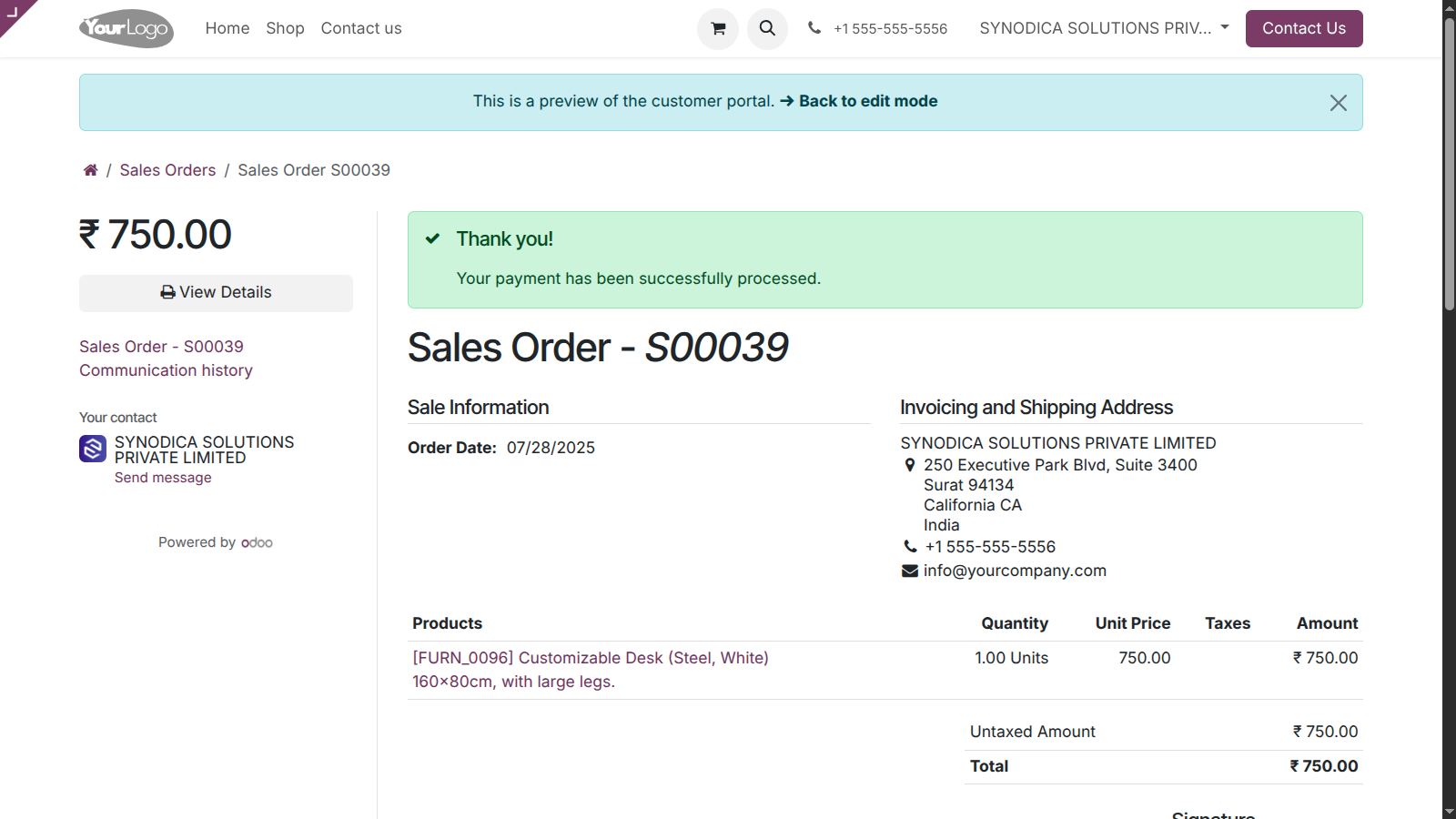
Complete the payment, and on the order preview screen, you will see a confirmation that your order has been successfully paid.

Payment From Invoice
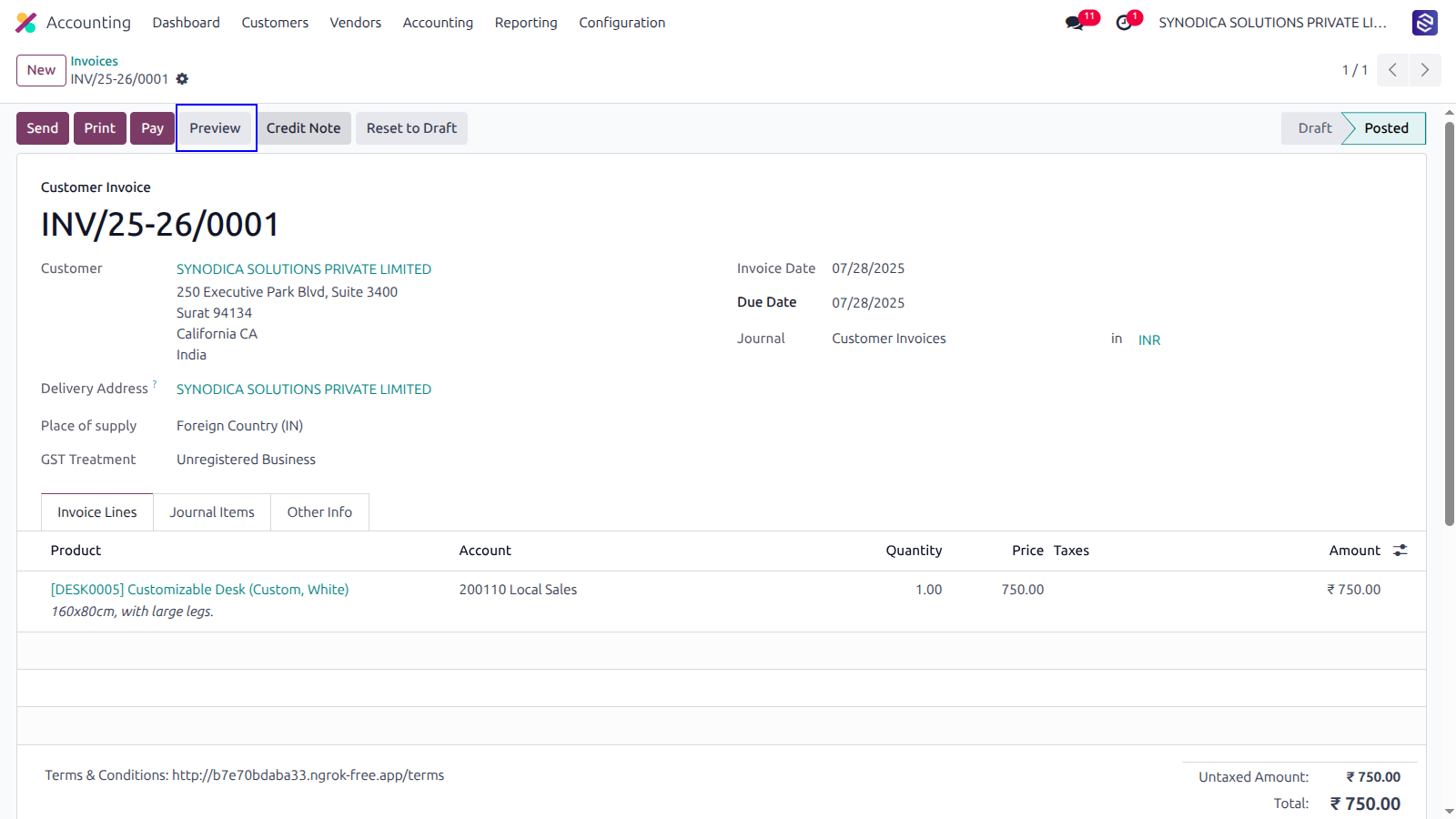
To pay with invoice, create invoice and click Preview button
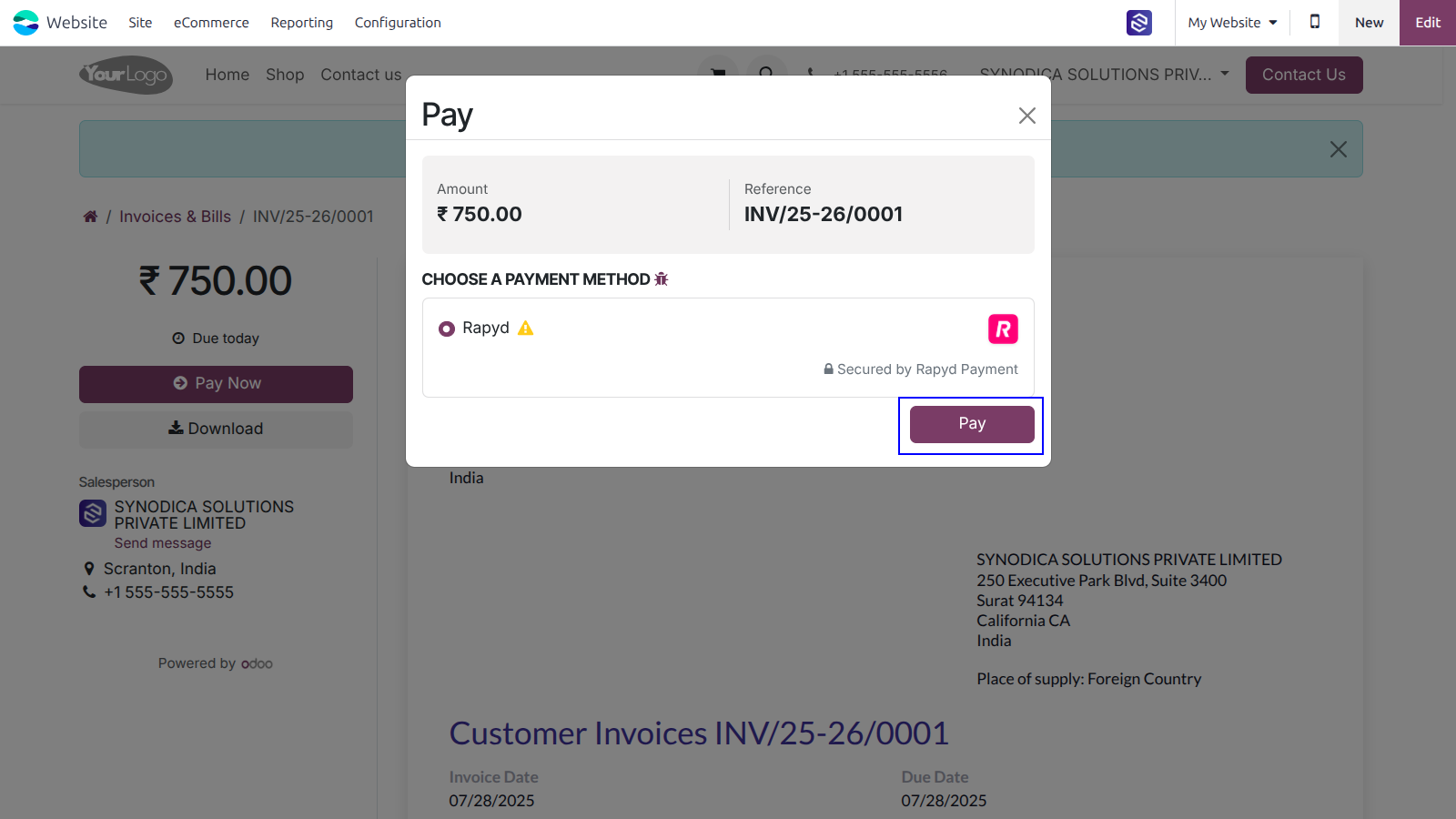
Now click Pay Now, There select Rapyd as payment method. Then click Pay.
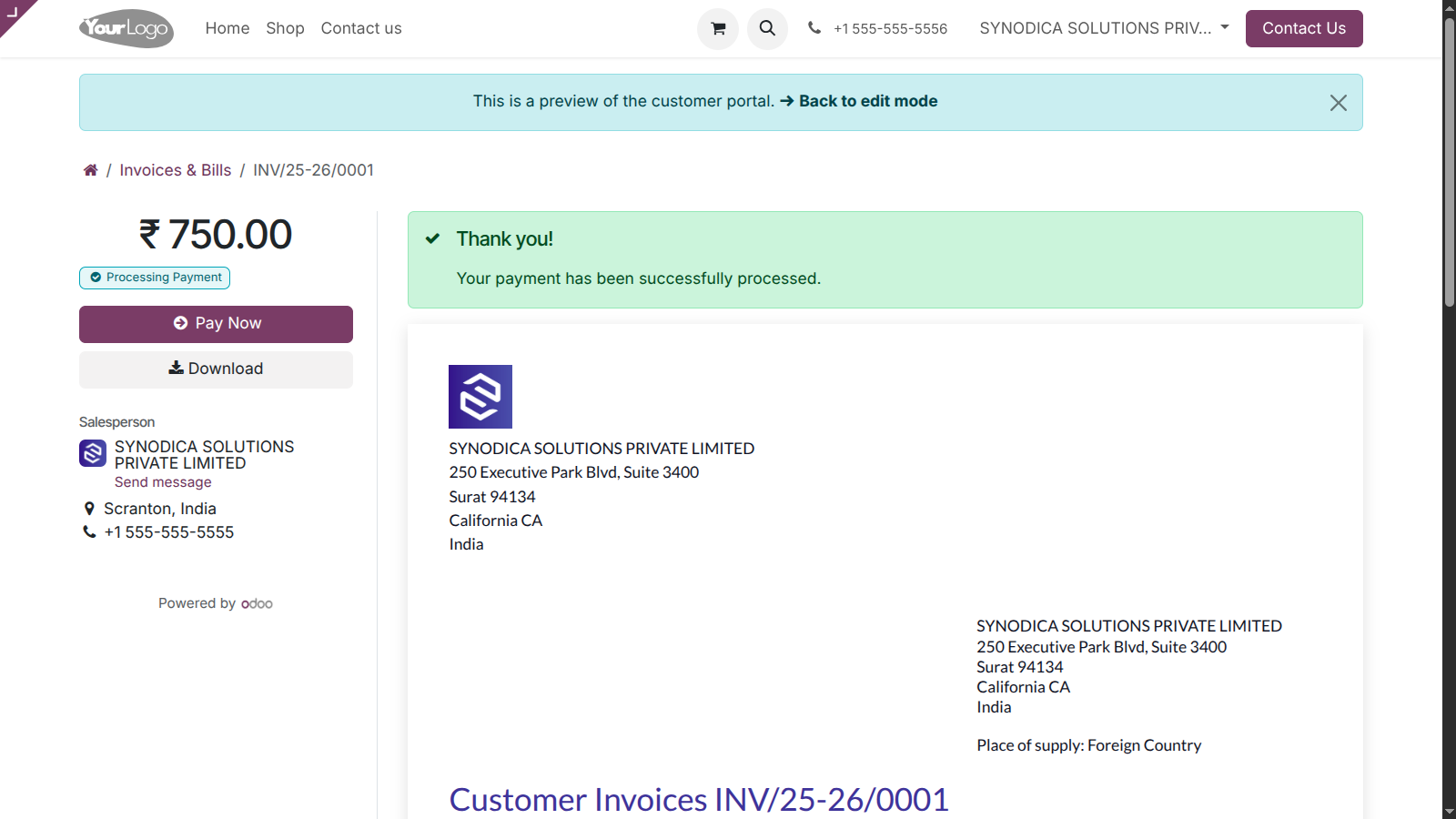
Complete the payment, and on the order preview screen, you will see a confirmation that your invoice has been successfully paid.

Invoice Refund
To initiate a refund, create a credit note for the corresponding invoice
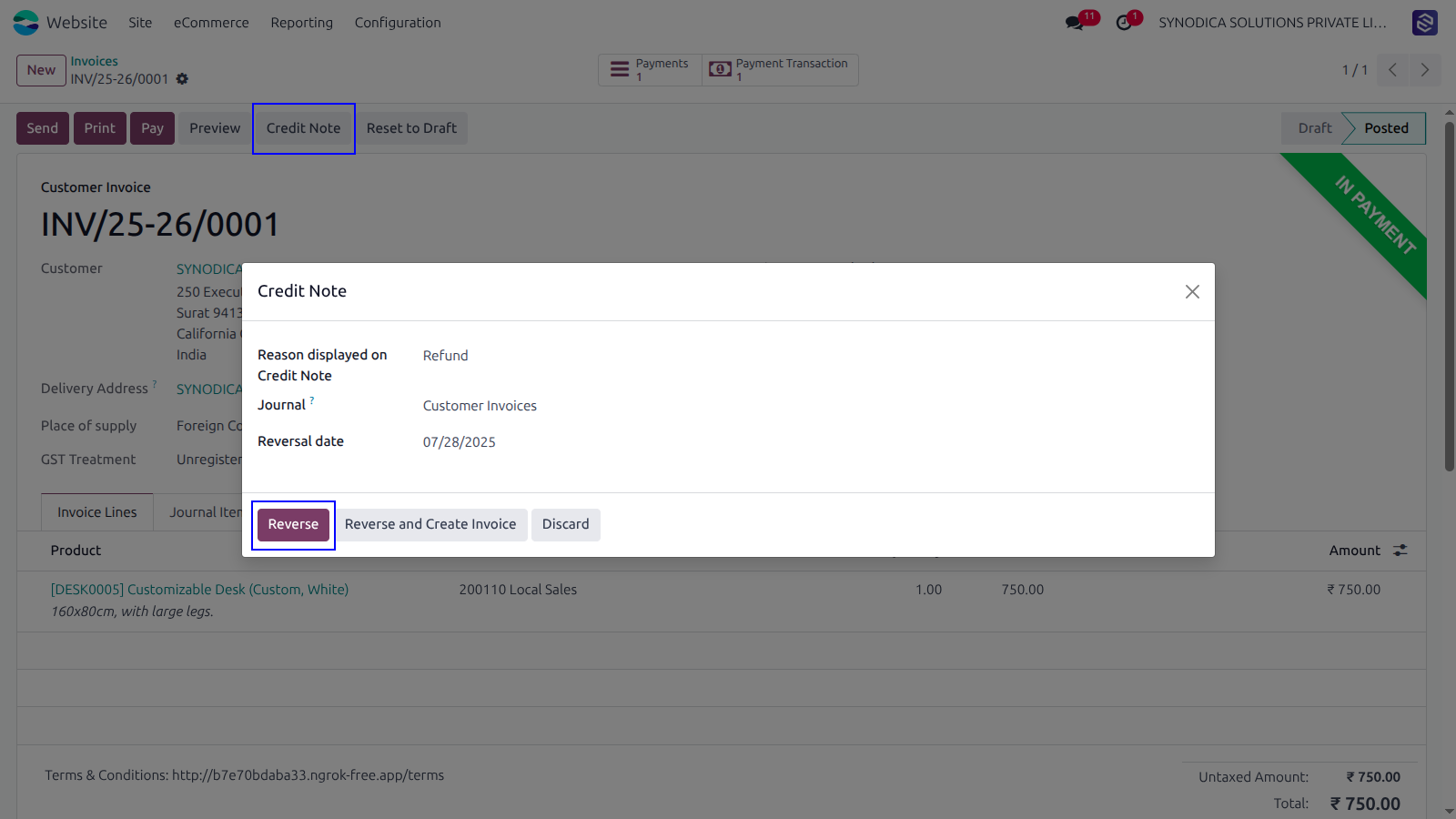
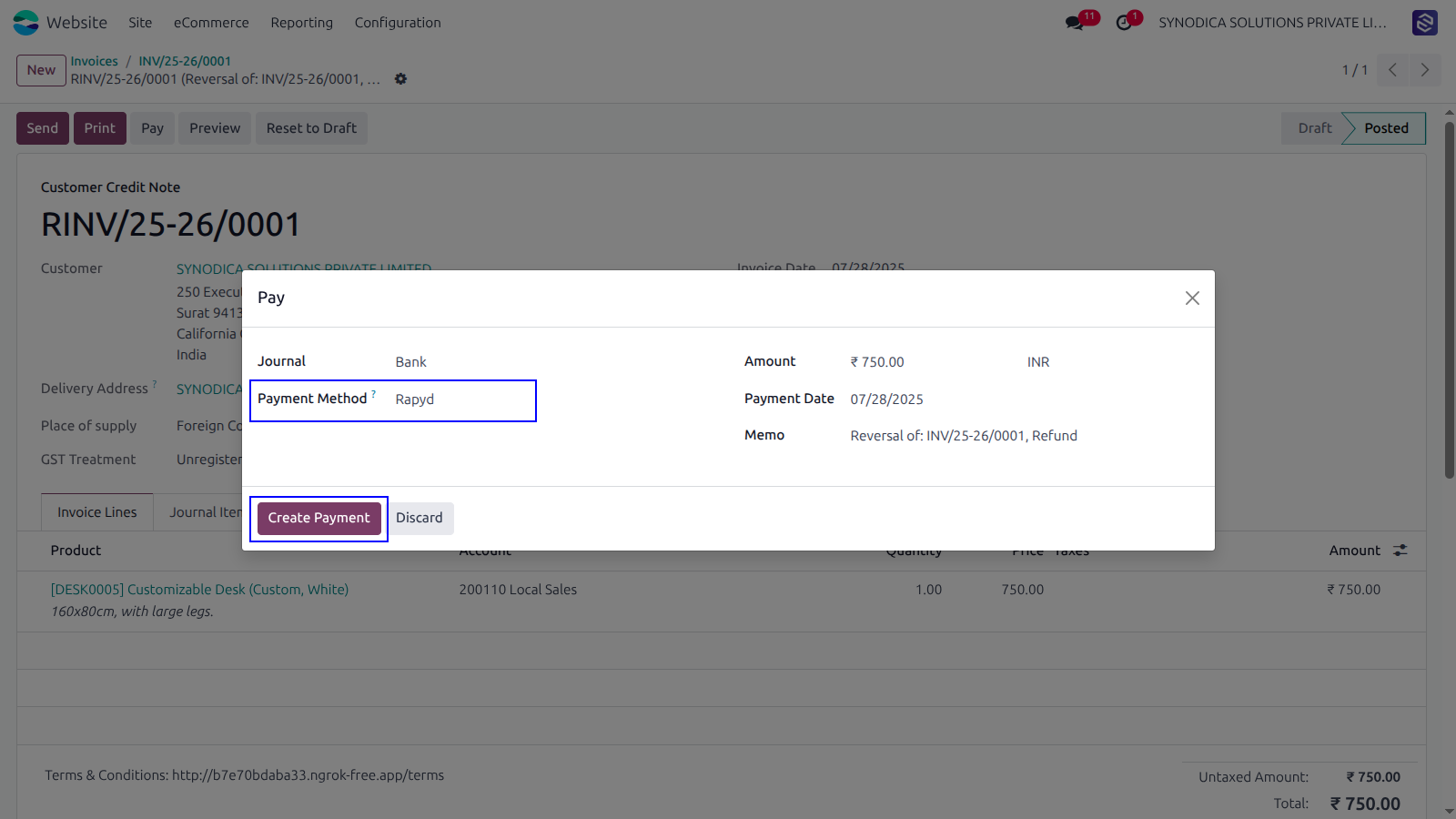
click on Pay button. A popup window will appear. In the popup, select Rapyd as the payment method. then click on Create Payment.
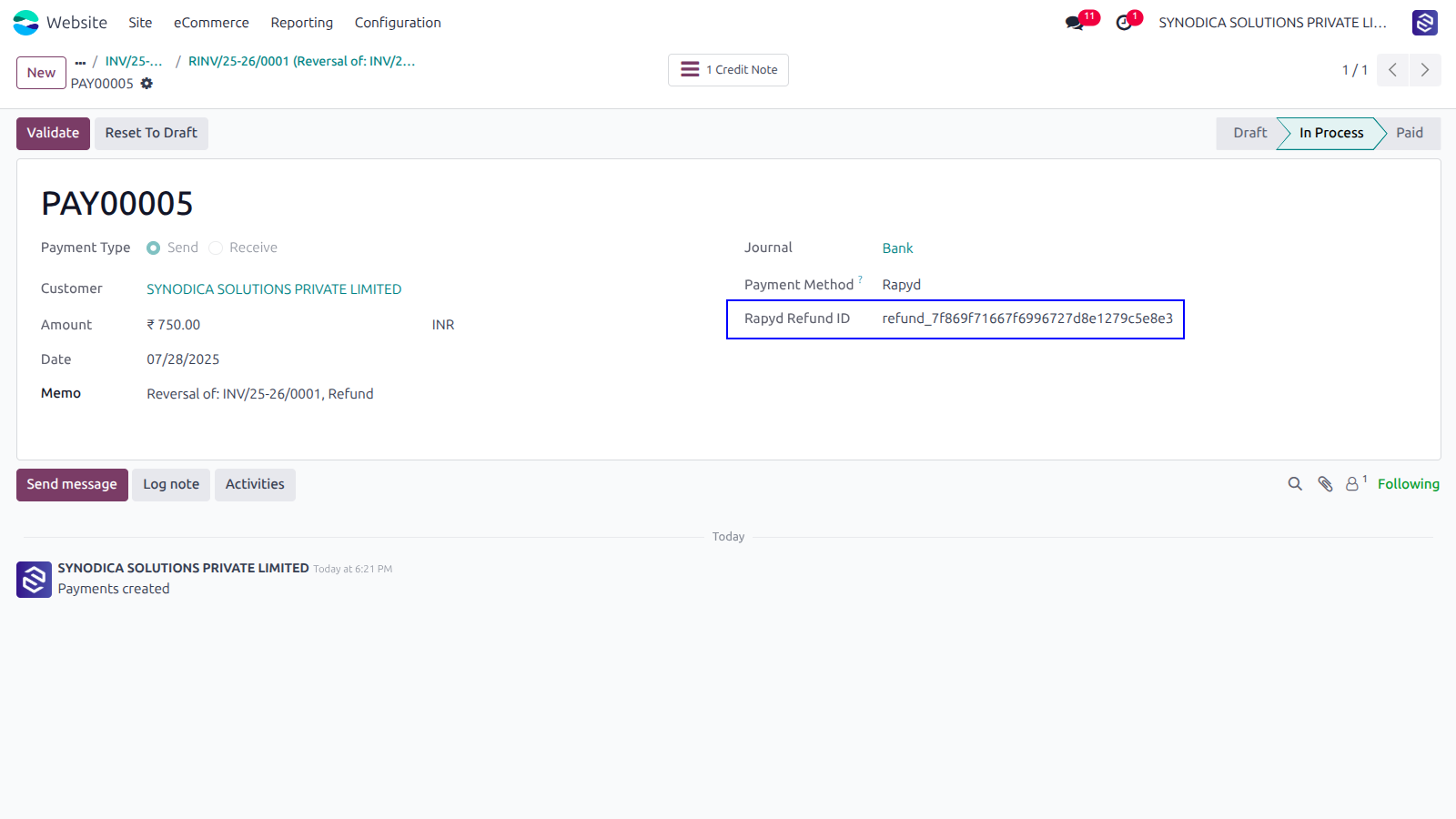
In the payment transaction of credit note, you will see the refund ID .

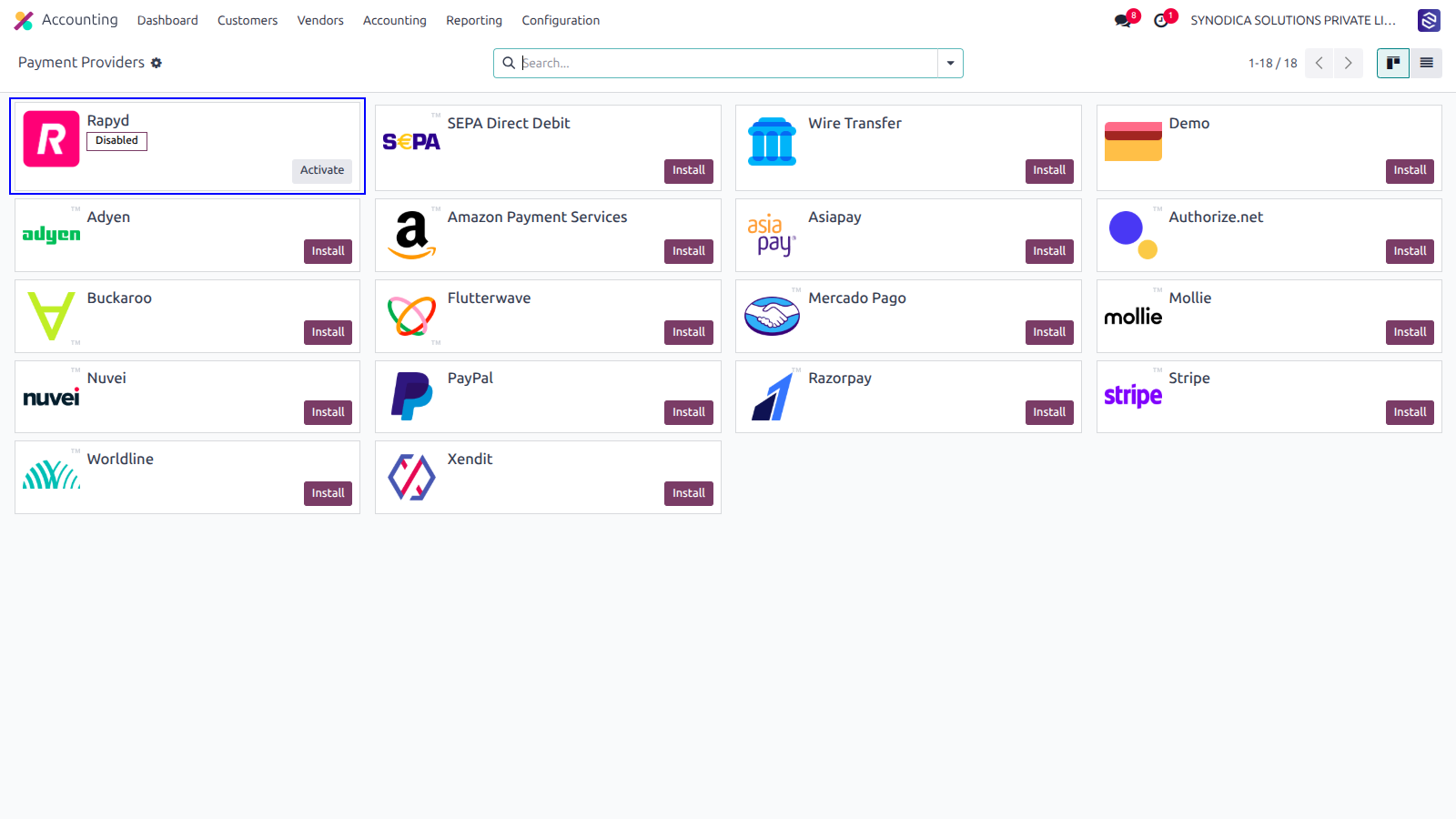
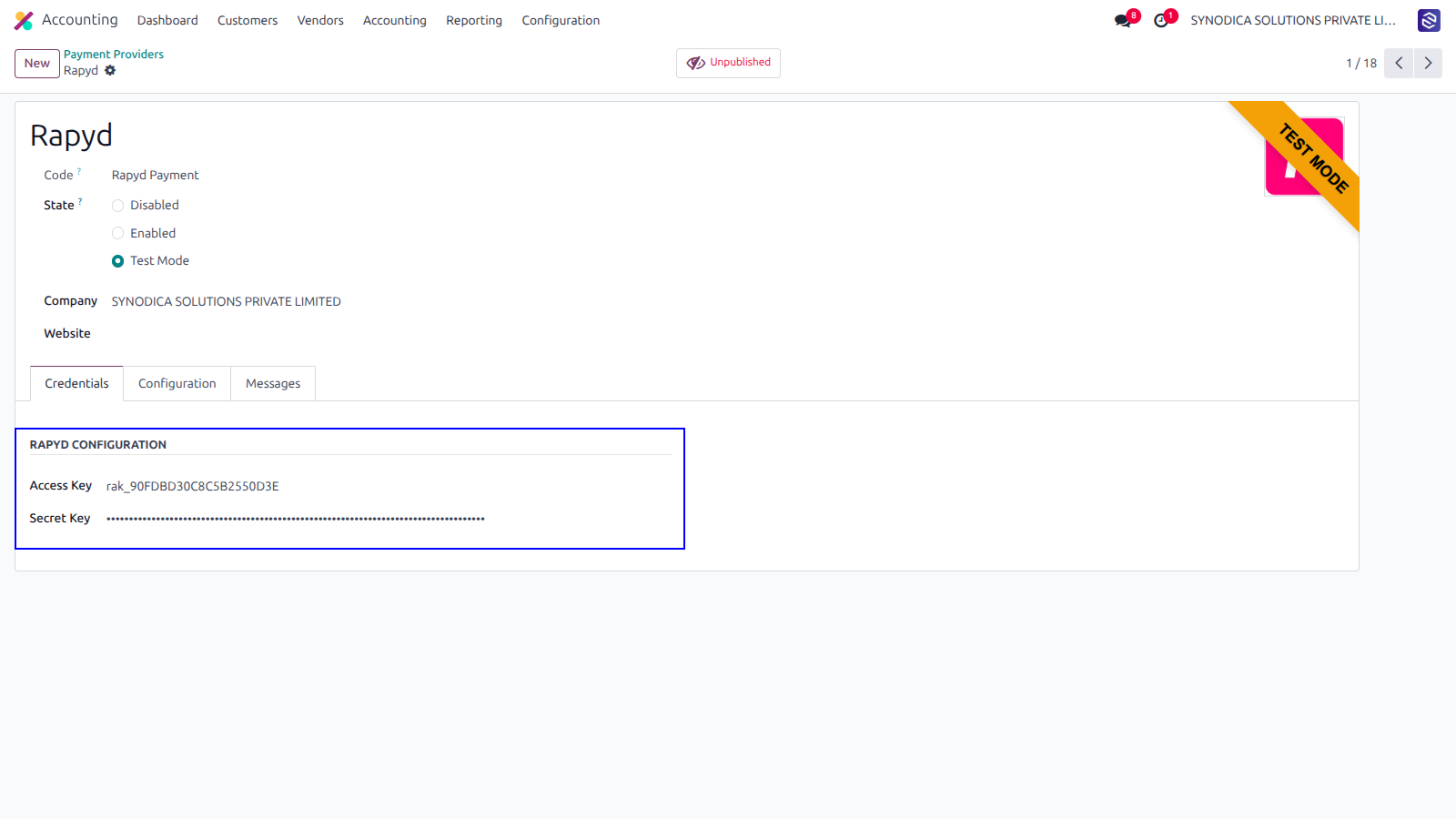
After installing app, you will be able to see Rapyd payment options in Accounting >> Configuration >> Payment Providers menu
Setup Rapyd configurations like Access Key and Secret Key.
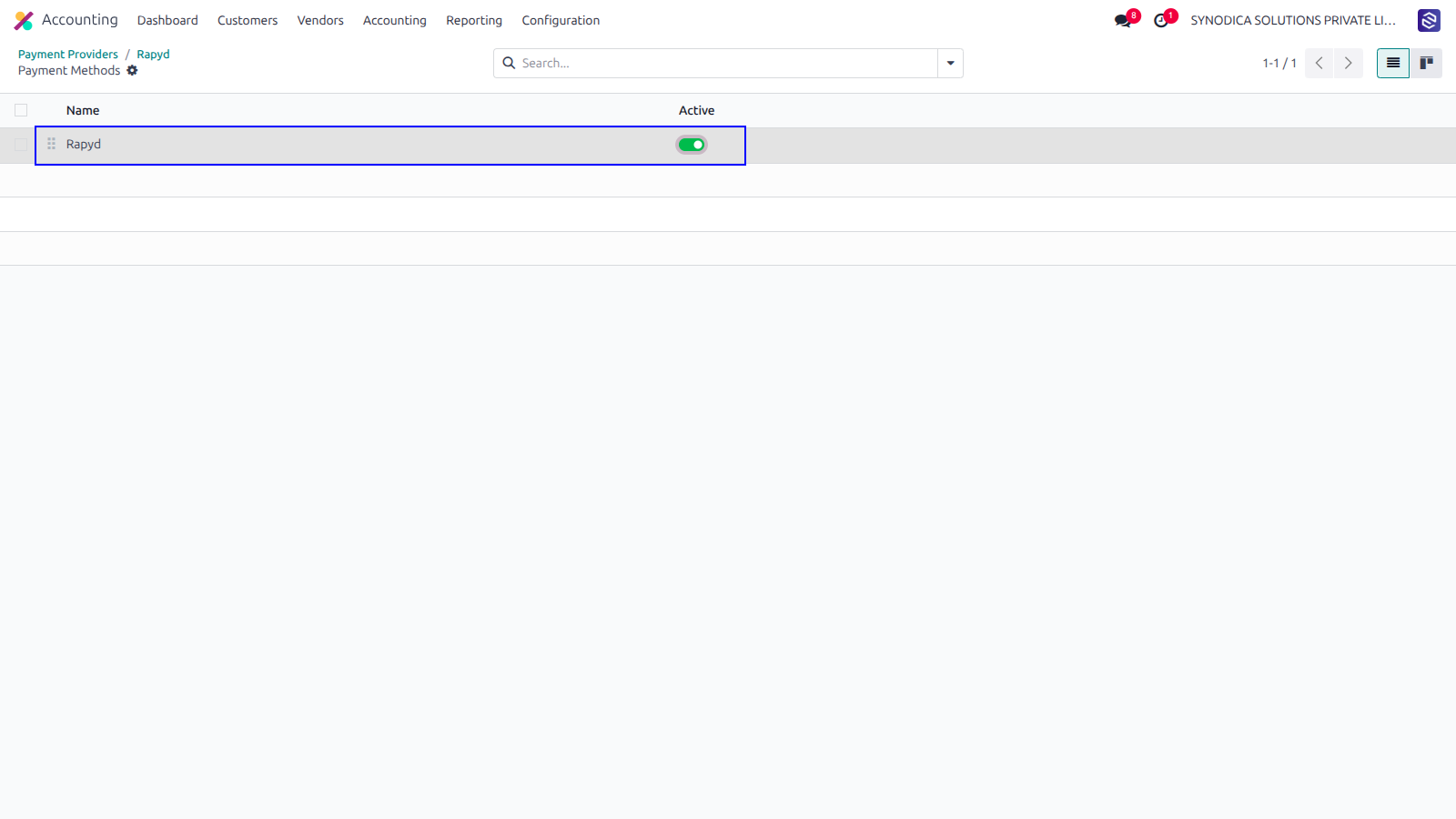
To activate the payment method go to Accounting > Configuration > Payment Methods.
Now Rapyd payment option will be available for payment.
Contact Us

We create ERP solutions for you using Odoo ERP that will build a strong and efficient business for you. It's SYNODICA WAY