

Klarna Payment Provider

KLARNA PAYMENT PROVIDER
Our Klarna Payment Provider offers a streamlined solution for Odoo users involved in online ordering and e-commerce. This add-on seamlessly integrates Klarna's advanced payment capabilities with your Odoo environment, automating payment processing and data exchange. By eliminating manual input, you can focus on developing your business while providing customers with a smooth and convenient payment experience.
Watch Demo Here



Accept payments in different currencies, allowing customers worldwide to make purchases in their preferred currency.
Security transactions between Odoo and the Klarna payment gateway.
Ensure smooth integration with Klarna payment gateway, enabling secure and reliable transactions for your customers.
Process refunds seamlessly within Odoo, with integration with Klarna for refund transactions.
Enables seamless payment transactions directly from the Odoo portal, sales, and invoices, providing users with a unified and efficient payment experience.
Integration with Klarna allows for real-time synchronization of order status updates between Odoo and Klarna's platform.
Payment From Website
To pay with Klarna, select Klarna as payment method and Click Pay Now button. You will be redirected to Klarna payment page.
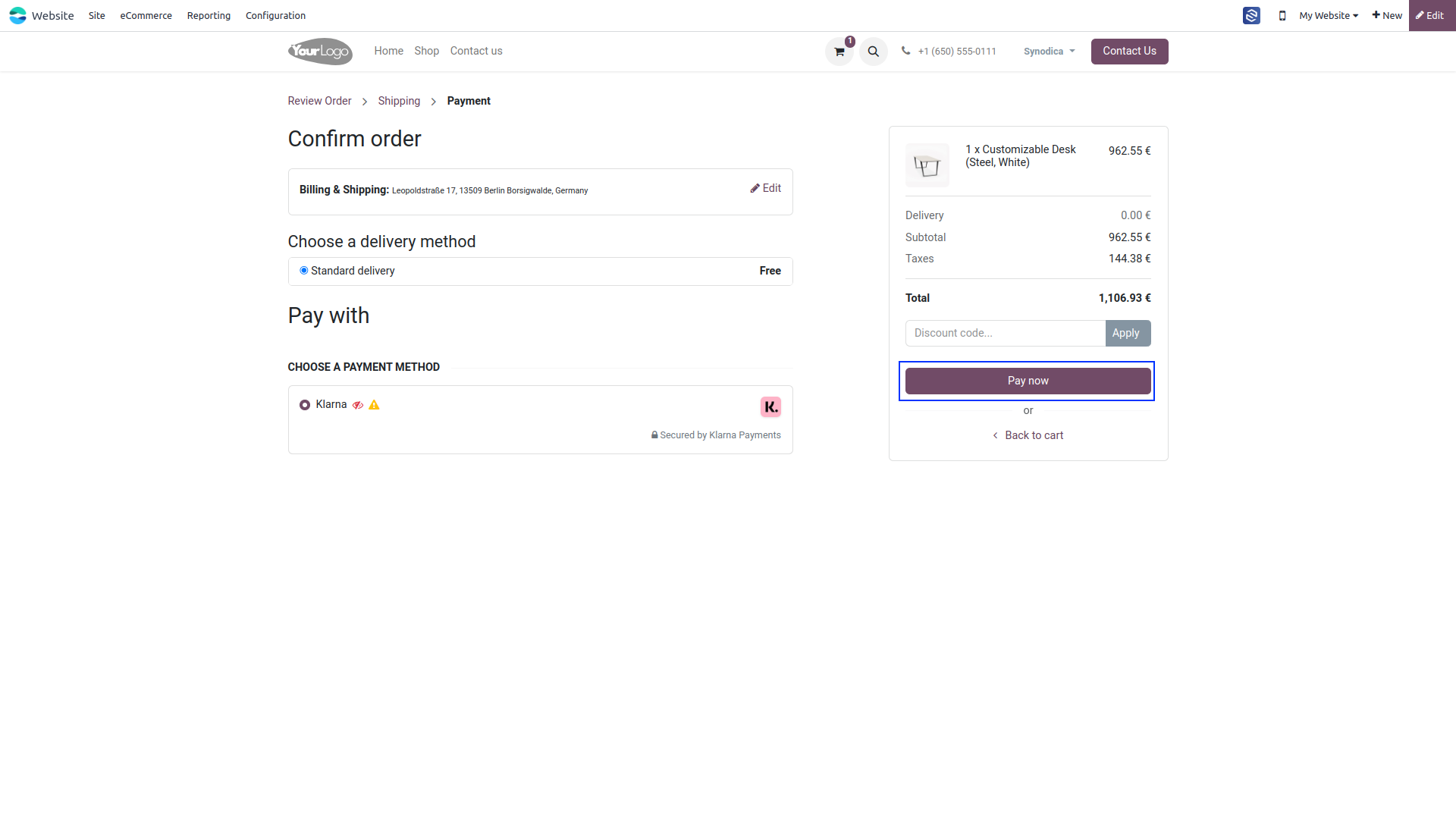
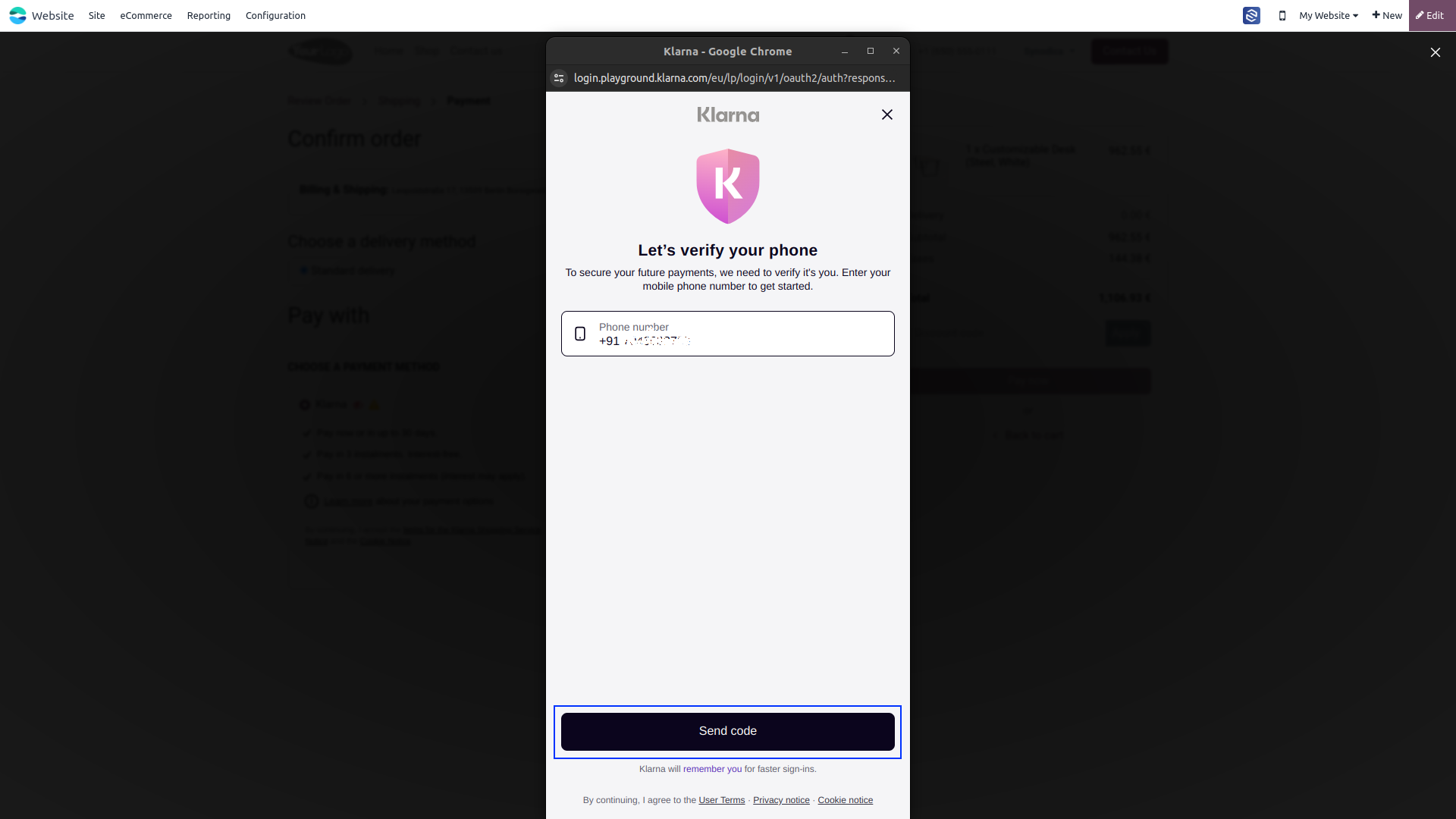
Verify your self with Phone and Email-ID
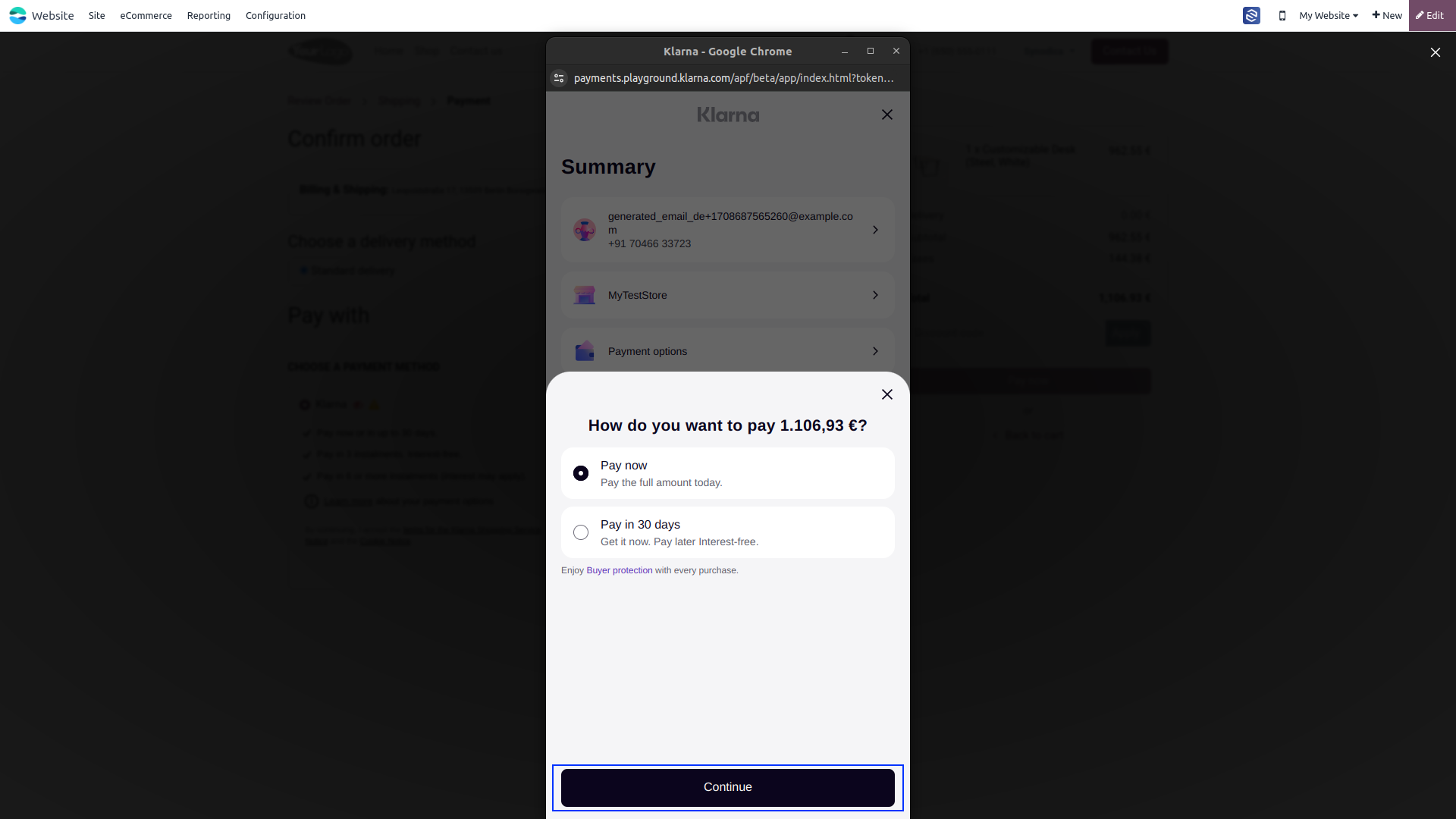
Please choose your preferred payment option: Pay Now or Pay in 30 Days and Click Continue. Opting to Pay Now will direct you to the payment screen, while selecting Pay in 30 Days will redirect you to the Review Order page.
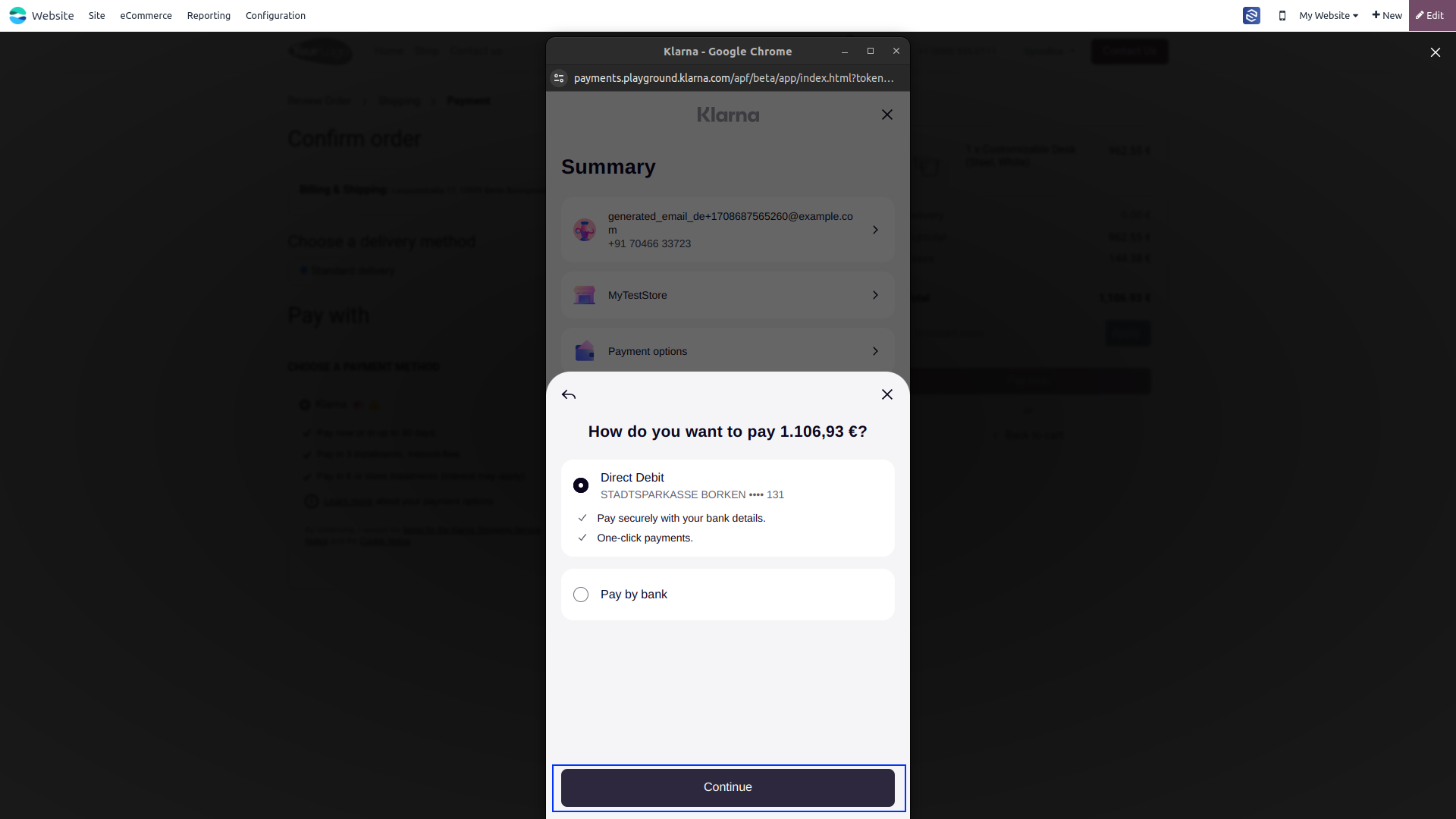
In Payment Screen pay with Debit Card or Bank. And Click Continue. You will redirect you to the Review Order page.
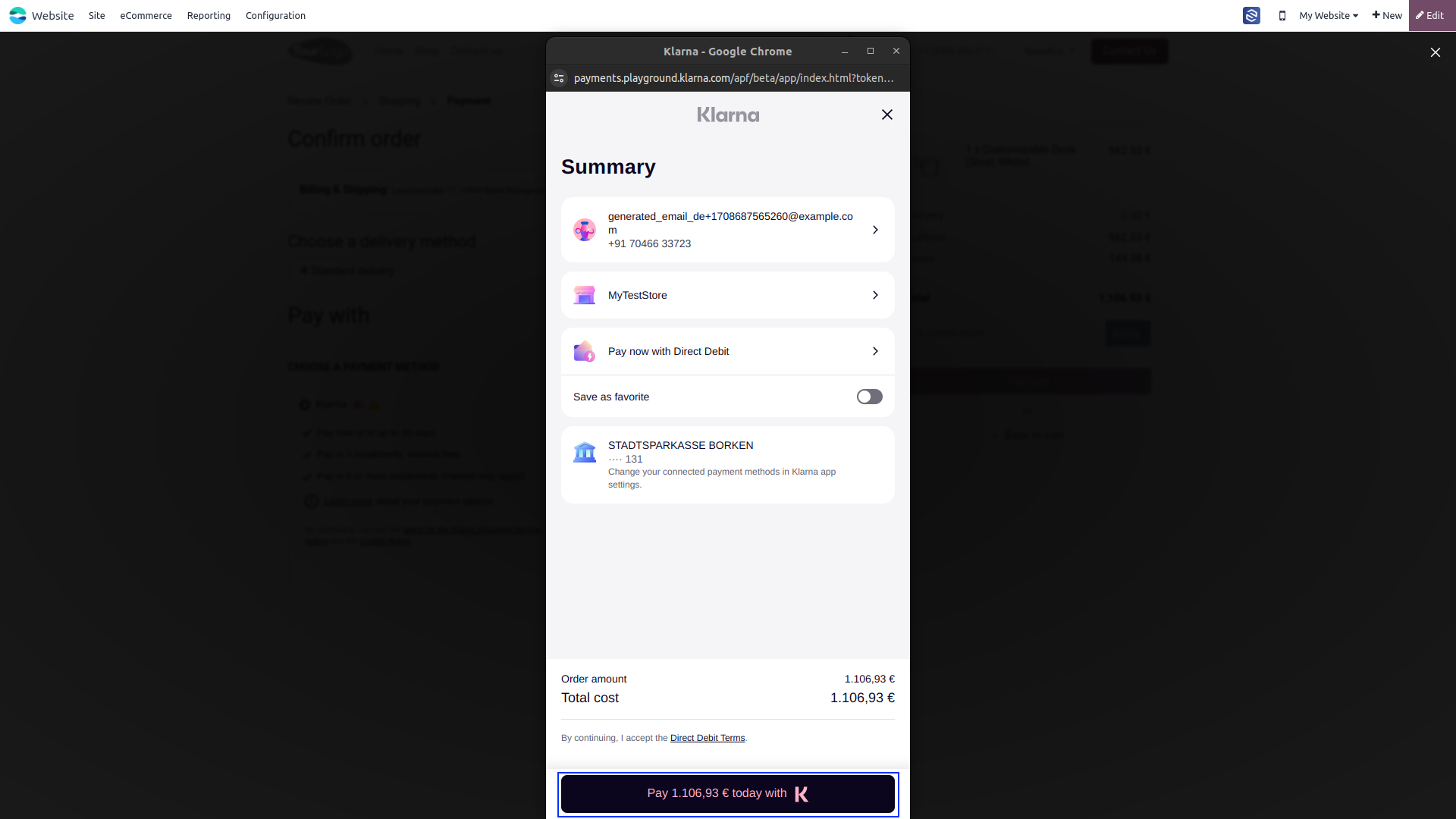
Kindly review your order details and proceed by clicking the Pay with Klarna button. Upon successful payment, you will be directed to the Odoo confirmation screen.
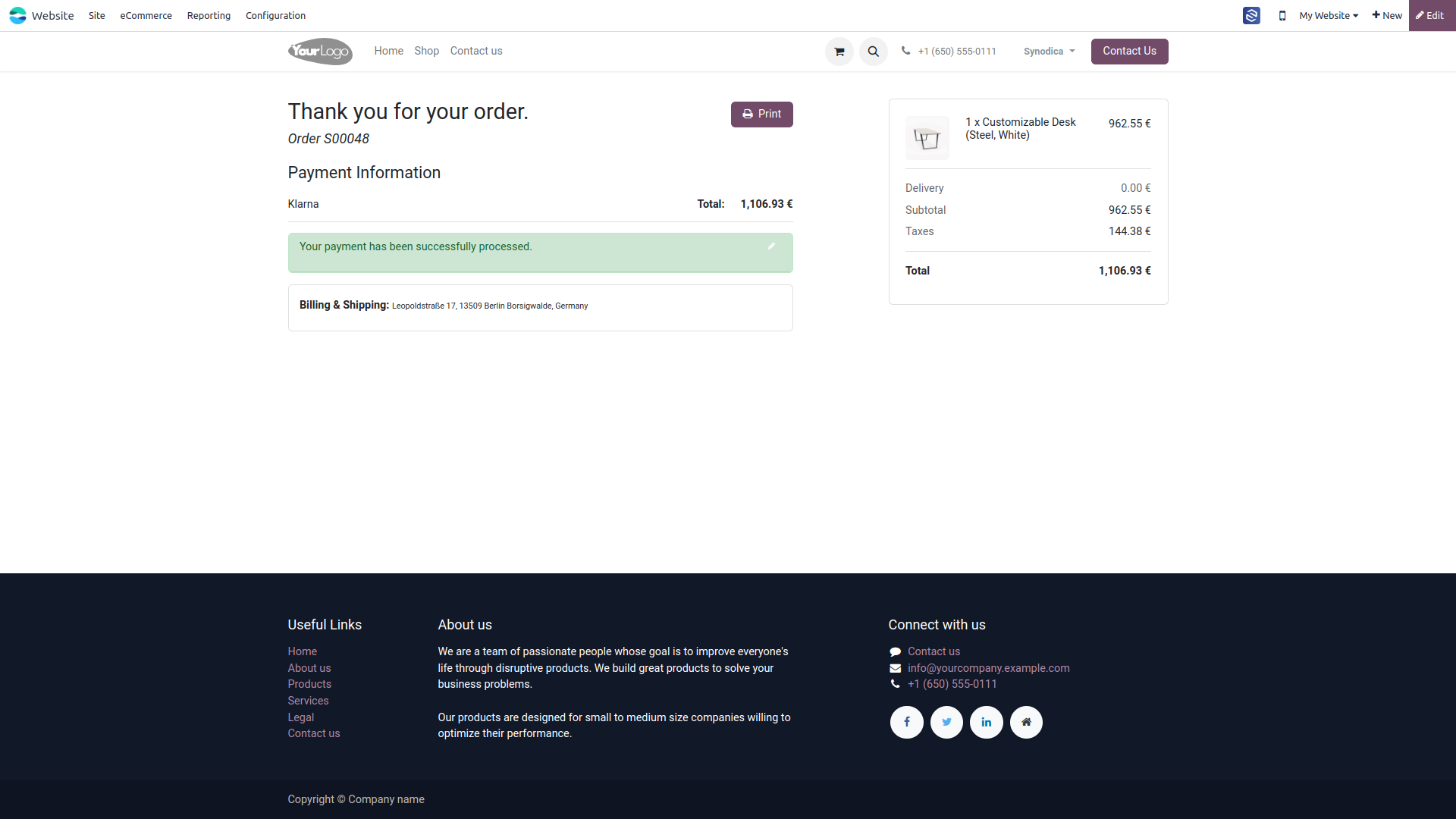
On the Confirmation screen, you will see that your order has been successfully paid.

Payment From Sale Order
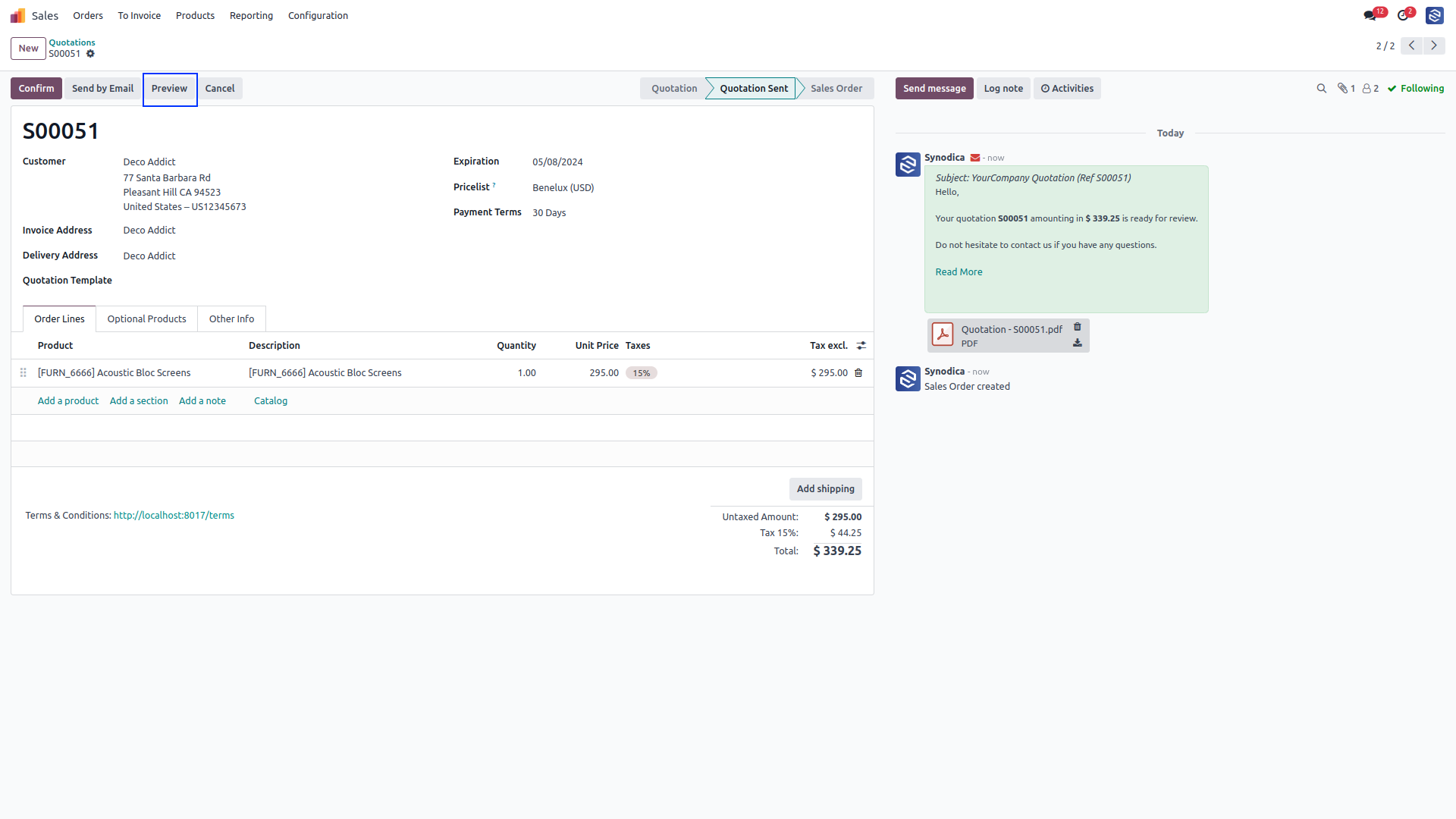
To pay with sale order, create sale order and click Preview button
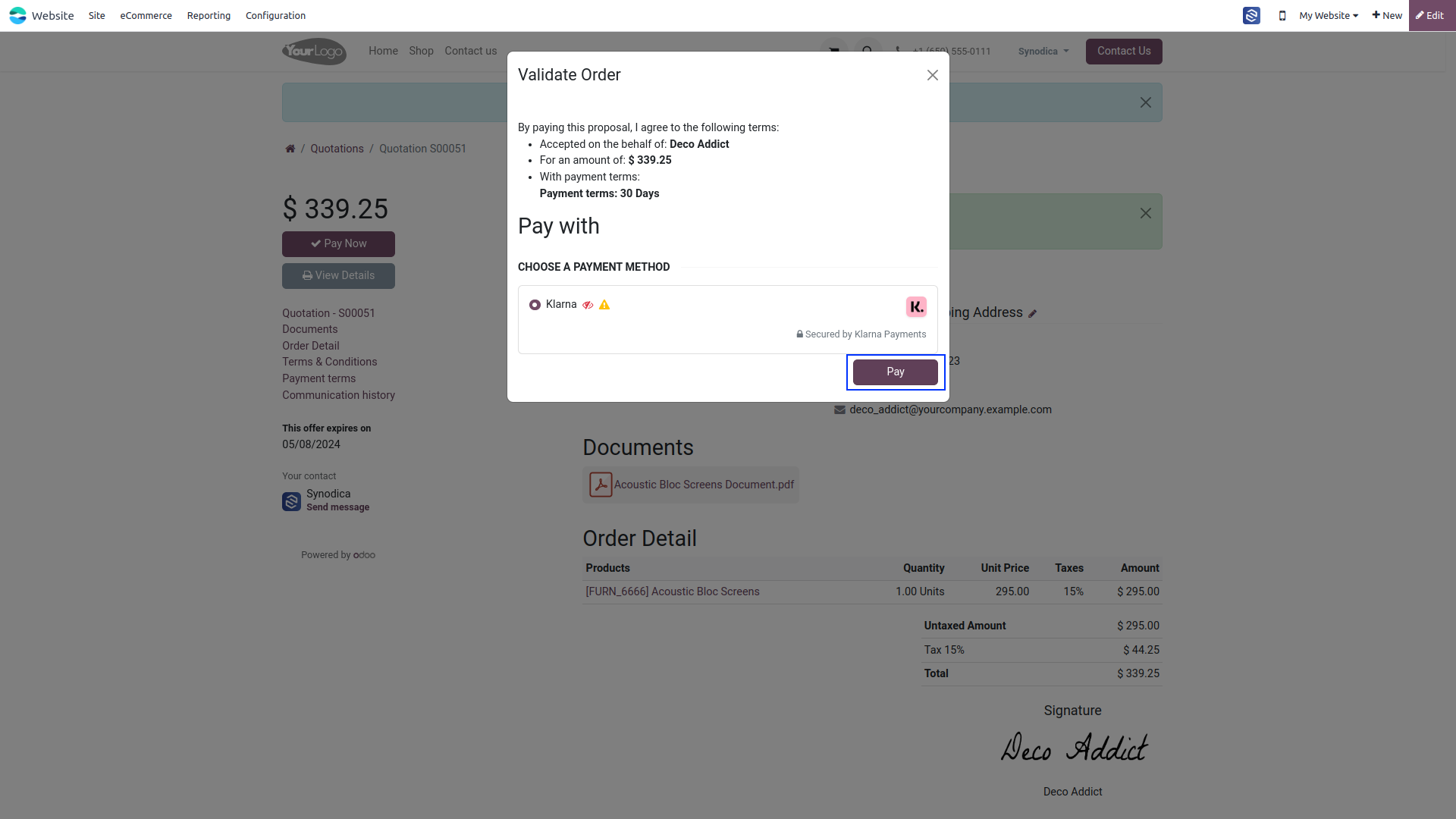
Now click Sign & Pay, Sign document and select Klarna as payment method. Then click Pay.
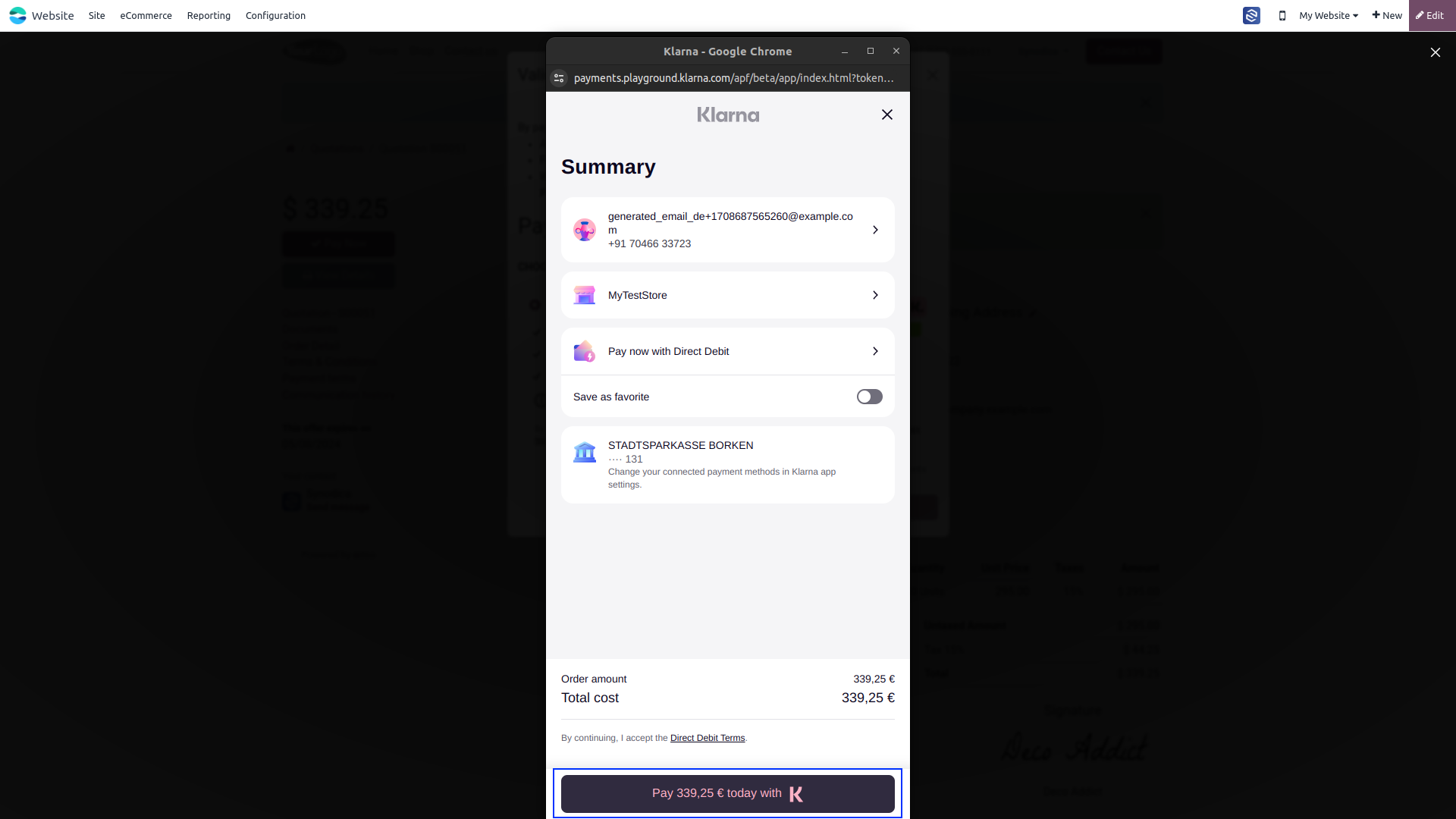
Select preferred payment method. Then pay and review your order details and proceed by clicking the Pay with Klarna button
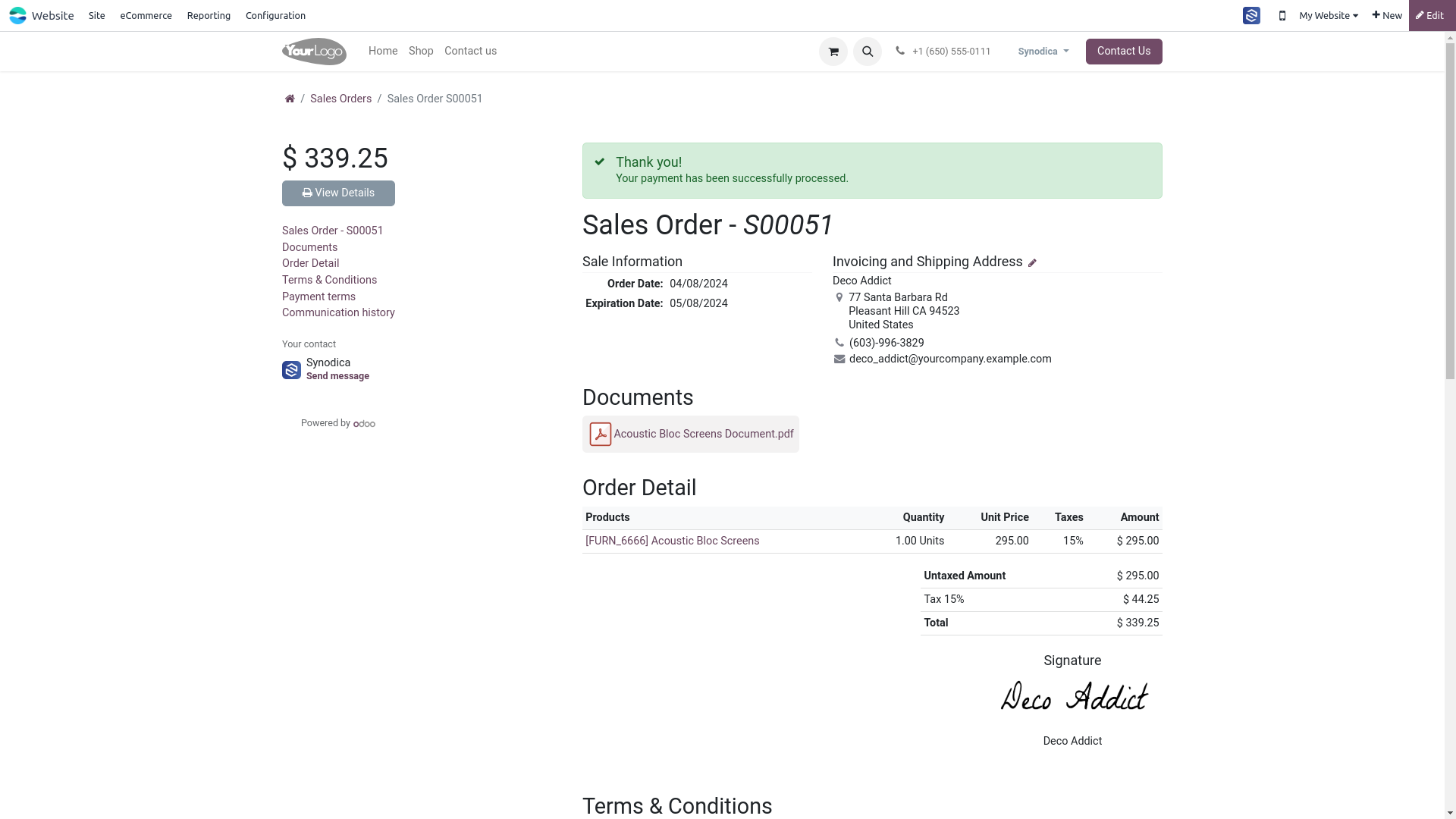
On the order preview screen, you will see that your order has been successfully paid.

Payment From Invoice
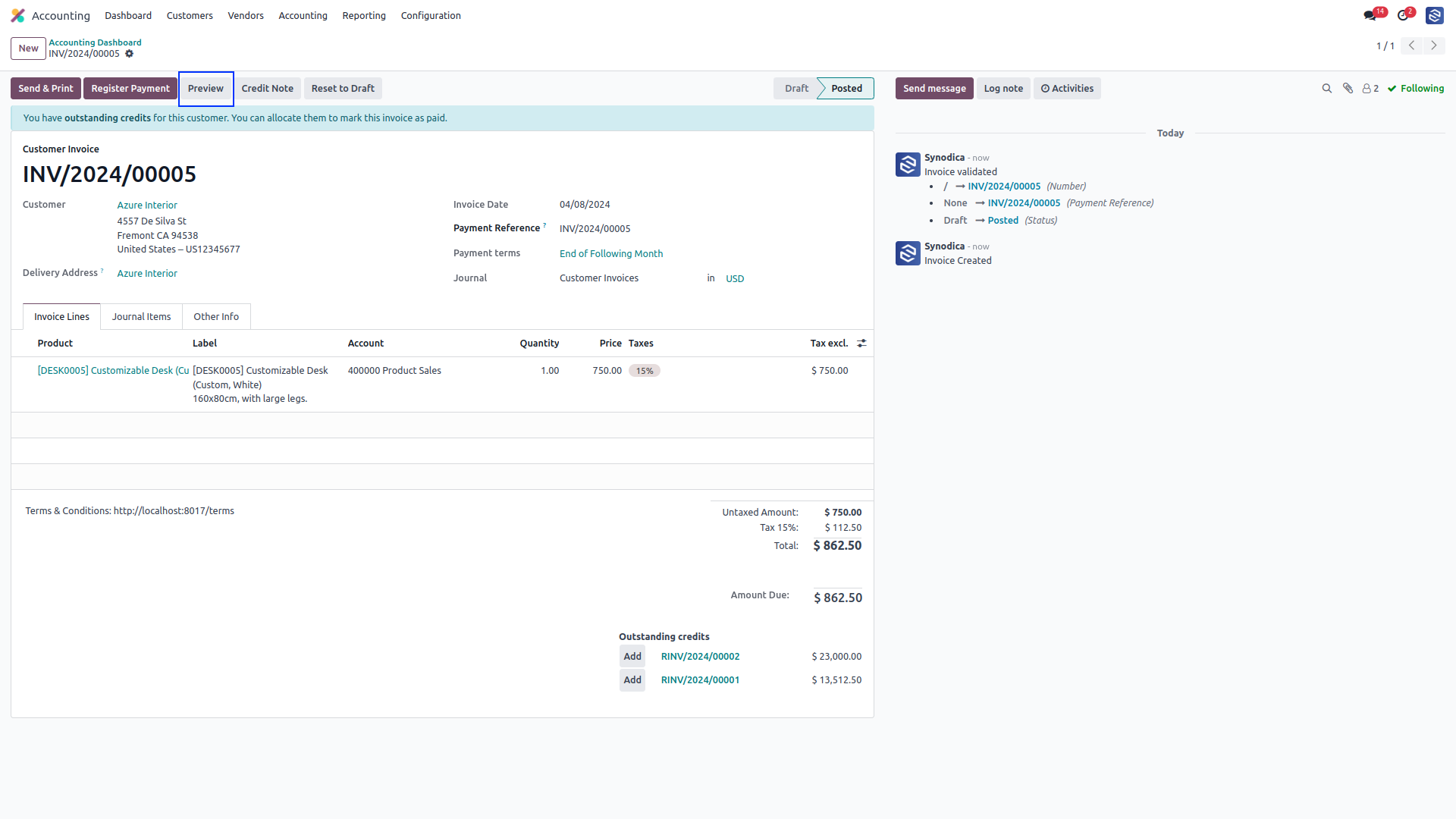
To pay with invoice, create invoice and click Preview button
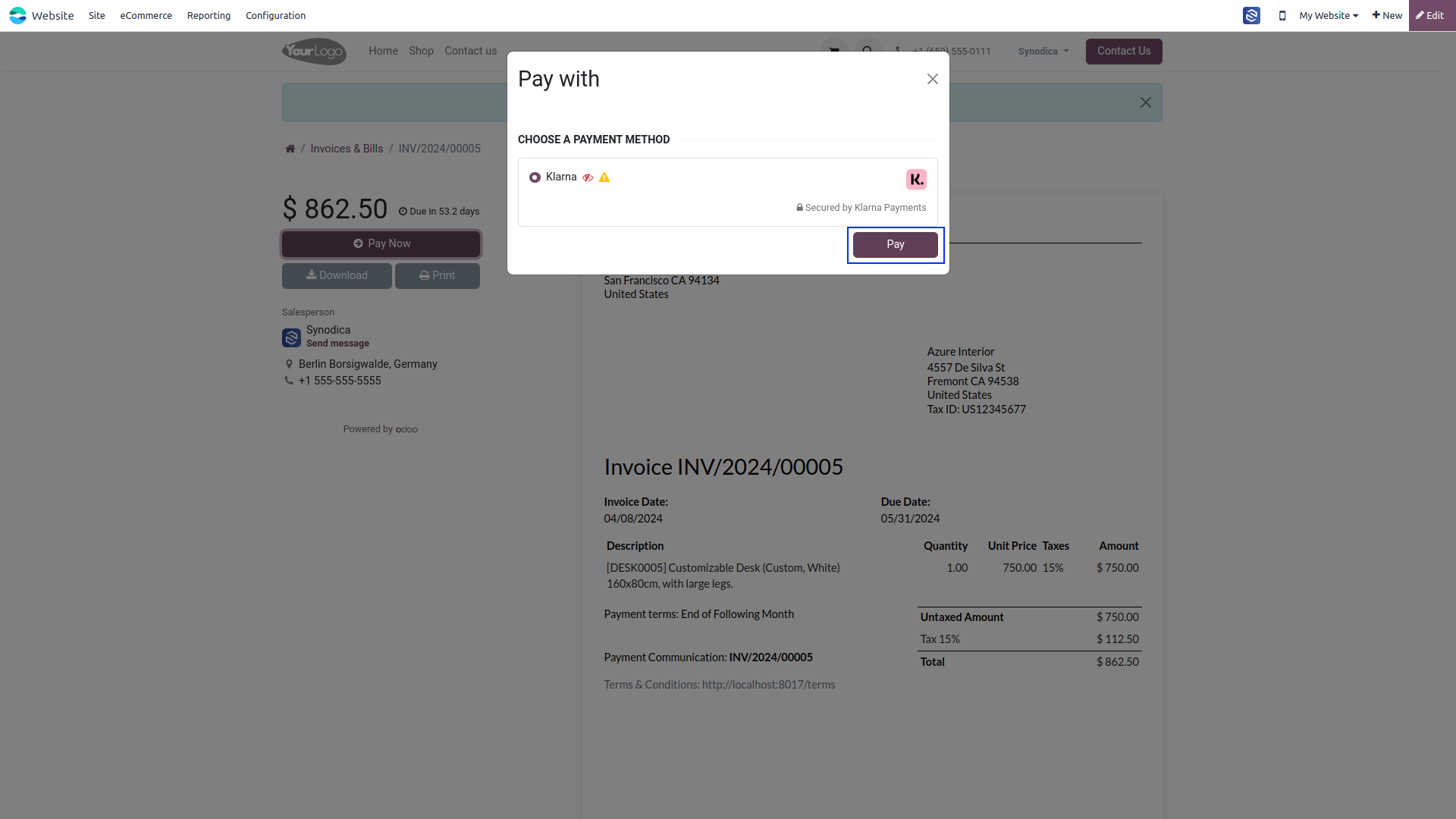
Now click Pay Now, There select Klarna as payment method. Then click Pay.
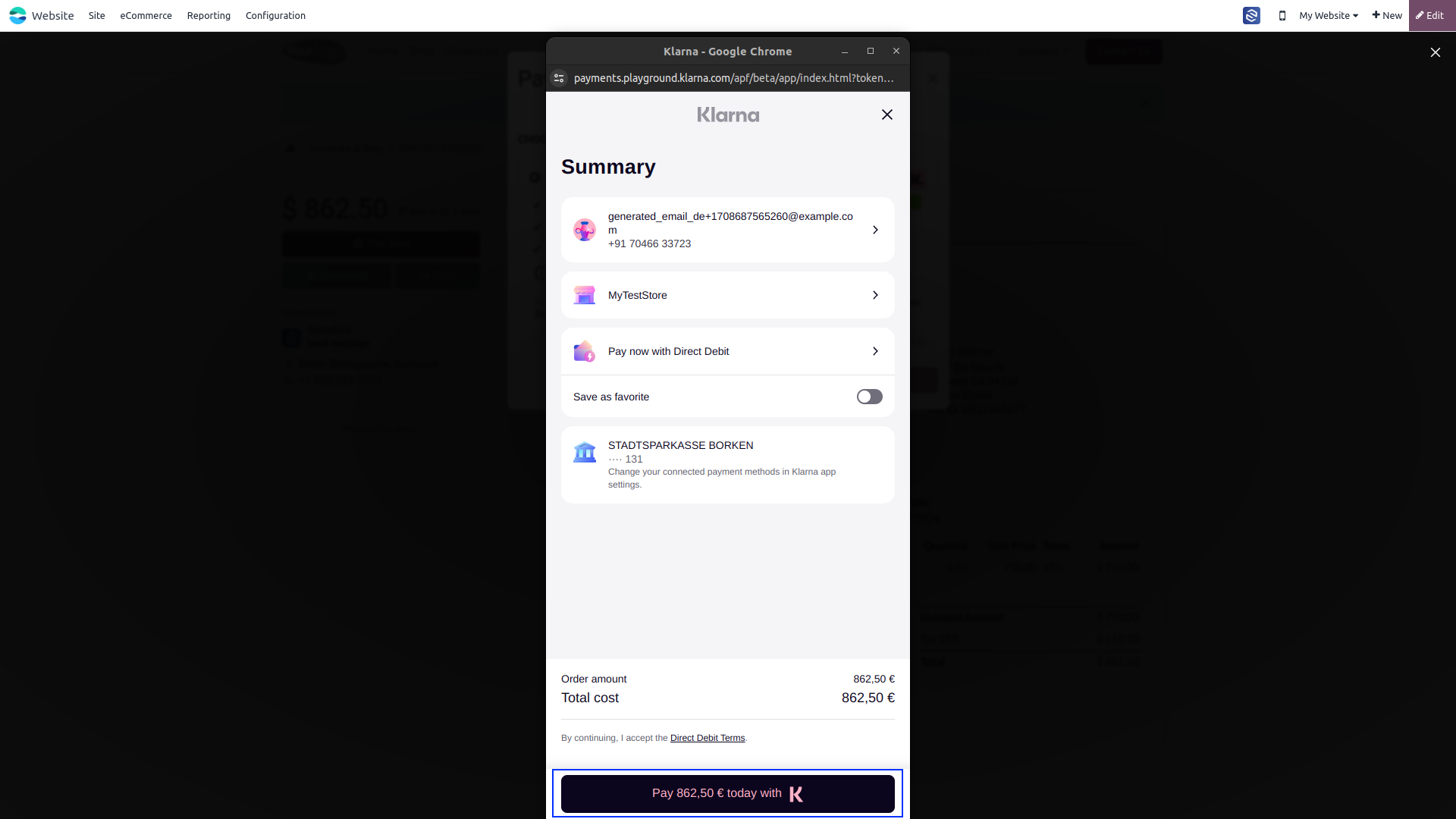
Select preferred payment method. Then pay and review your order details and proceed by clicking the Pay with Klarna button
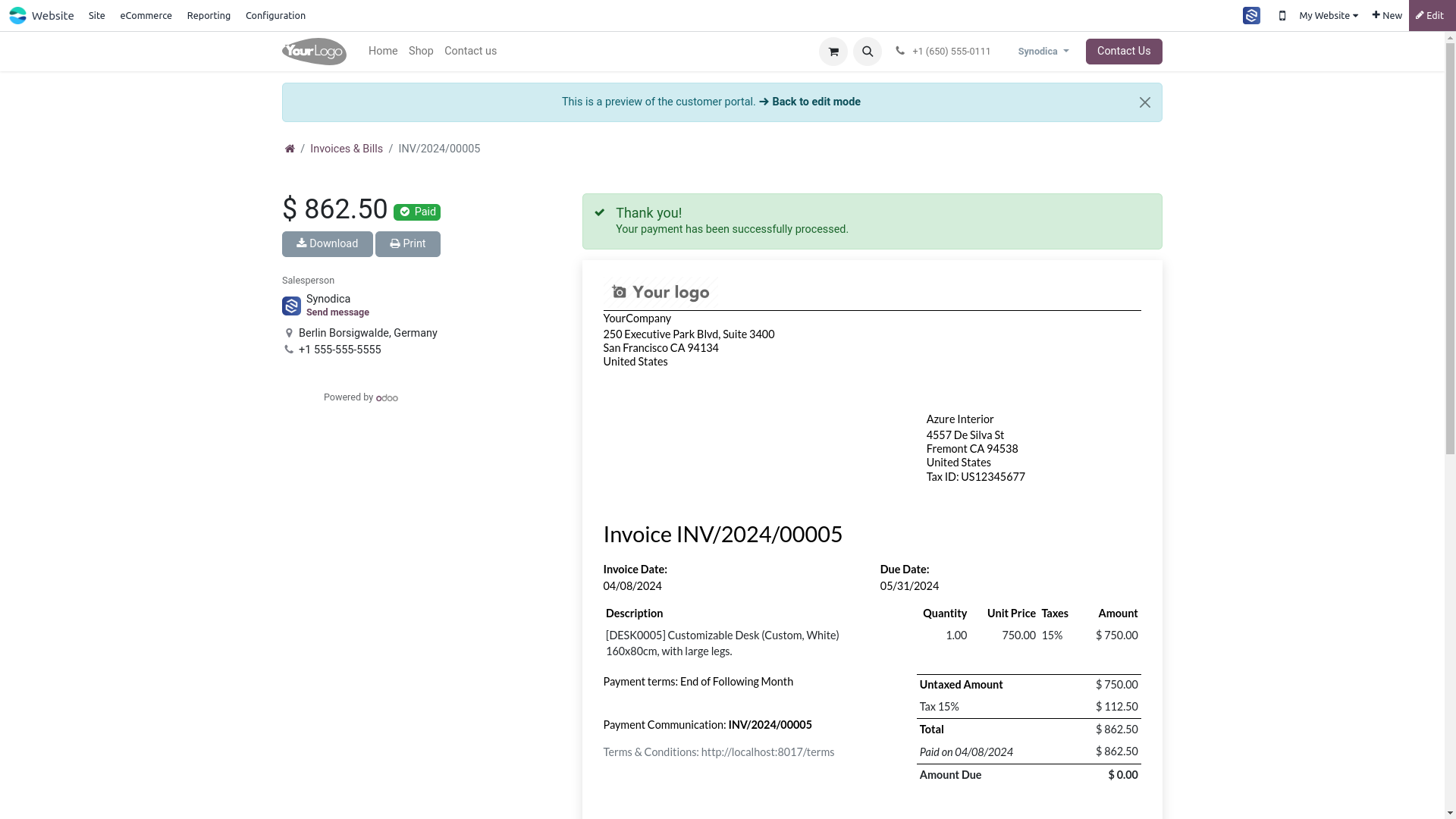
Upon successful payment, you will be directed to the invoice preview page, and you will see that your invoice has been successfully paid.

Refund
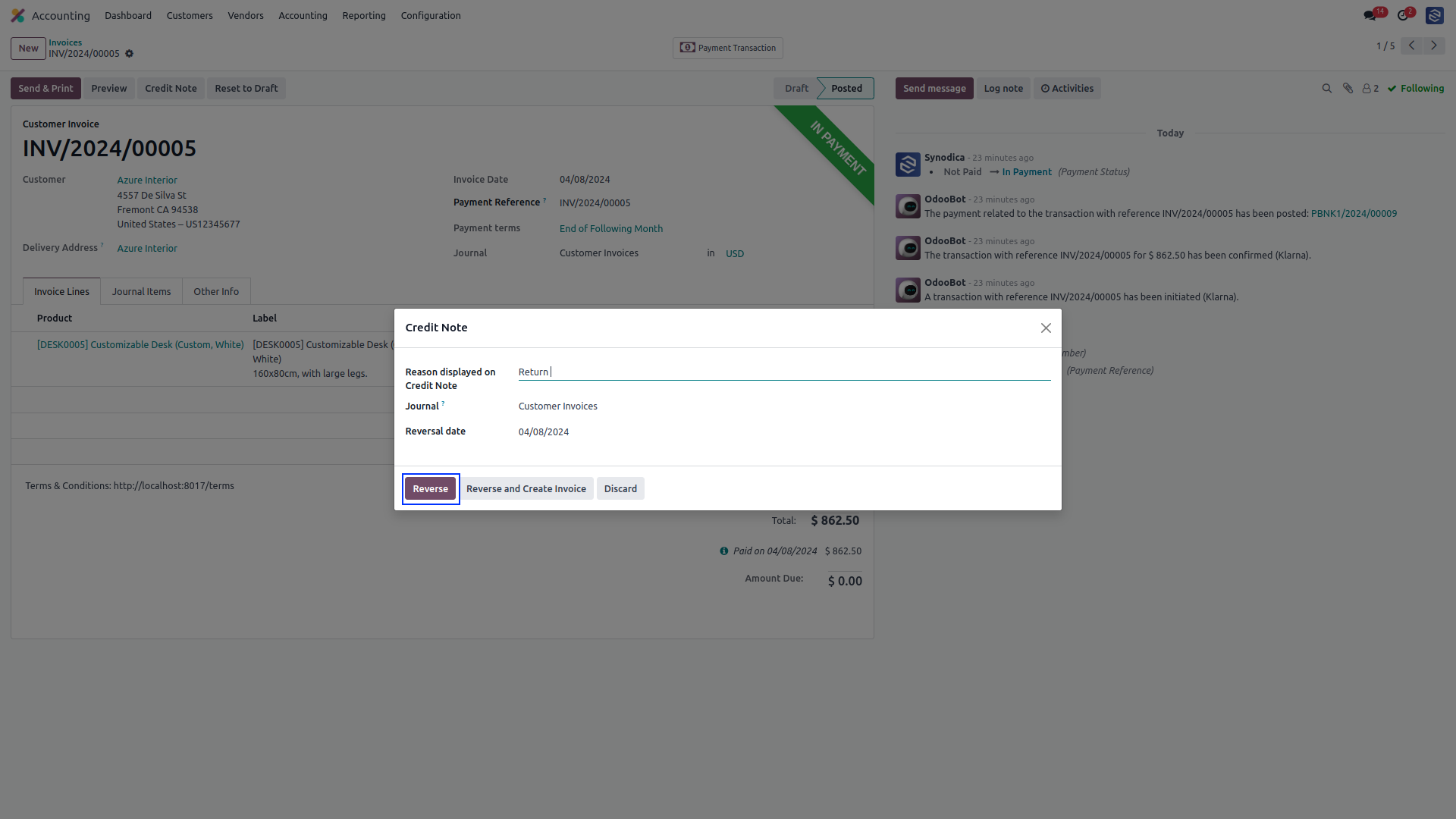
To initiate a refund, please create a credit note for the corresponding invoice
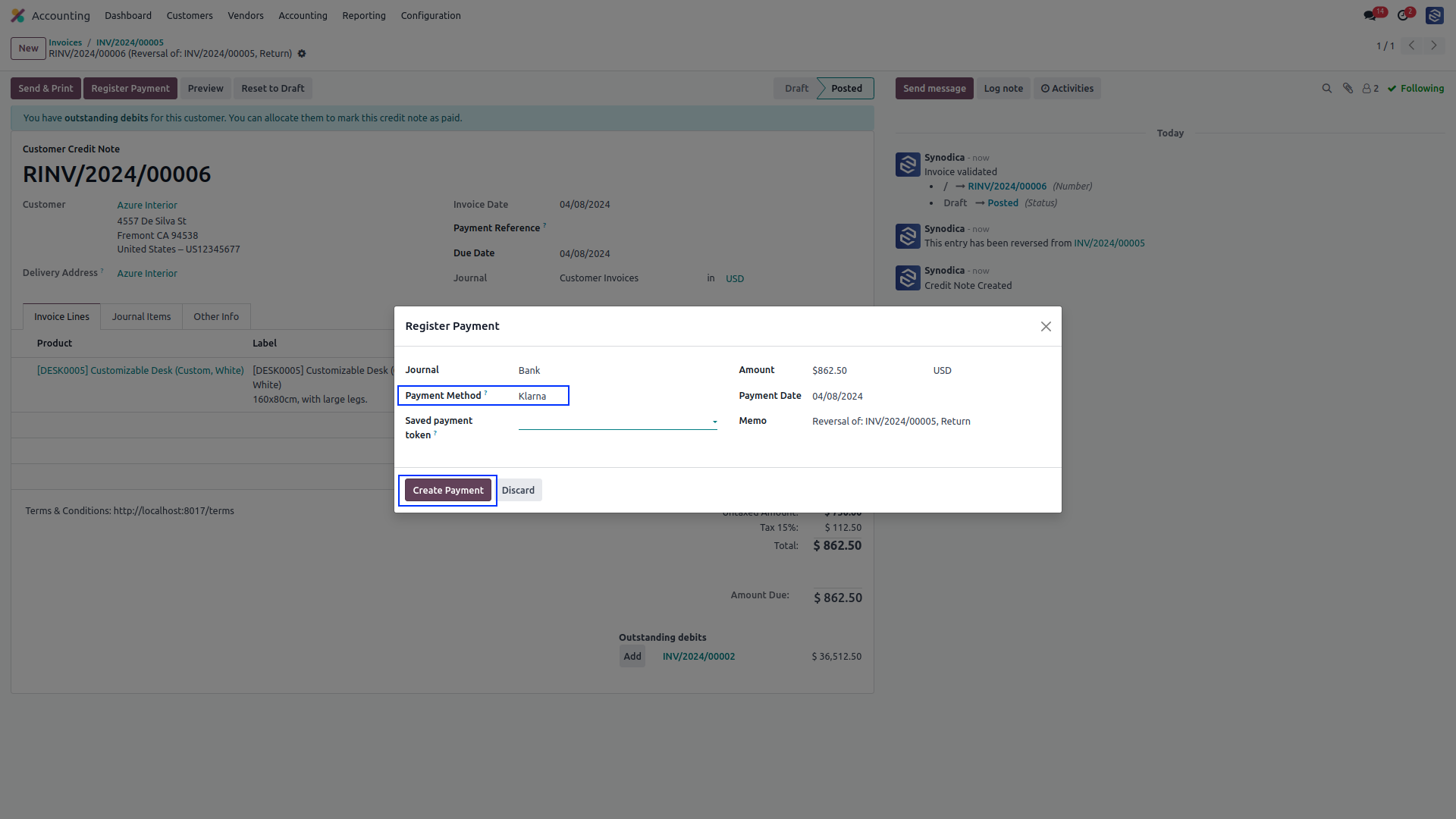
click on Register Payment. A popup window will appear. In the popup, select Klarna as the payment method. and click on Create Payment.
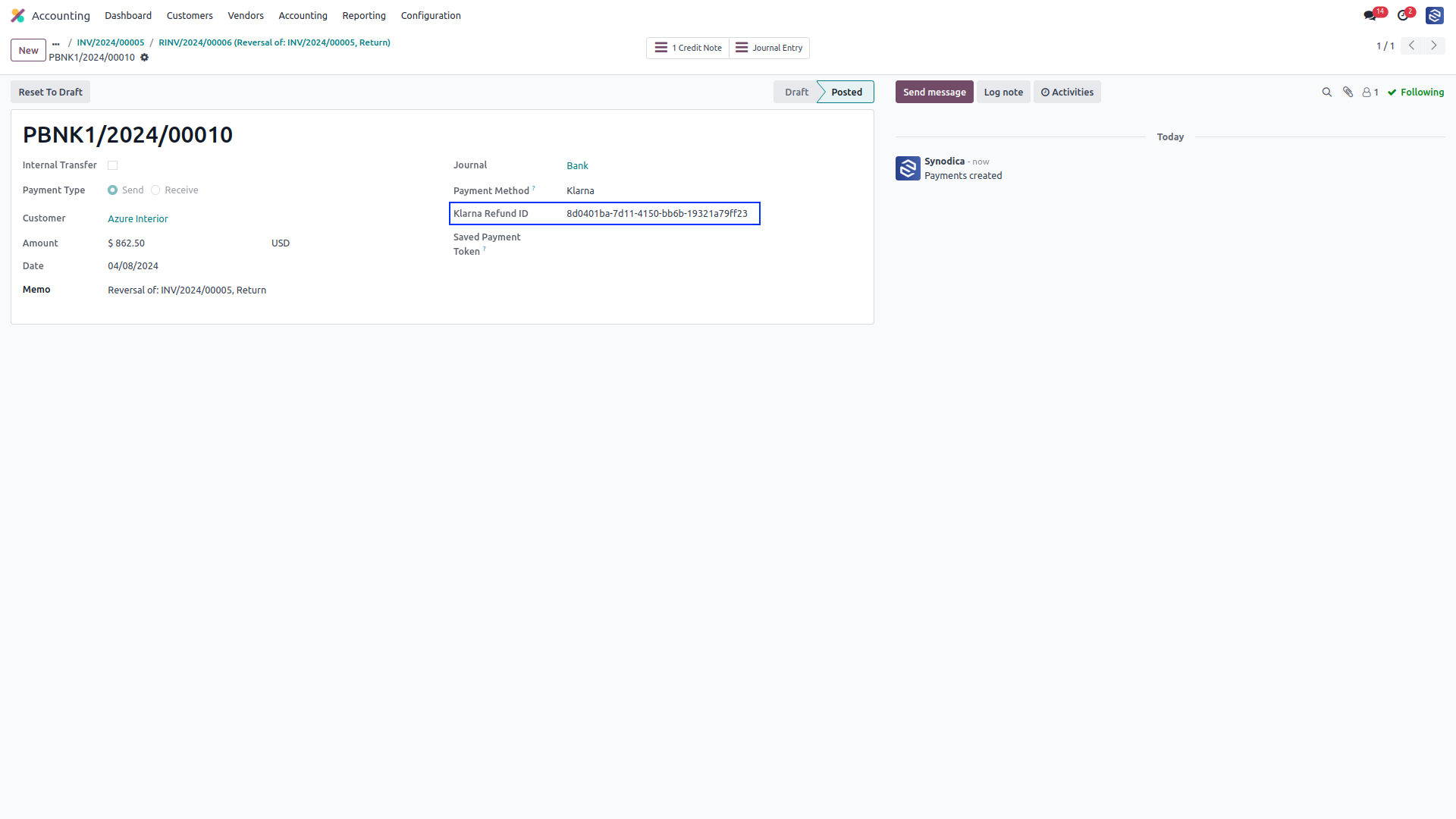
In the created journal entry, you will find the refund ID.
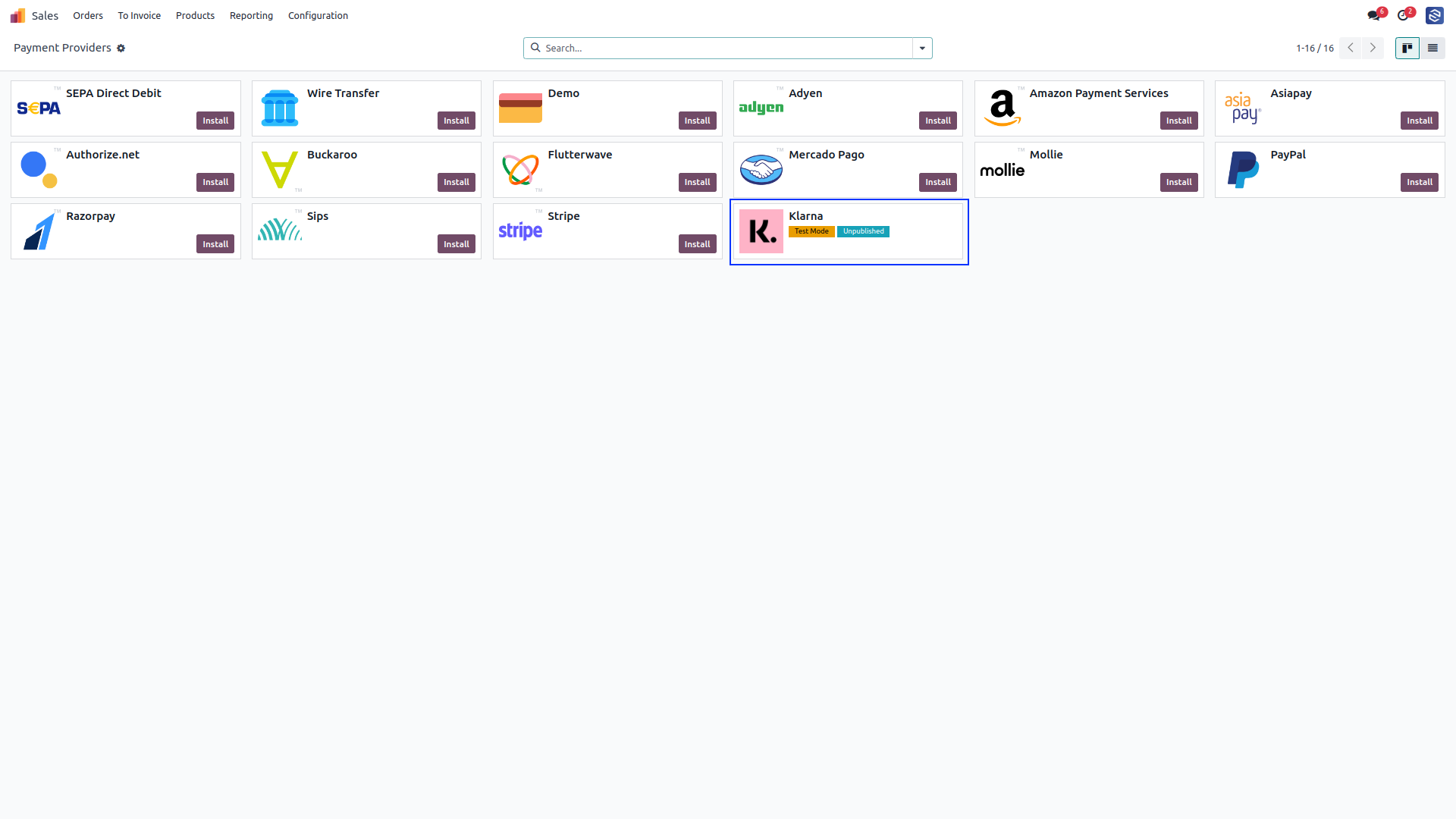
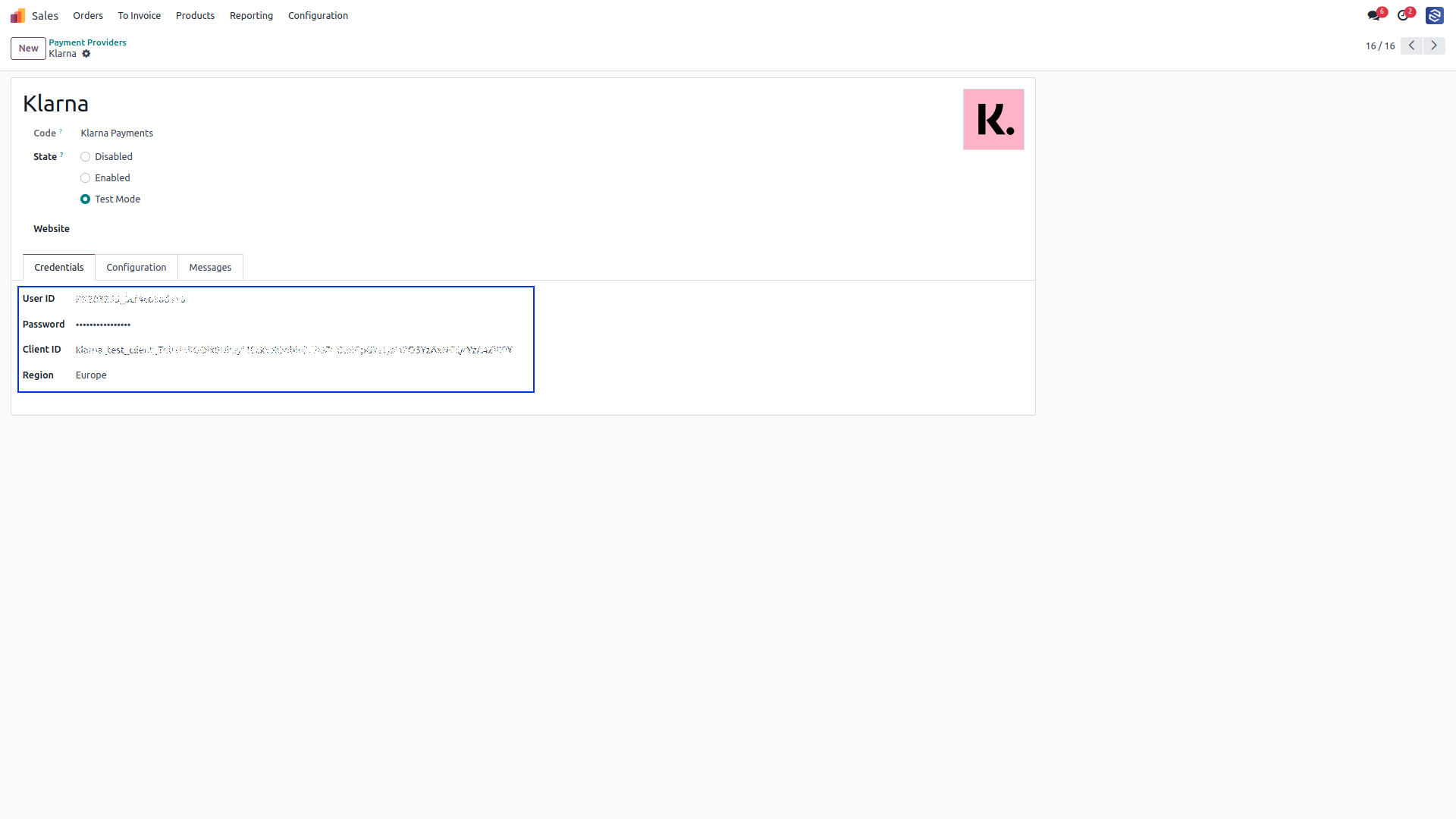
After installing app, you will be able to see Klarna payment options in Accounting >> Configuration >> Payment Providers menu
Setup Klarna configurations like UserID, Password, Client ID and Region.
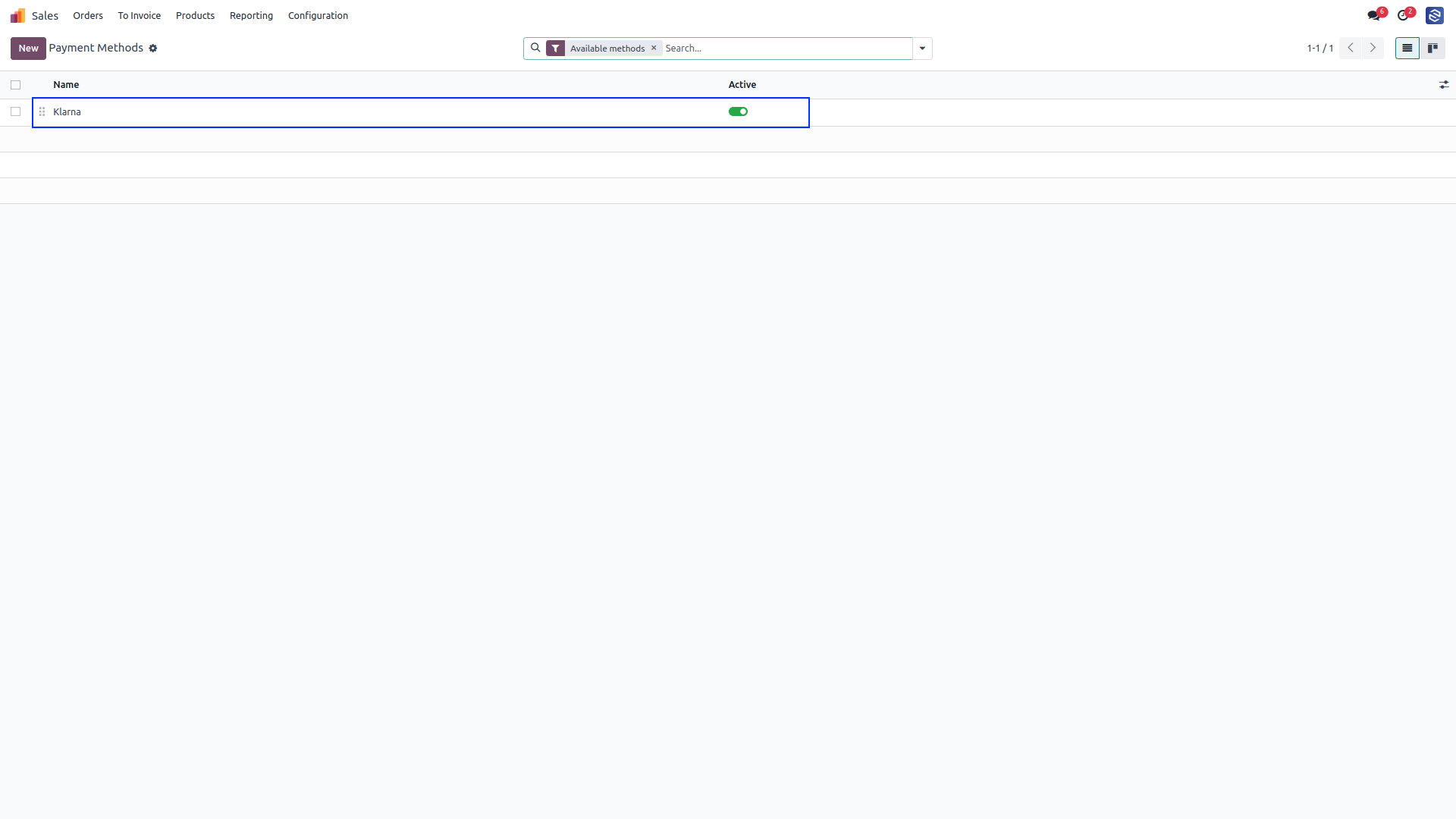
To activate the payment method go to Accounting > Configuration > Payment Methods.
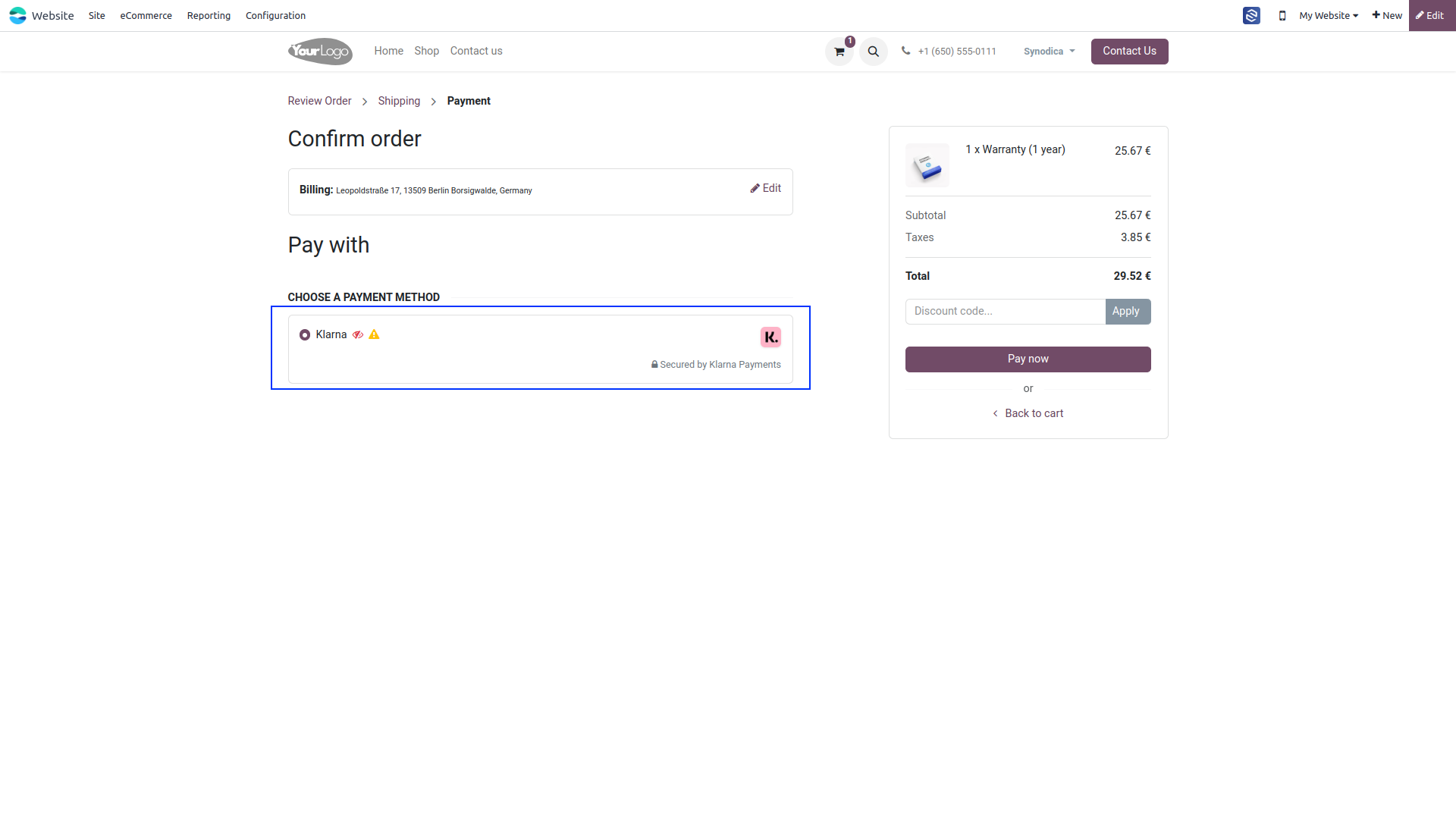
Now Klarna payment option will be available for payment.
Suggested Products






Contact Us
We create ERP solutions for you using Odoo ERP that will build a strong and efficient business for you. It's SYNODICA WAY