

OpenCart Connector
OpenCart Meets Odoo.
|
|
What This Connector Does
Everything you need to connect your OpenCart storefront with Odoo ERP — from initial setup to real-time sync and monitoring.
Bidirectional Product SyncImport products from OpenCart or export Odoo products to your store. SKU-based matching with full variant and option support. |
Order ImportImport OpenCart orders as Odoo sale orders with line items, customer mapping, and configurable status filters. |
Customer SyncImport OpenCart customers as Odoo contacts with billing and shipping addresses. Guest order fallback included. |
Category SyncSync OpenCart category tree with parent–child hierarchy into Odoo for organized product catalogs. |
Inventory PushPush Odoo on-hand stock quantities to OpenCart. Run manually or on a scheduled cron with batch sizes. |
HMAC WebhooksReal-time signed webhook events for orders, products, customers, and stock changes from OpenCart. |
Scheduled CronsBackground auto-import for orders, products, customers, categories, and inventory — each with its own interval. |
Queue-Based JobsNon-blocking batch processing with progress bars, auto-retry on failures, and concurrency-safe execution. |
Dashboard & AnalyticsOpenCart dashboard with sync stats, order graphs, and instance-level KPIs at a glance. |
API Audit LogsFull request/response logging with error tracebacks, sync type badges, and searchable log history. |
REST Bridge ExtensionDownloadable PHP bridge for OpenCart — installs via OCMOD with one-click setup wizard in Odoo. |
Payment & Shipping MapsMap OpenCart payment codes and shipping methods to Odoo journals and delivery carriers. |
Interactive Walkthrough
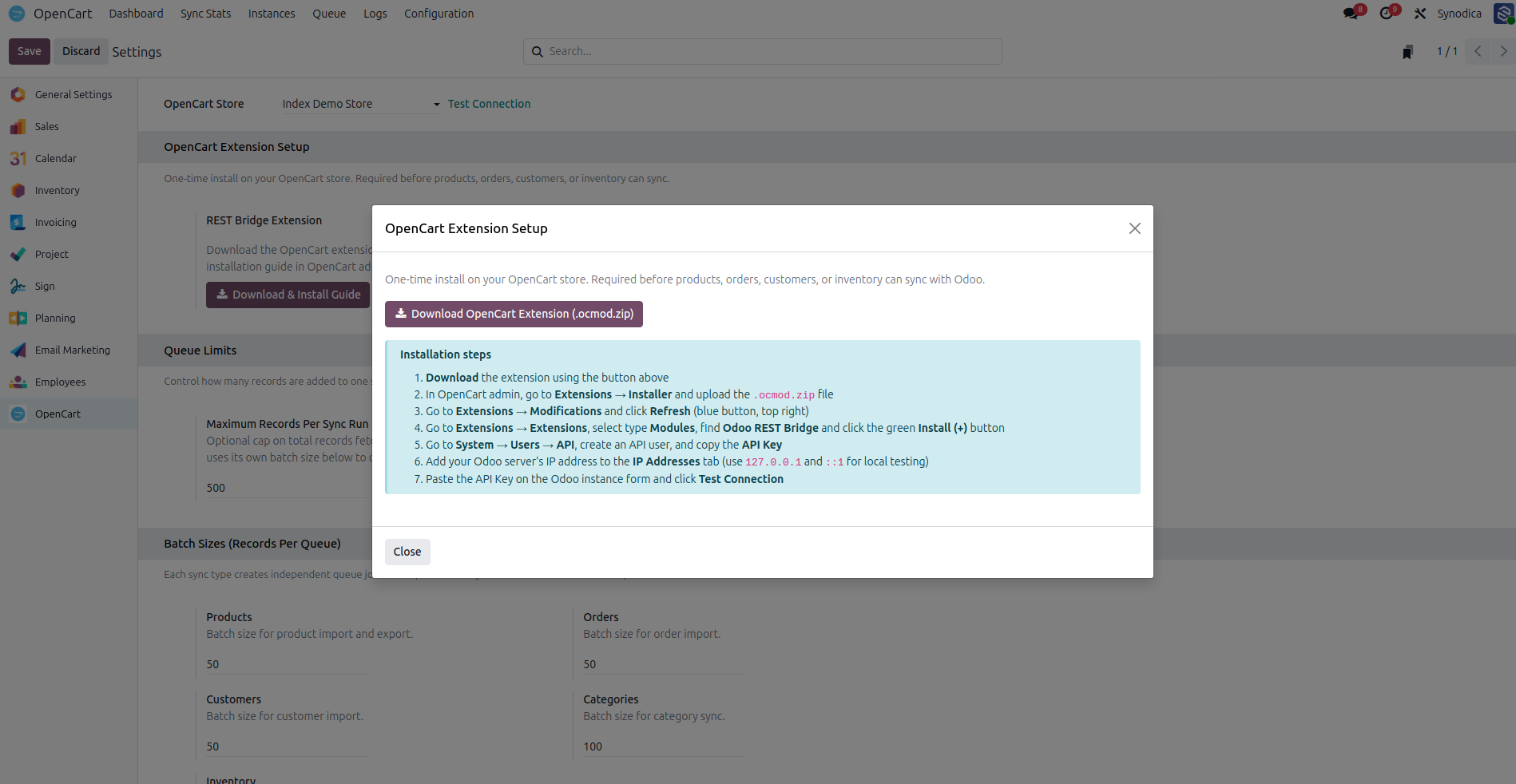
1Download REST Bridge Extension
2OpenCart API User
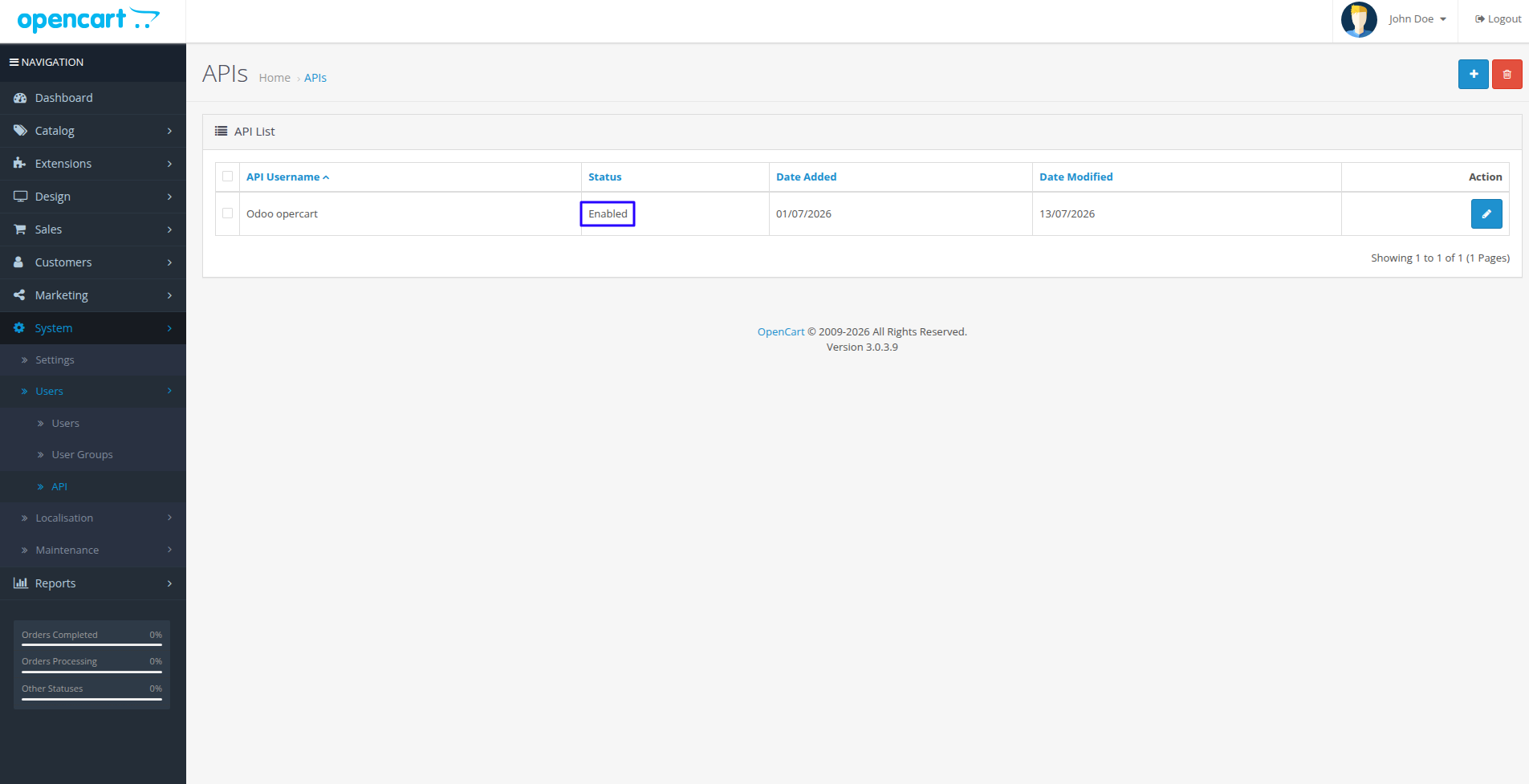
2. OpenCart API User
System → Users → API — Odoo opercart user with key and IP whitelist.
3Odoo Instance Form
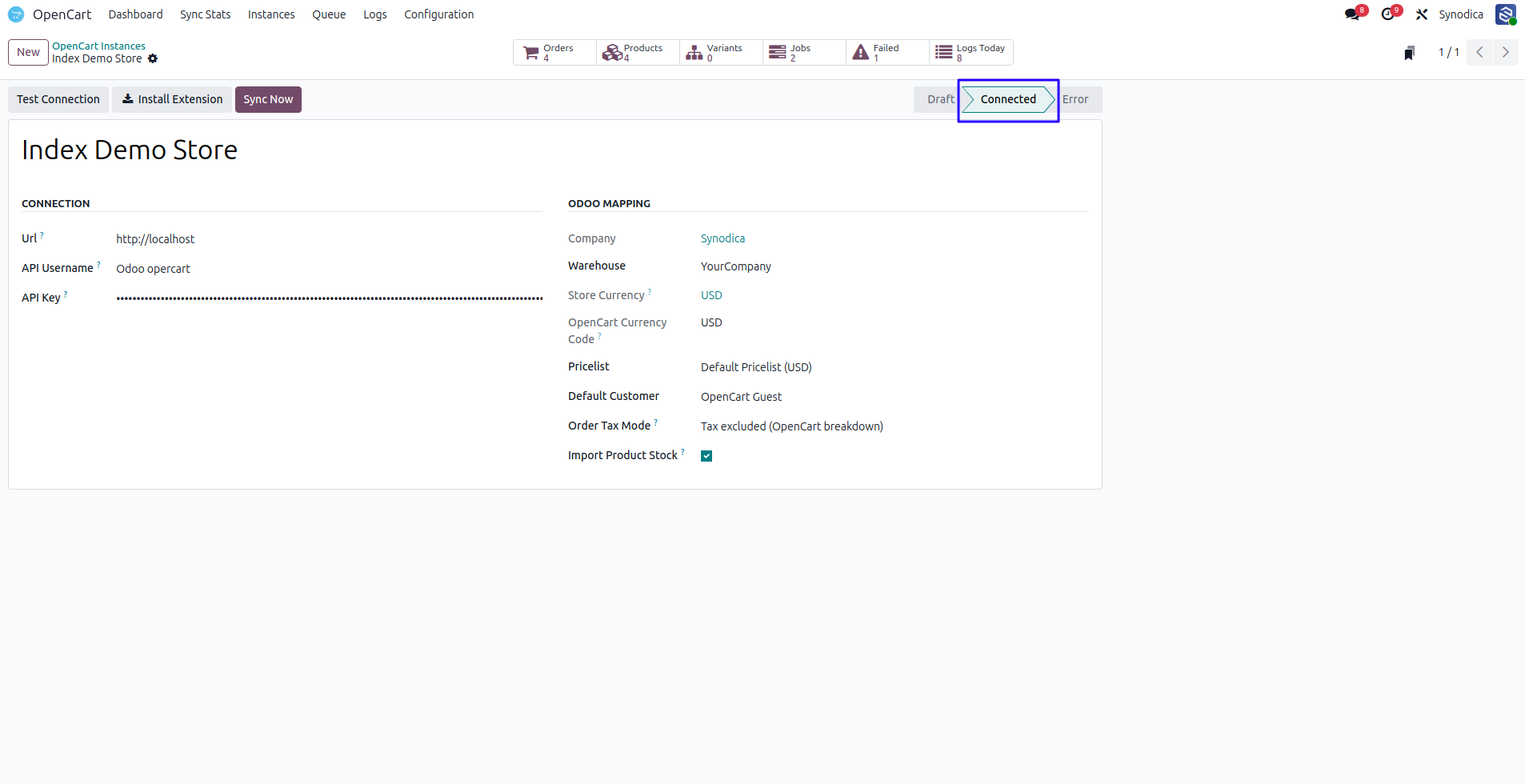
3. Odoo Instance Form
Index Demo Store — URL, API credentials, warehouse, currency, and mapping.
4Test Connection Success
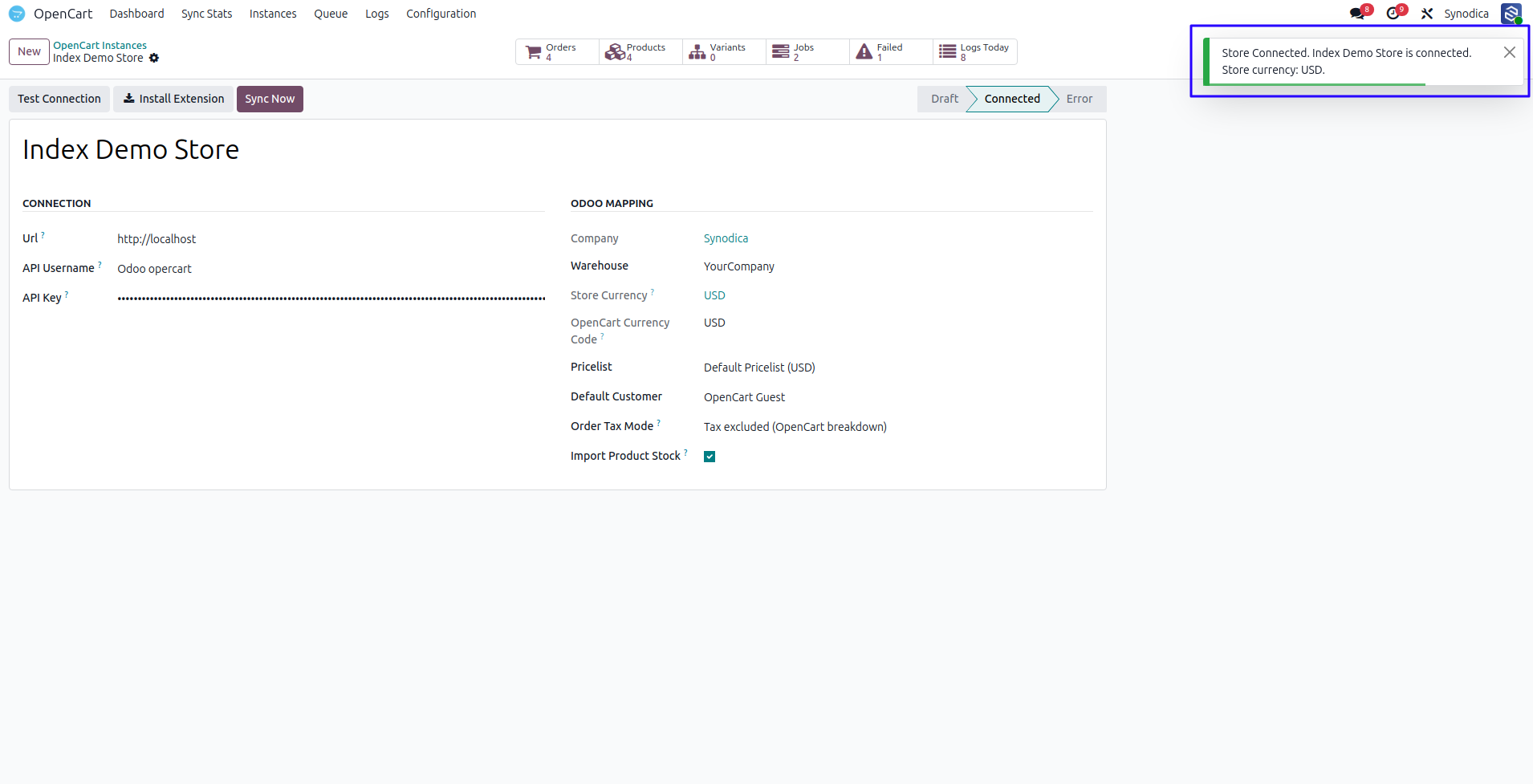
4. Test Connection Success
Green success notification after validating the store connection.
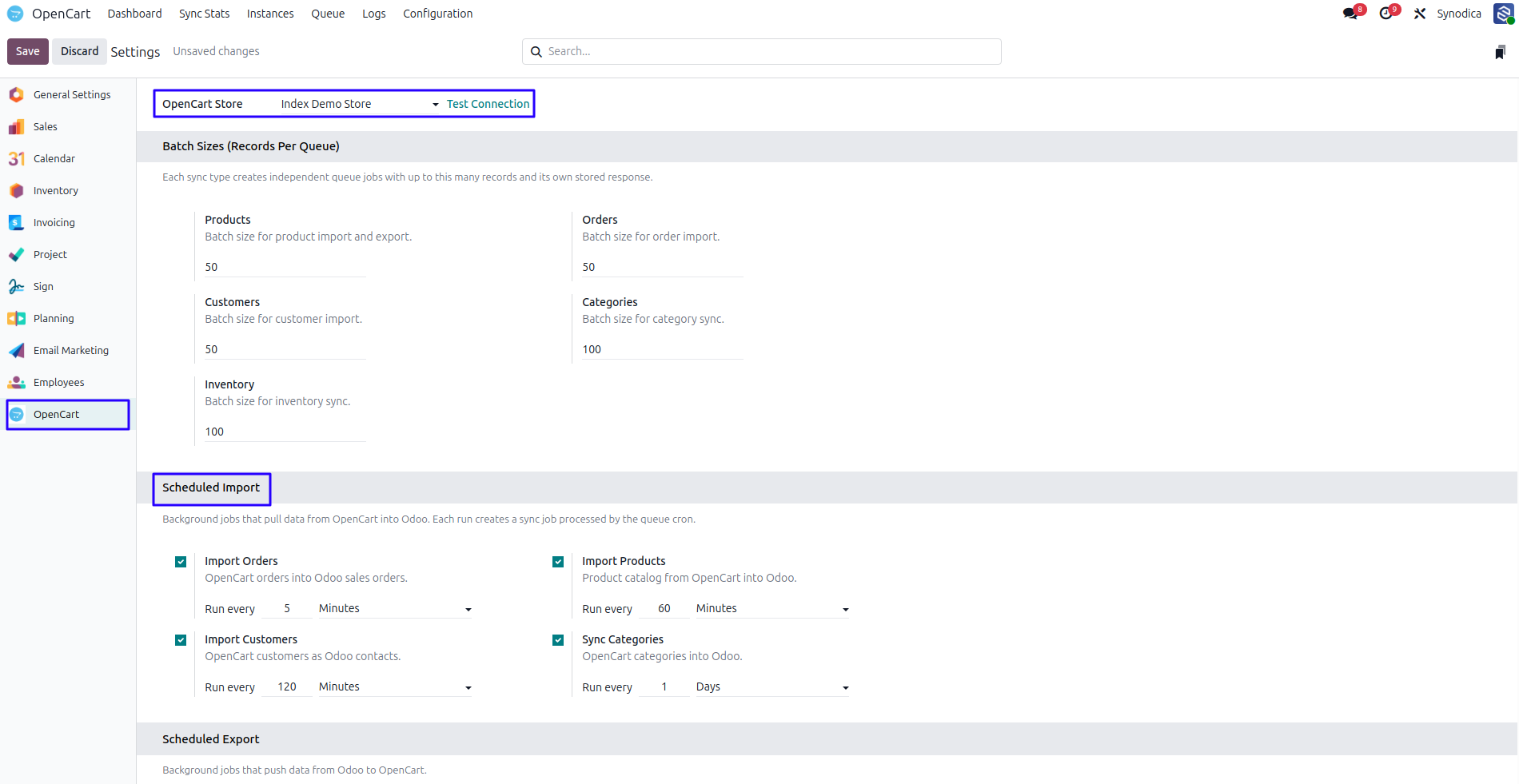
5Odoo Settings Panel
5. Odoo Settings Panel
Queue limits, scheduled imports, order config, and webhook section.
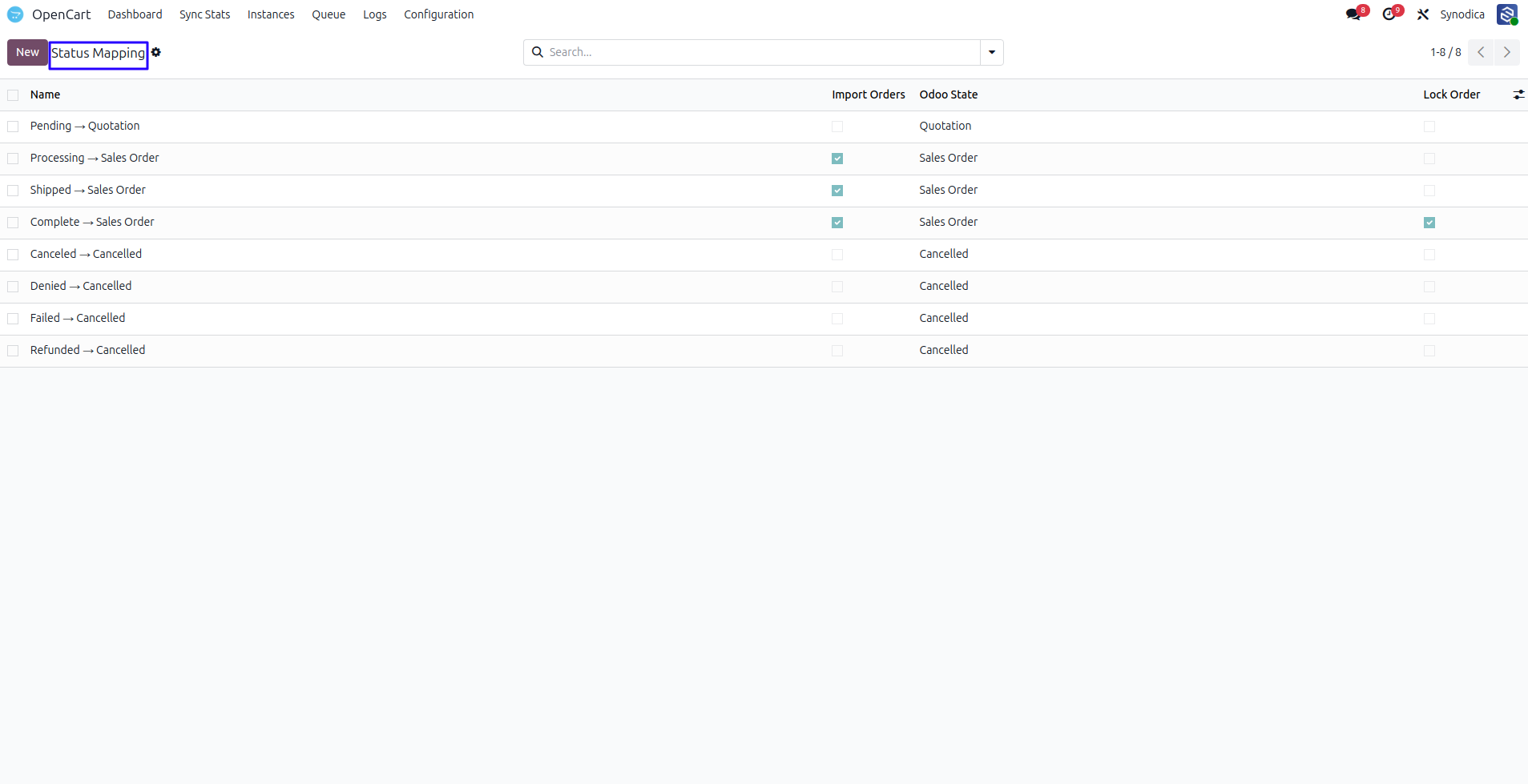
6Order Status Mapping
6. Order Status Mapping
Pending, Processing, and Complete statuses enabled for import.
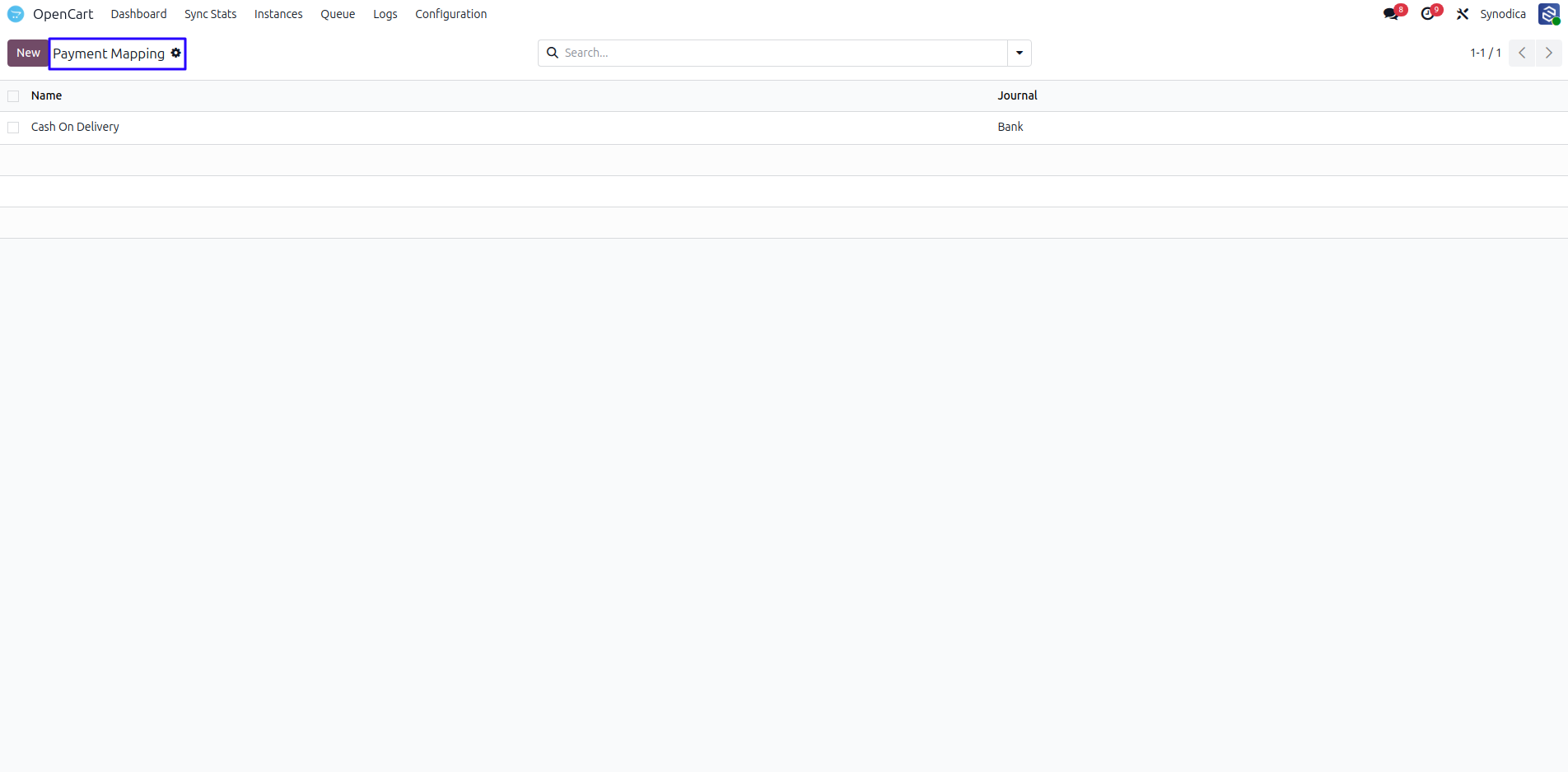
7Payment Mapping
7. Payment Mapping
Cash On Delivery (cod) mapped to Odoo journal.
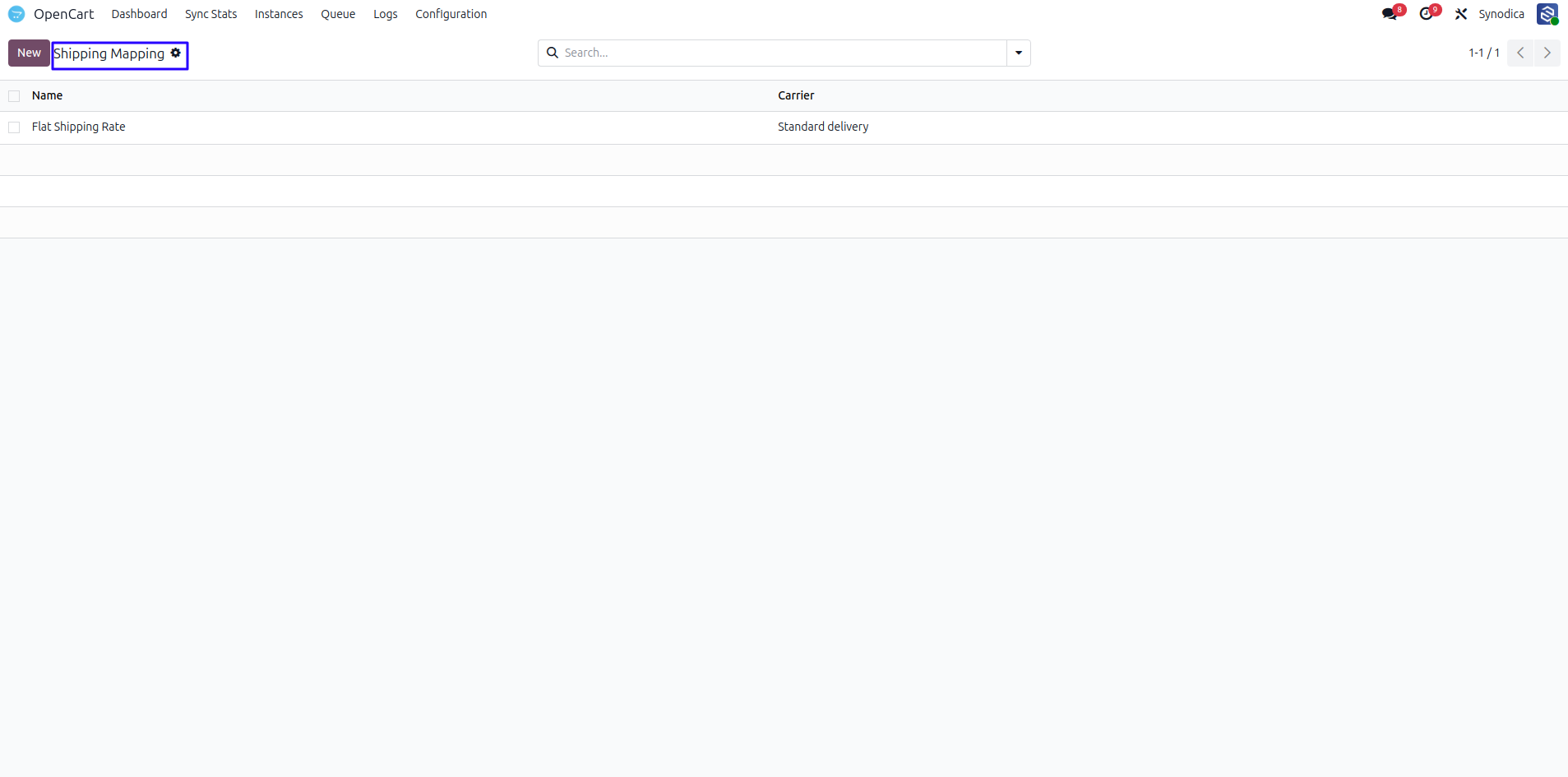
8Shipping Mapping
8. Shipping Mapping
Flat Shipping Rate (flat.flat) mapped to delivery carrier.
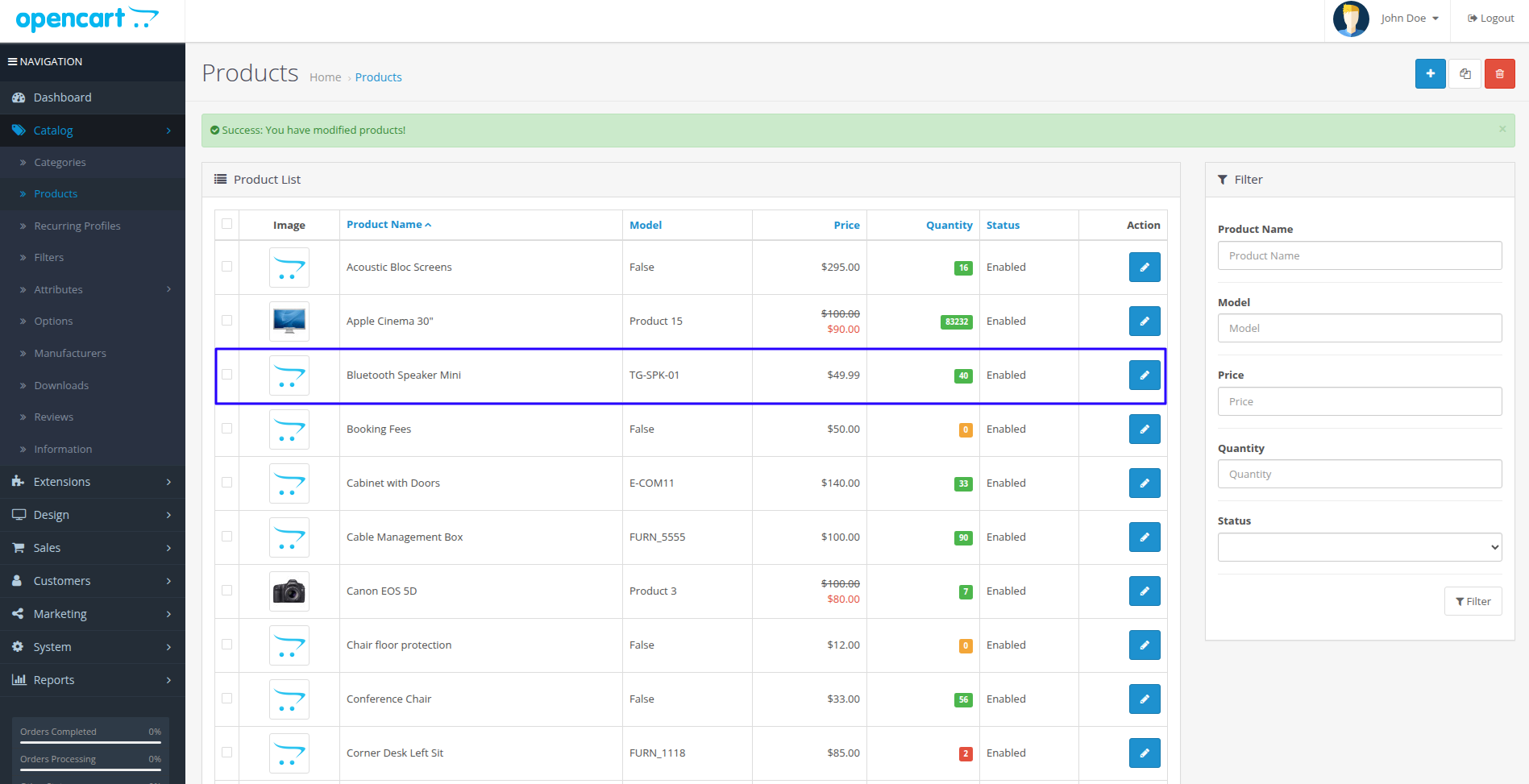
9OpenCart Product List
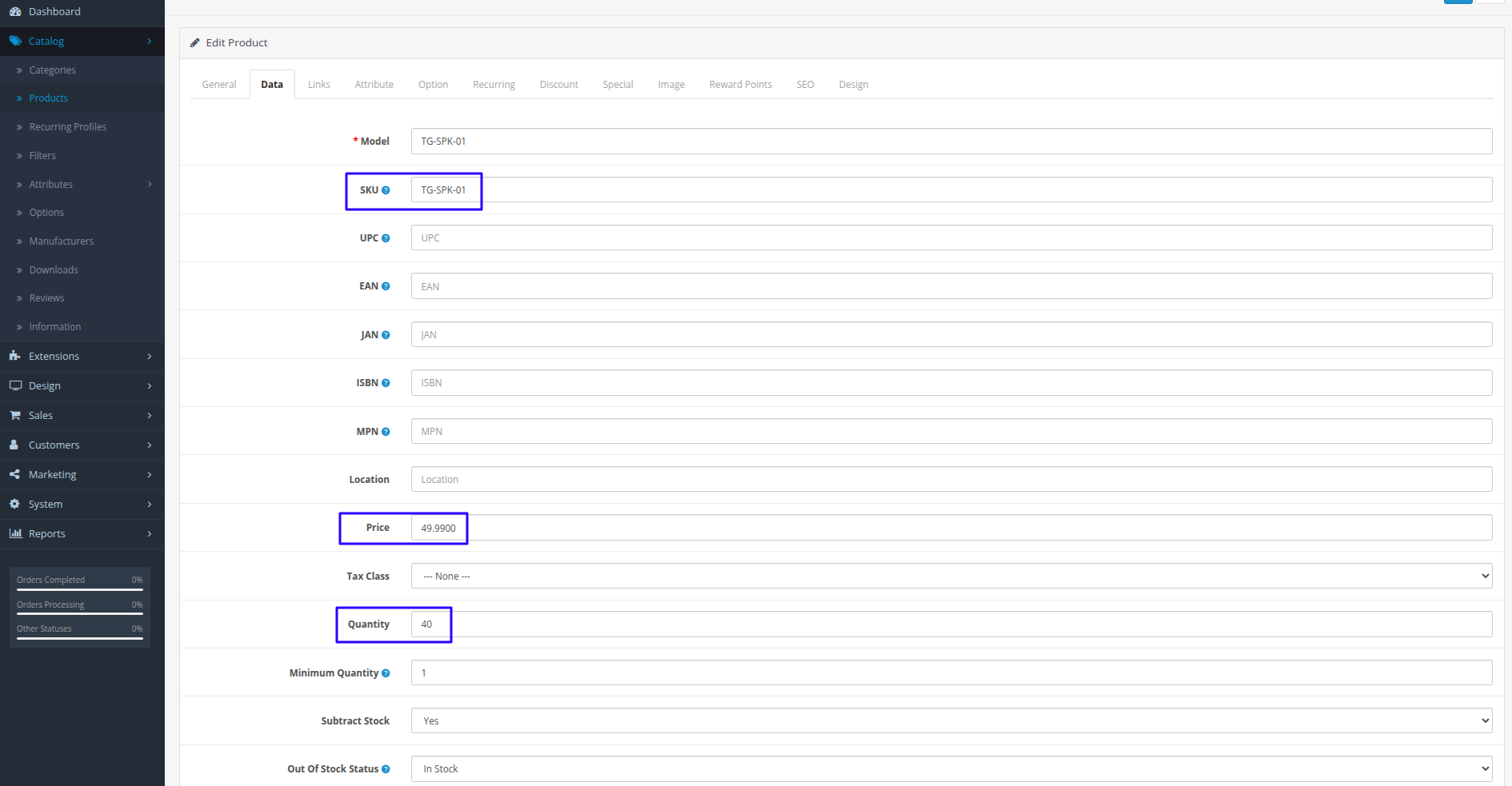
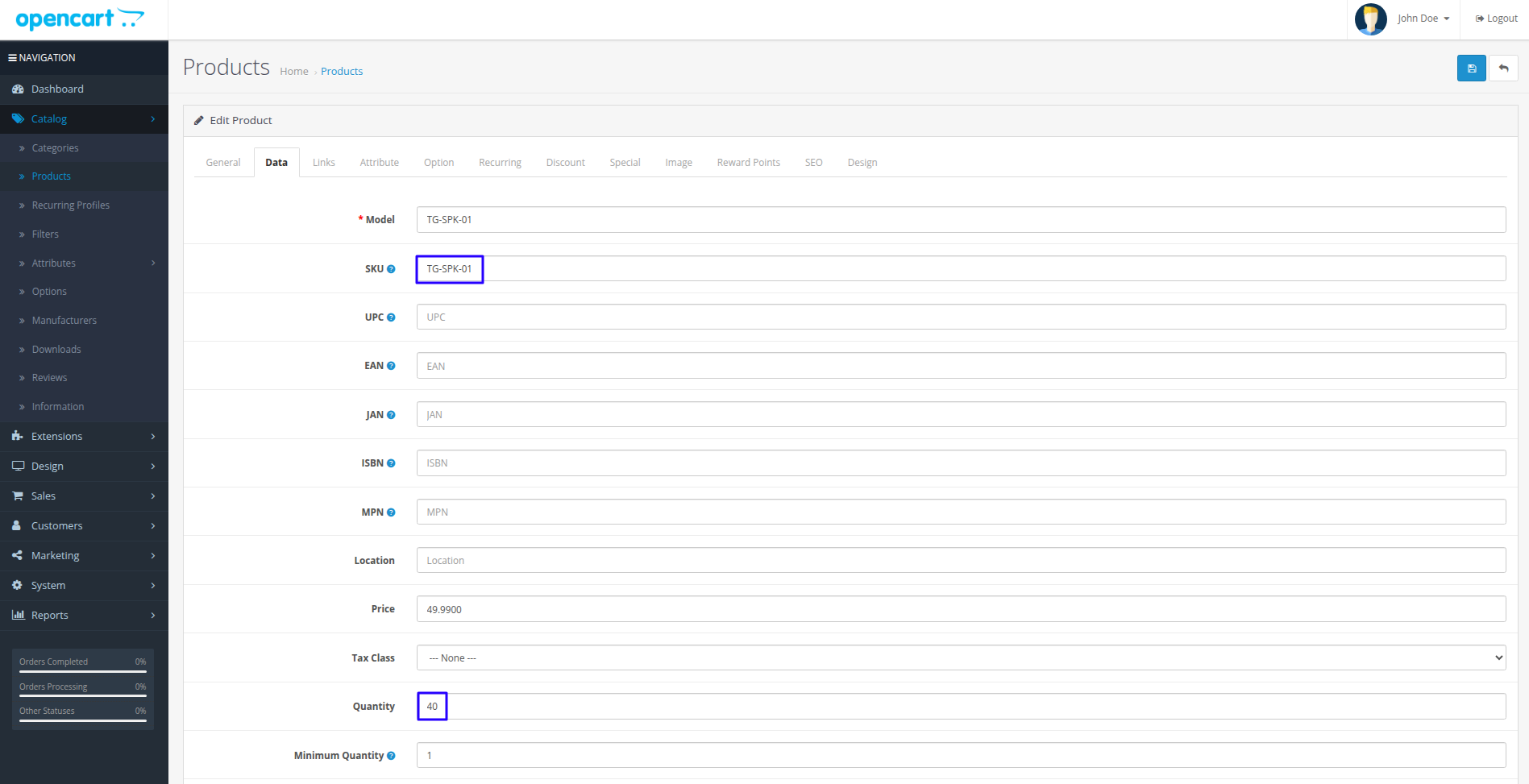
10Product SKU (TG-SPK-01)
10. Product SKU (TG-SPK-01)
Bluetooth Speaker Mini — SKU, quantity 40, price $49.99.
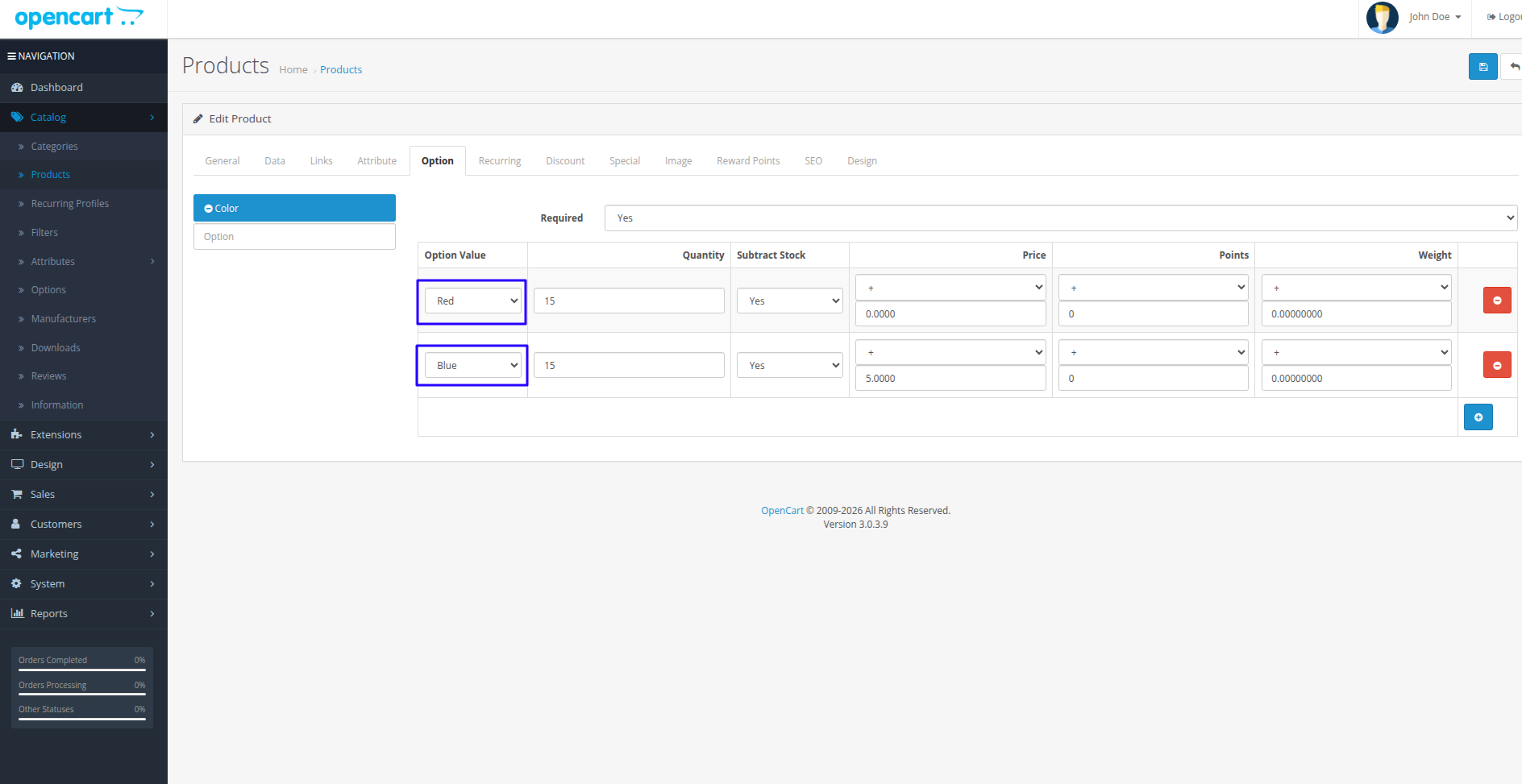
11Product Options (TG-KB-01)
11. Product Options (TG-KB-01)
Wireless Keyboard Pro — Color variants Red and Blue.
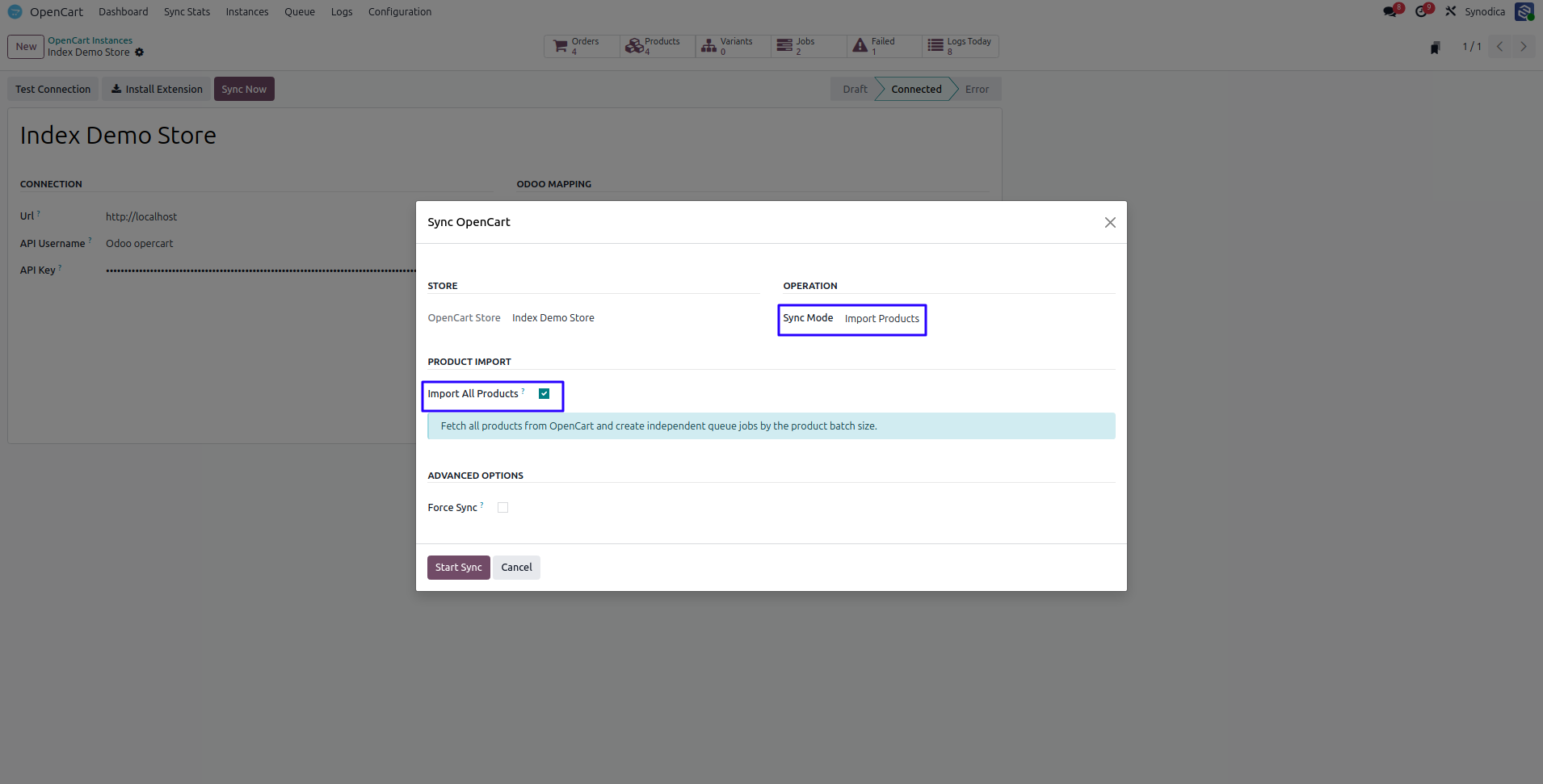
12Import All Products Wizard
12. Import All Products Wizard
Sync Now → Import Products with Import All checked.
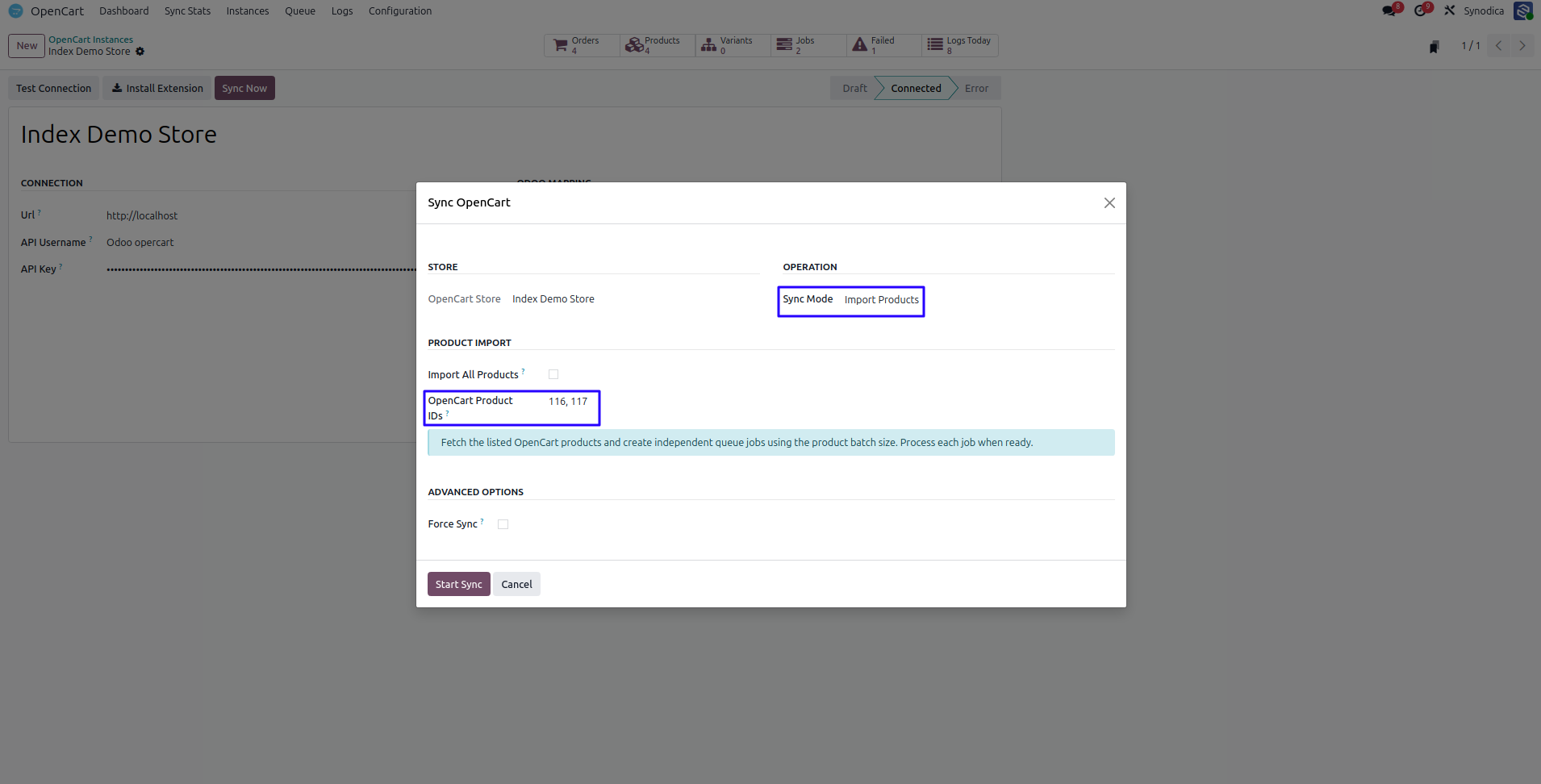
13Import by ID (116, 117)
13. Import by ID (116, 117)
Sync Now → Import Products — specific OpenCart product IDs.
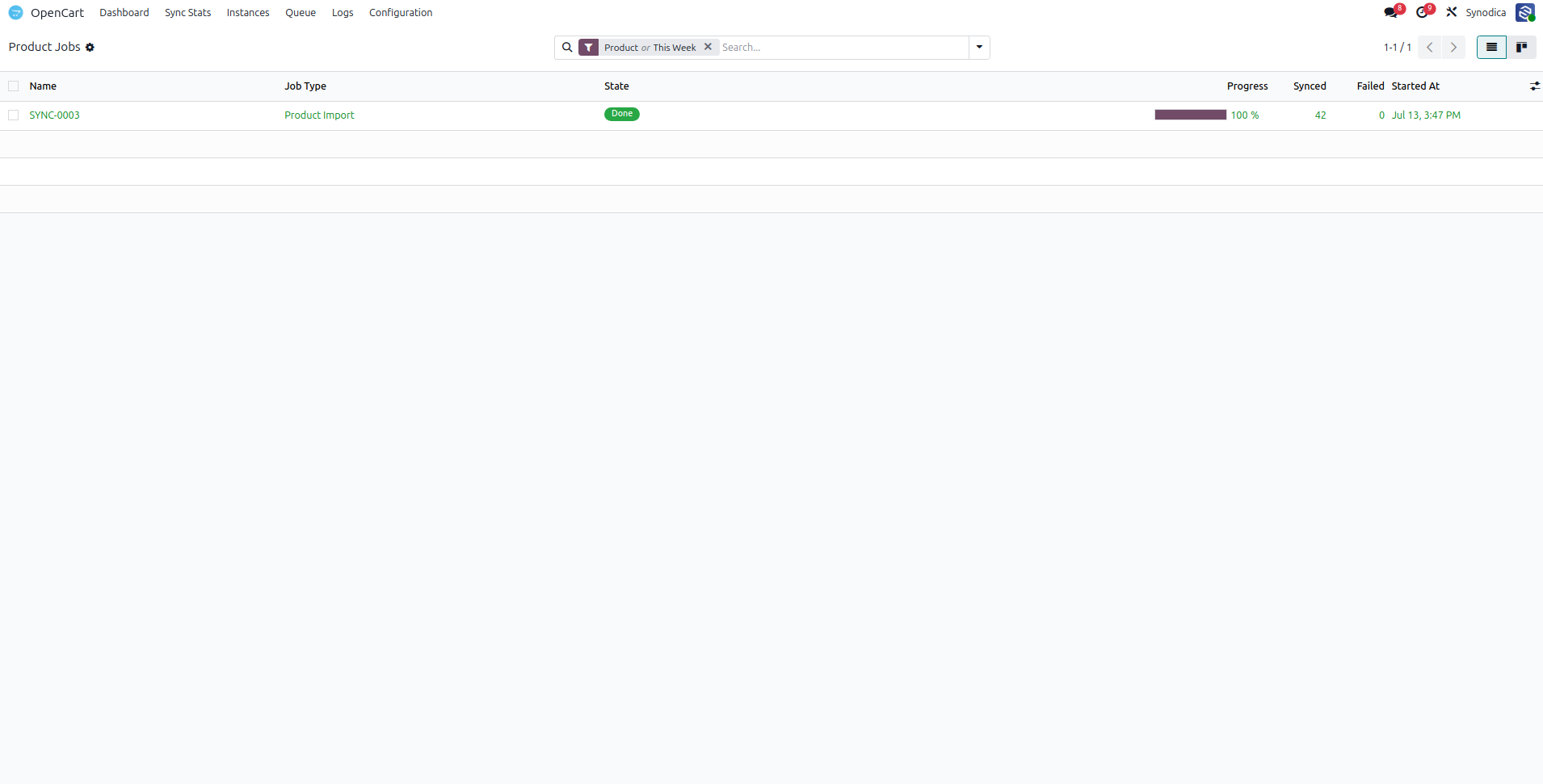
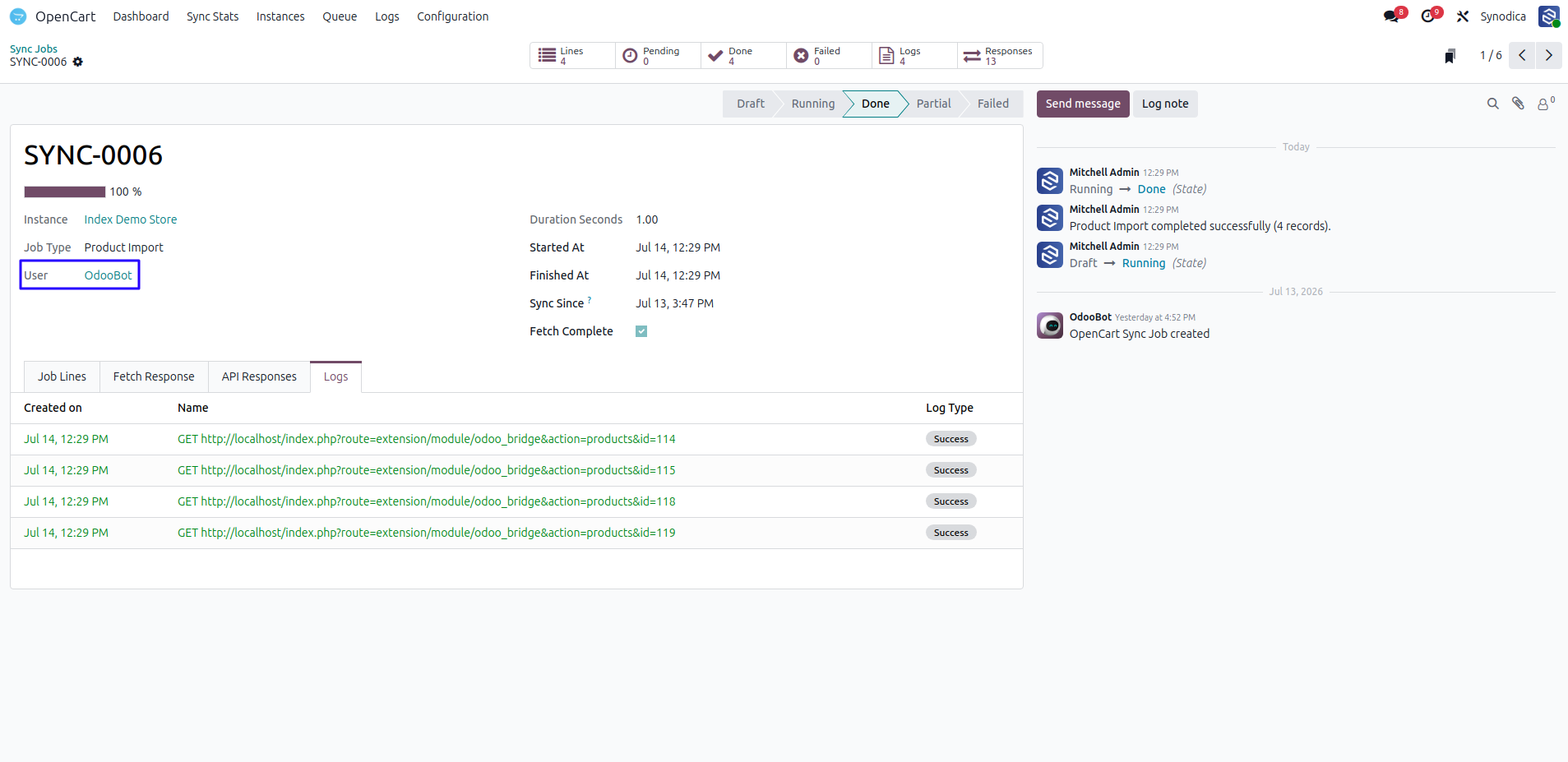
14Completed Product Import Job
14. Completed Product Import Job
Queue → Sync Jobs — finished product import with progress.
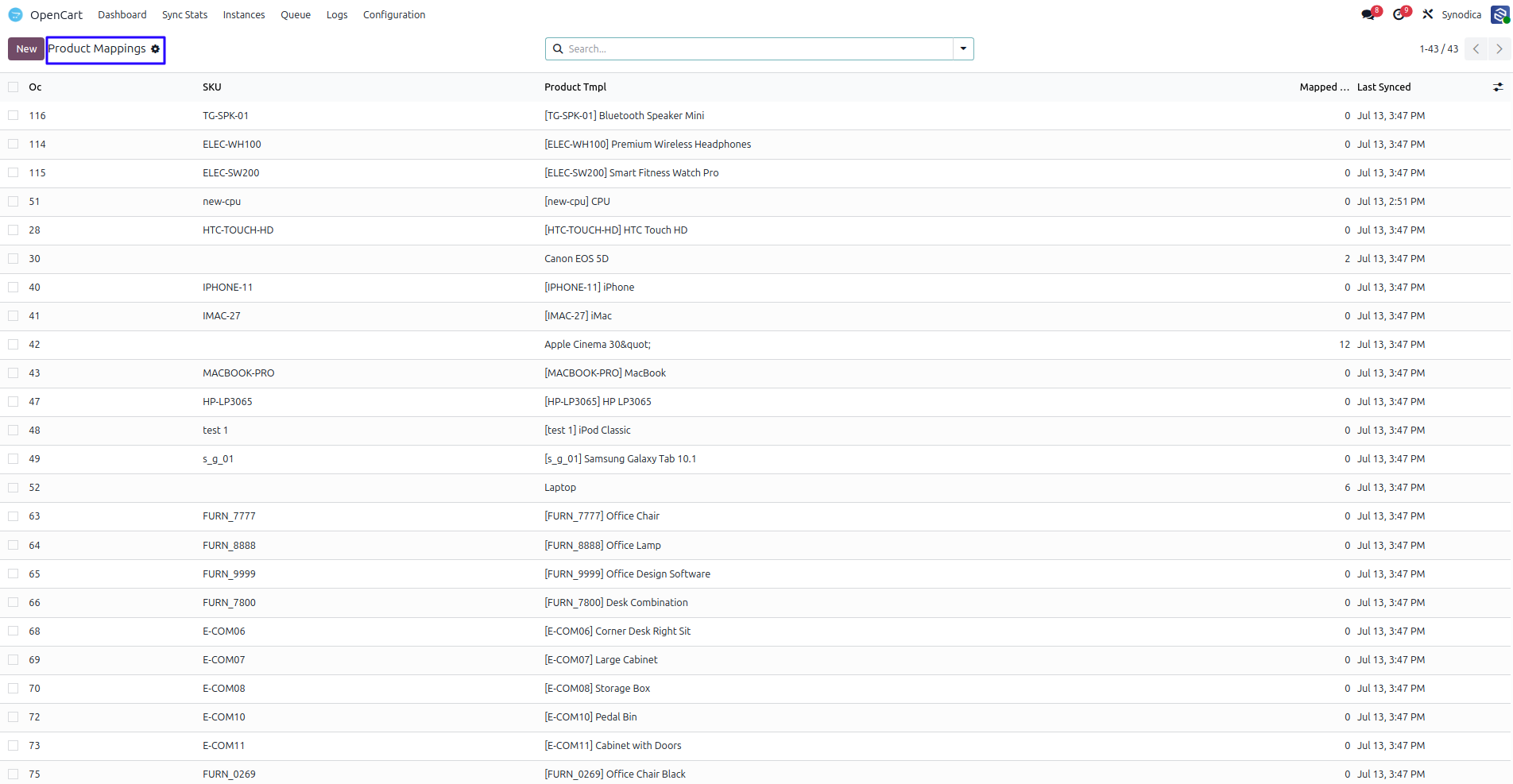
15Product Mappings List
15. Product Mappings List
Configuration → Mappings → Products — linked OC and Odoo records.
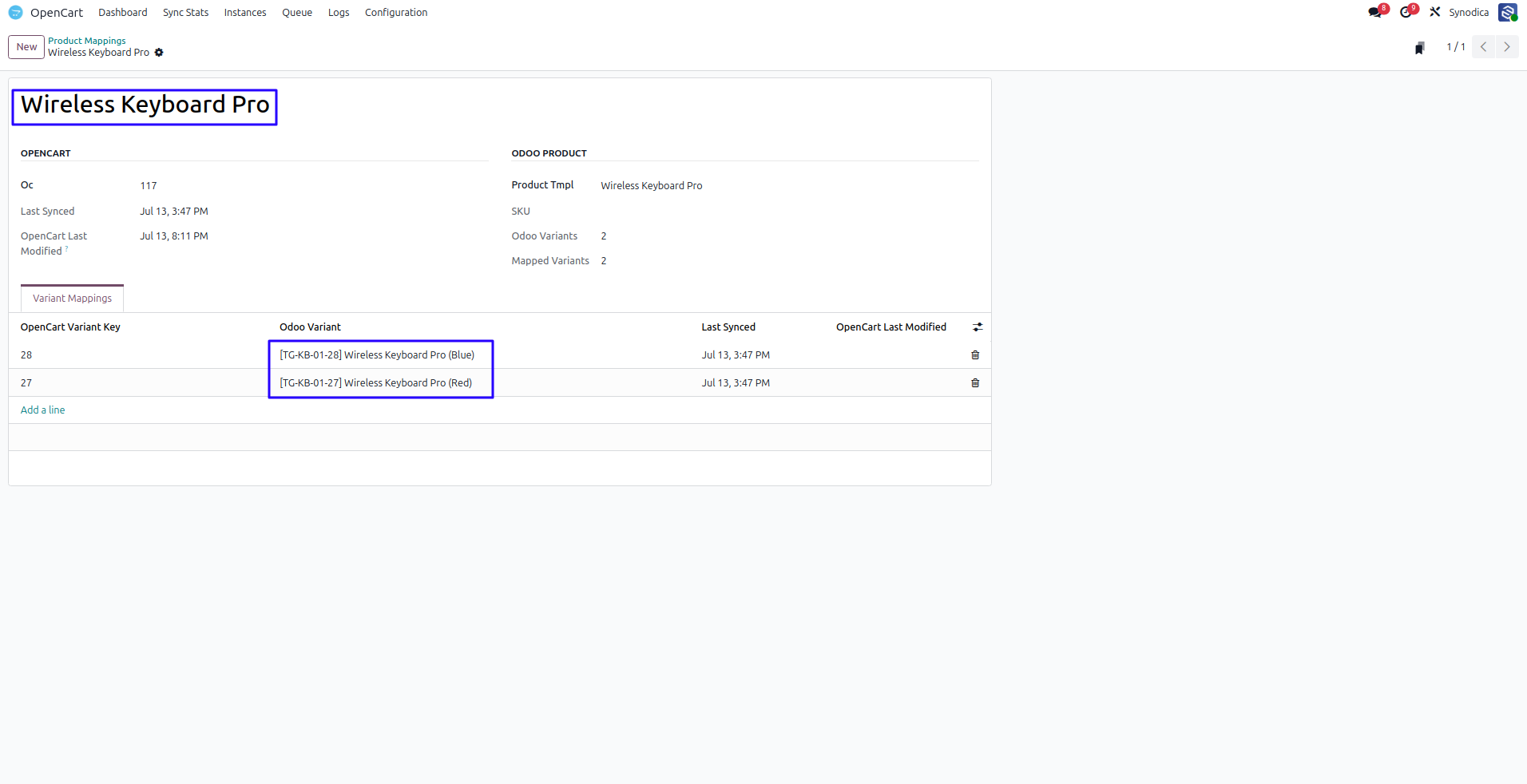
16Variant Mapping Detail
16. Variant Mapping Detail
TG-KB-01 mapping with Red / Blue variant lines.
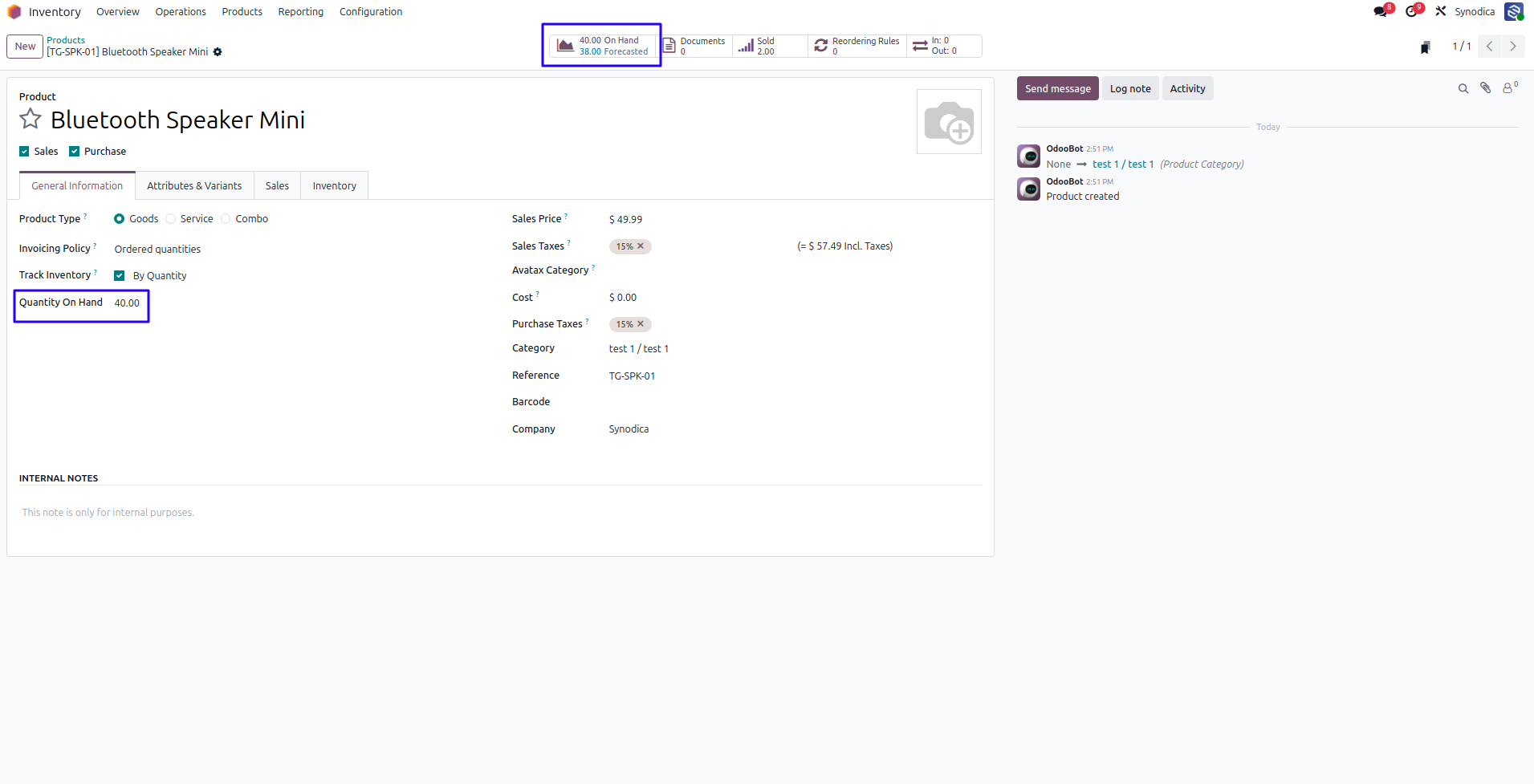
17Imported Product in Odoo
17. Imported Product in Odoo
Inventory → Products — Bluetooth Speaker Mini with OC link.
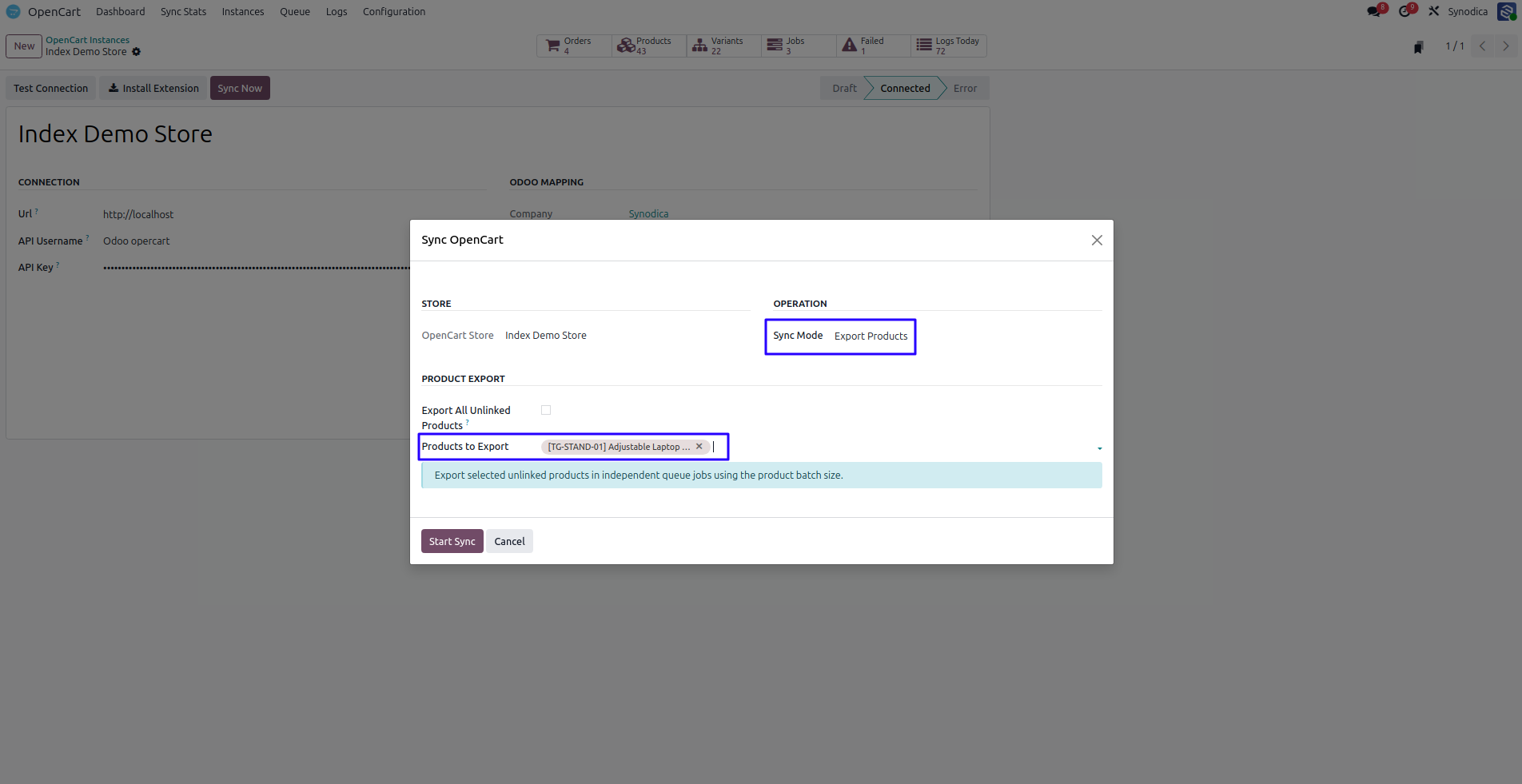
18Export Wizard (TG-STAND-01)
18. Export Wizard (TG-STAND-01)
Sync Now → Export Products — Adjustable Laptop Stand only.
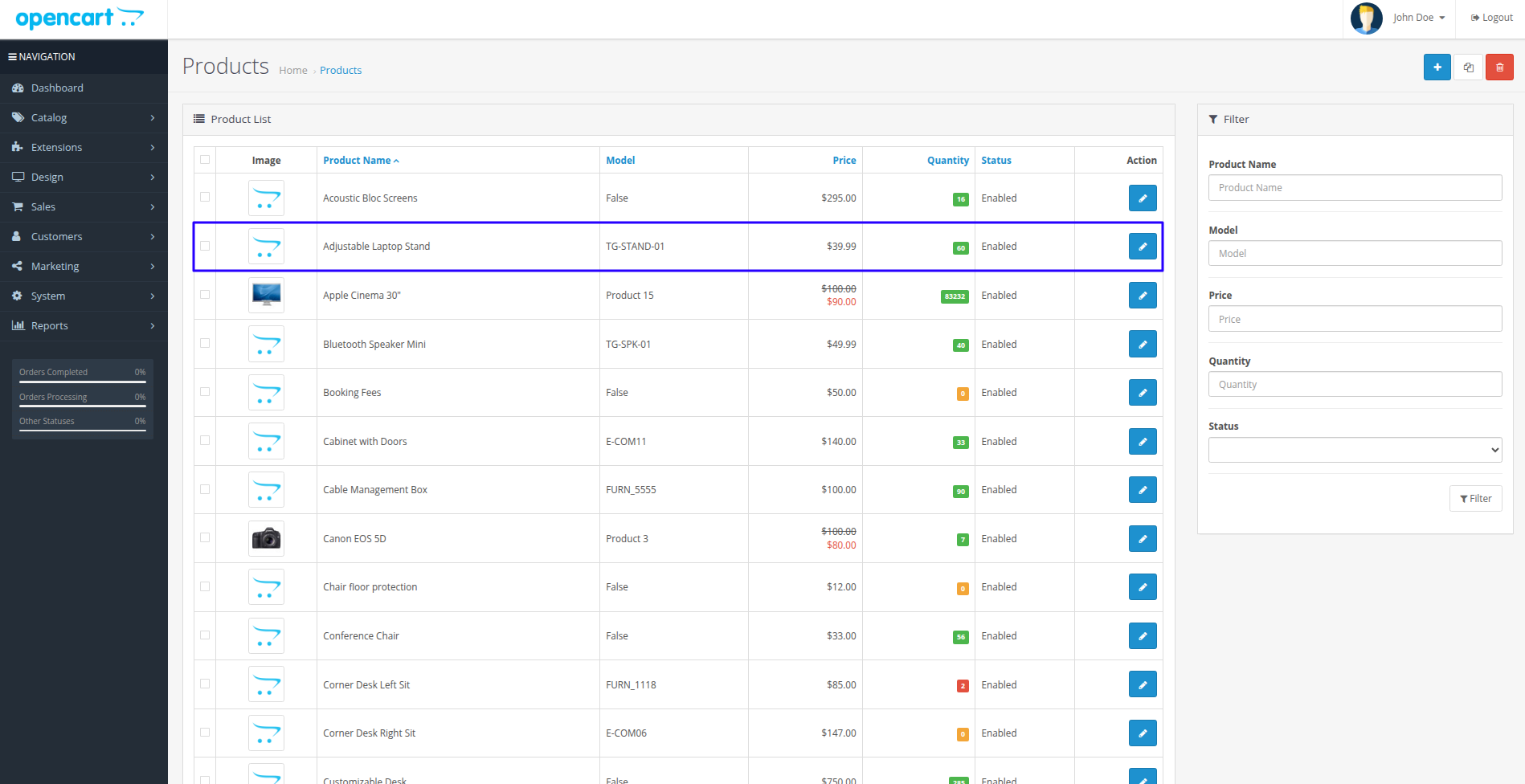
19Exported Product in OpenCart
19. Exported Product in OpenCart
TG-STAND-01 visible in OpenCart catalog after export.
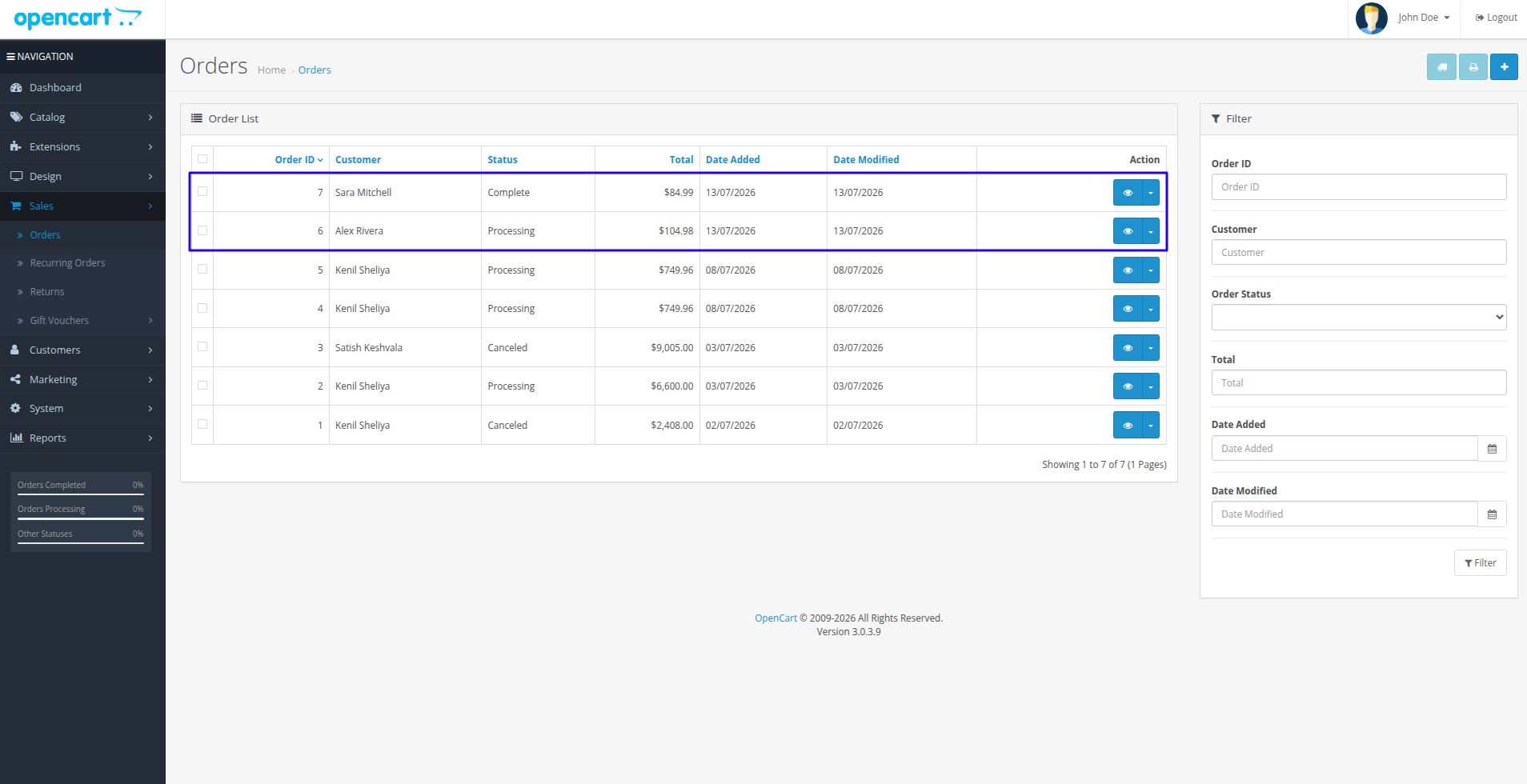
20OpenCart Orders
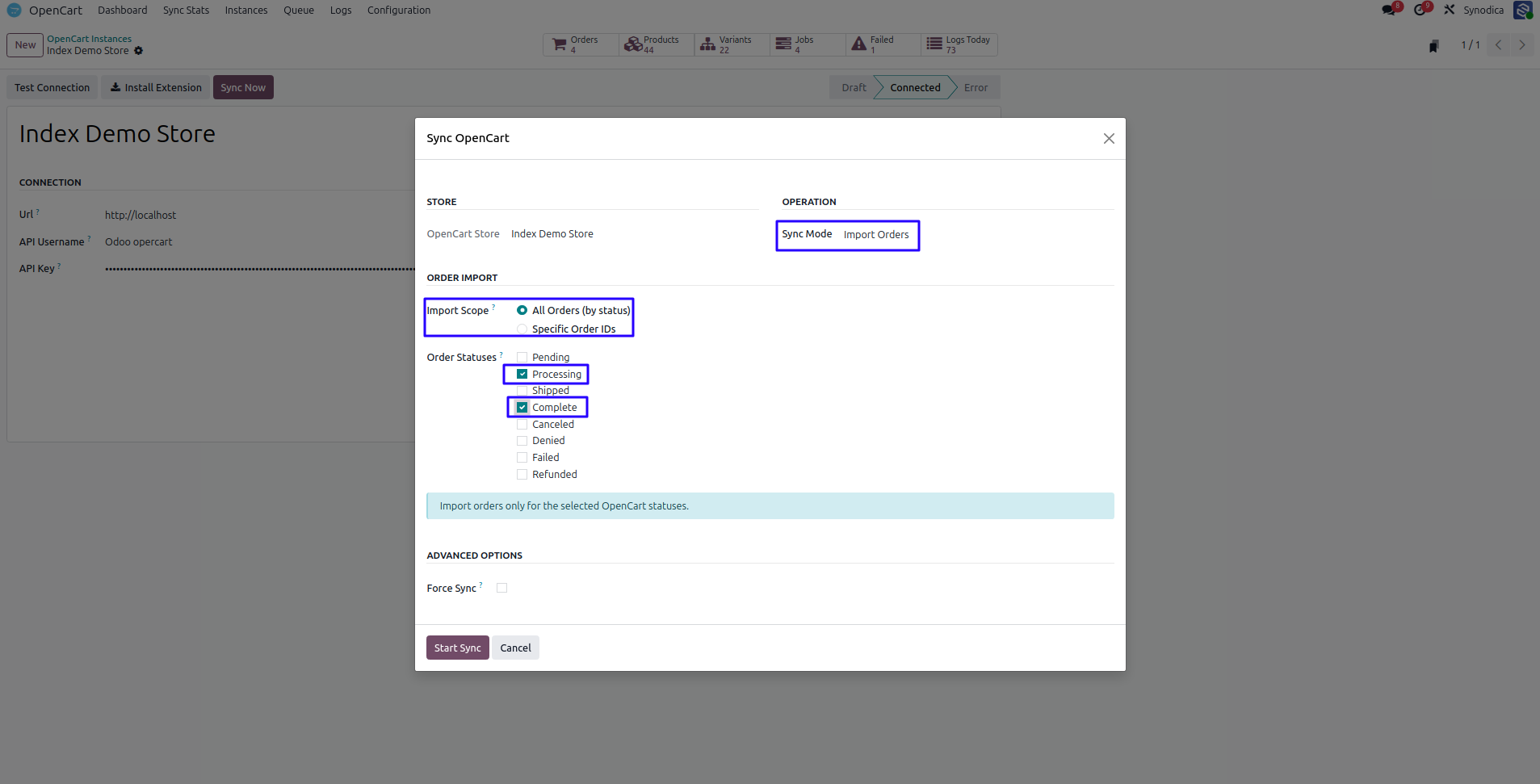
21Import All Orders Wizard
21. Import All Orders Wizard
Sync Now → Import Orders — all orders by status filter.
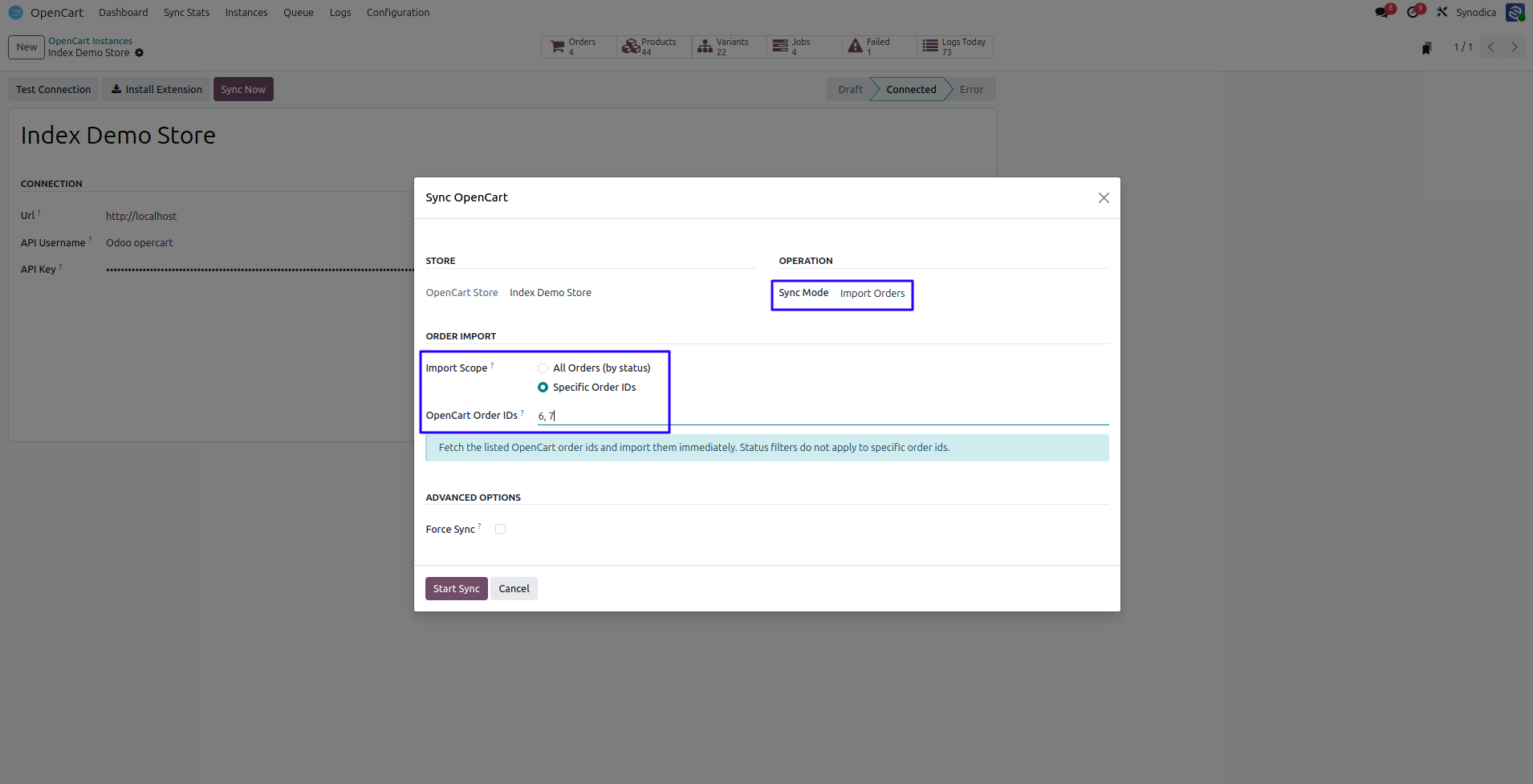
22Import by ID (6, 7)
22. Import by ID (6, 7)
Sync Now → Import Orders — specific order IDs 6 and 7.
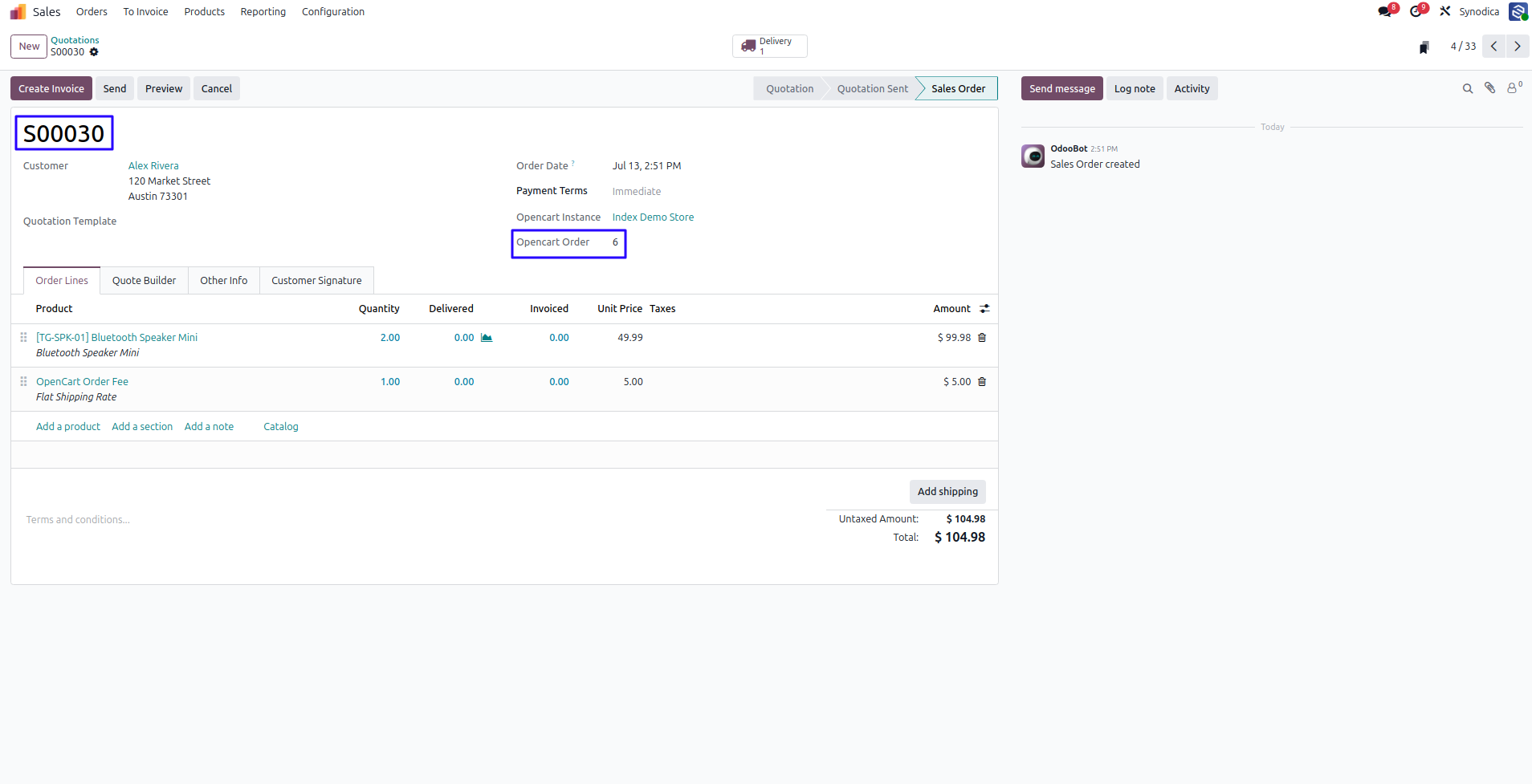
23Imported Sale Order in Odoo
23. Imported Sale Order in Odoo
Sales → Orders — Alex Rivera order with lines and OC reference.
24OpenCart Customers
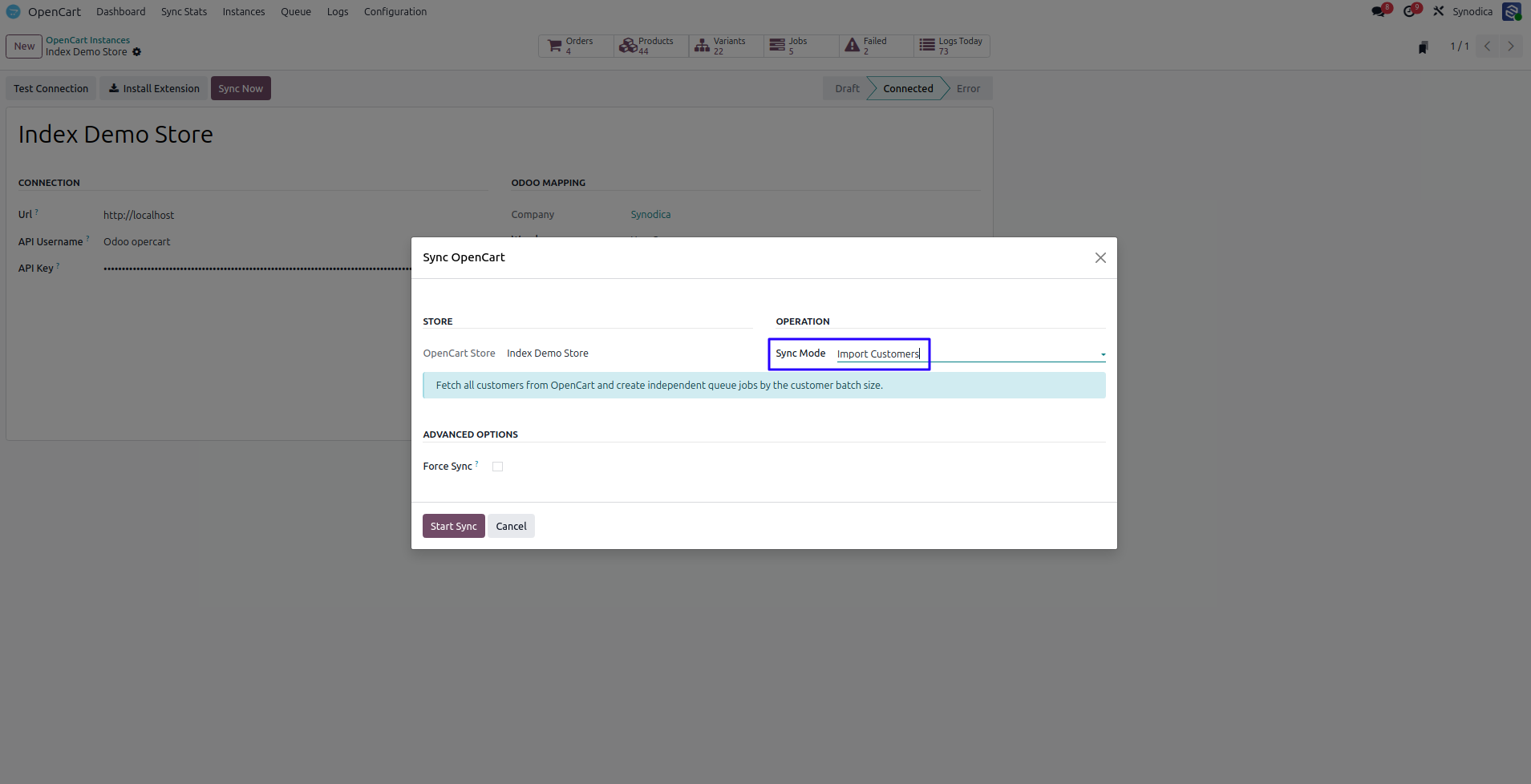
25Import Customers Wizard
25. Import Customers Wizard
Sync Now → Import Customers wizard.
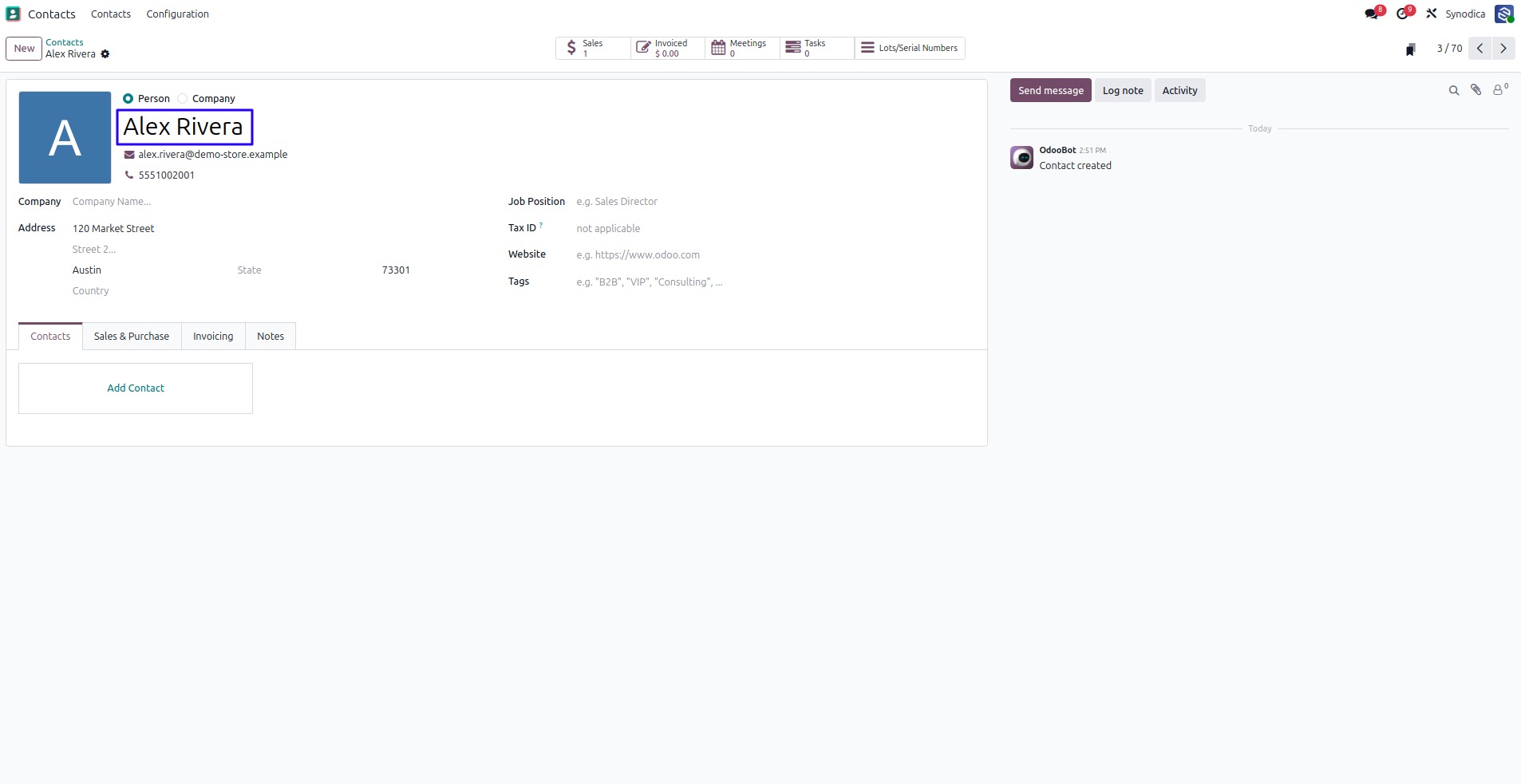
26Odoo Contact
26. Odoo Contact
Contacts — Alex Rivera with demo-store email.
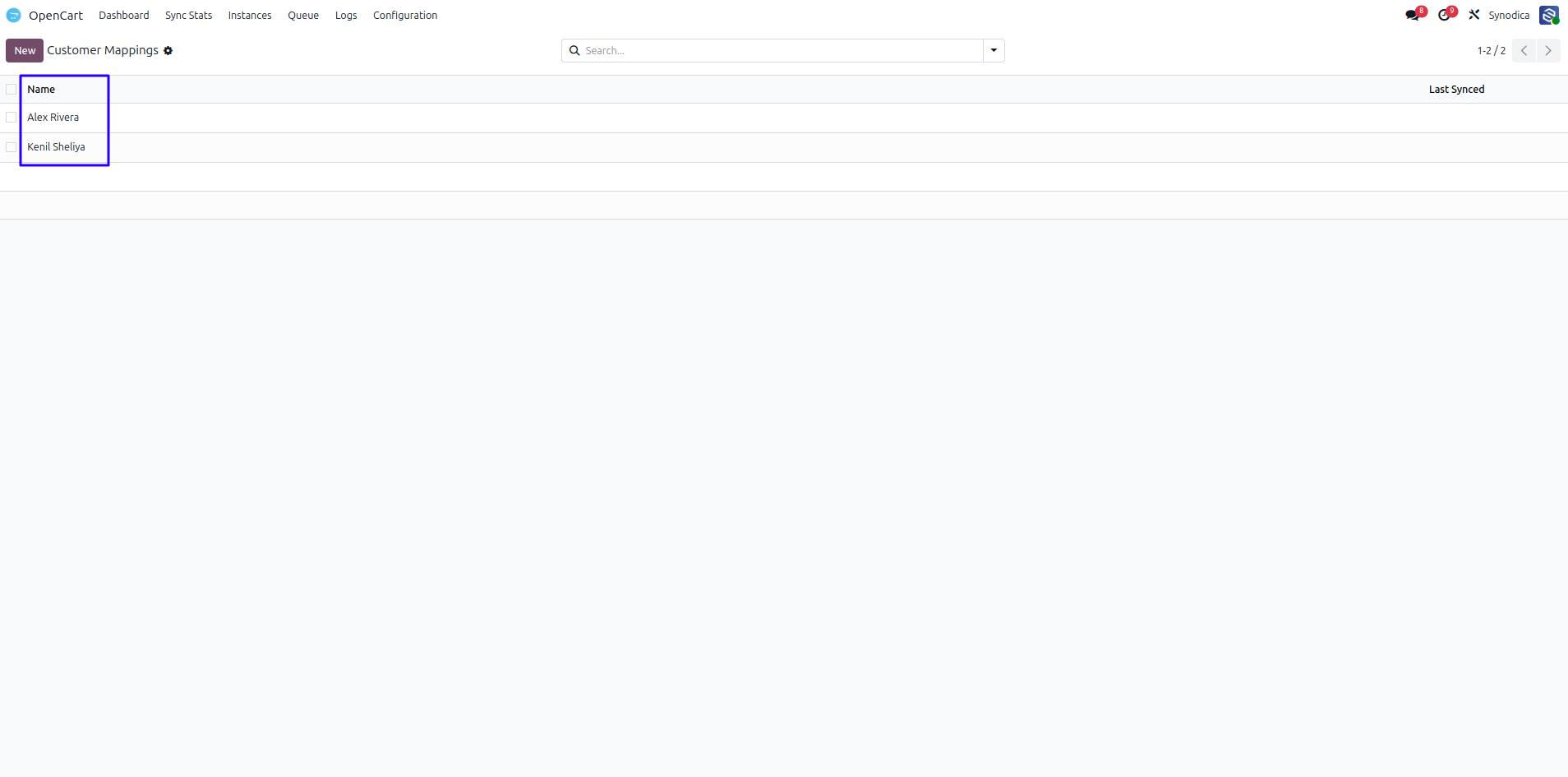
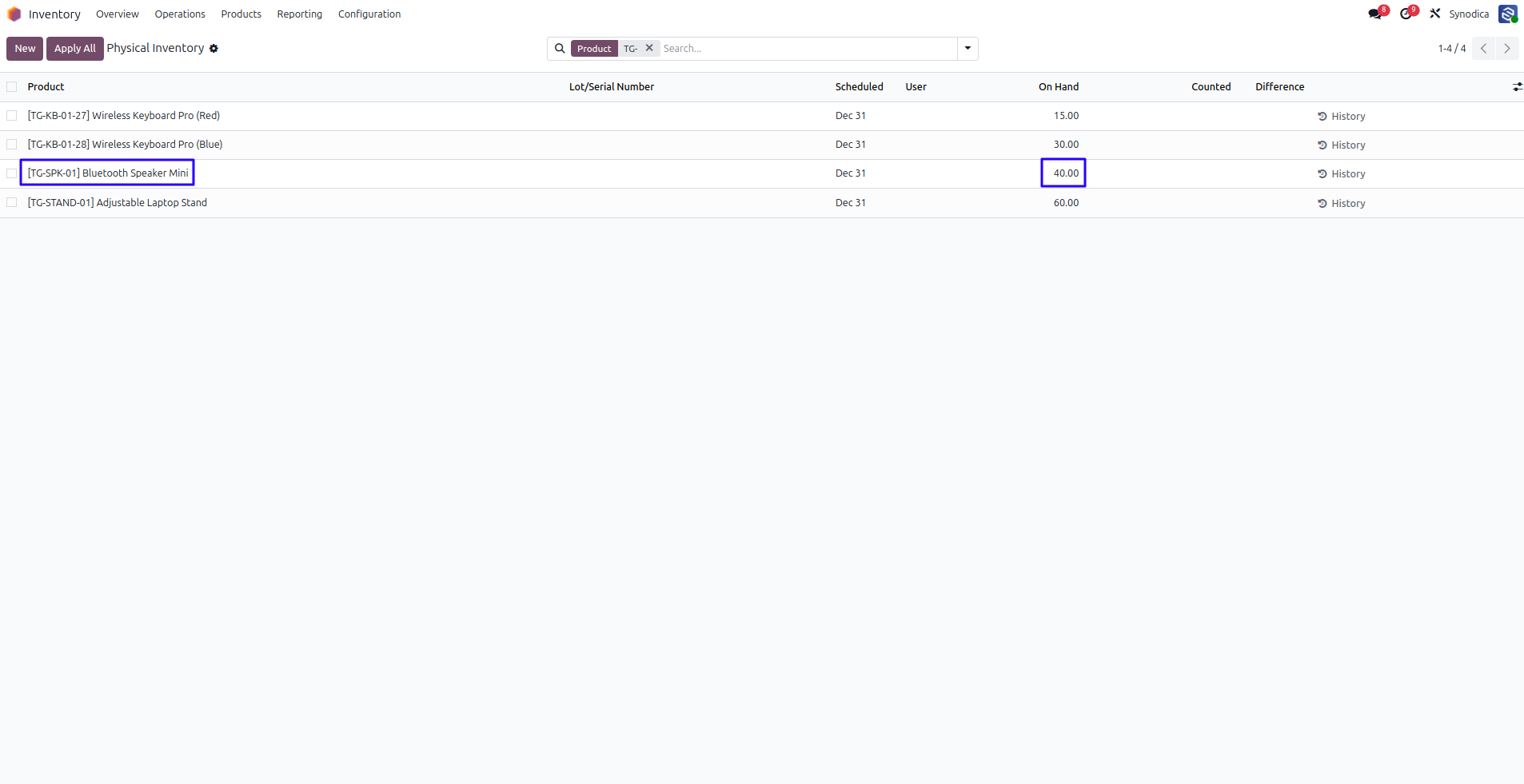
27Odoo Stock Quantities
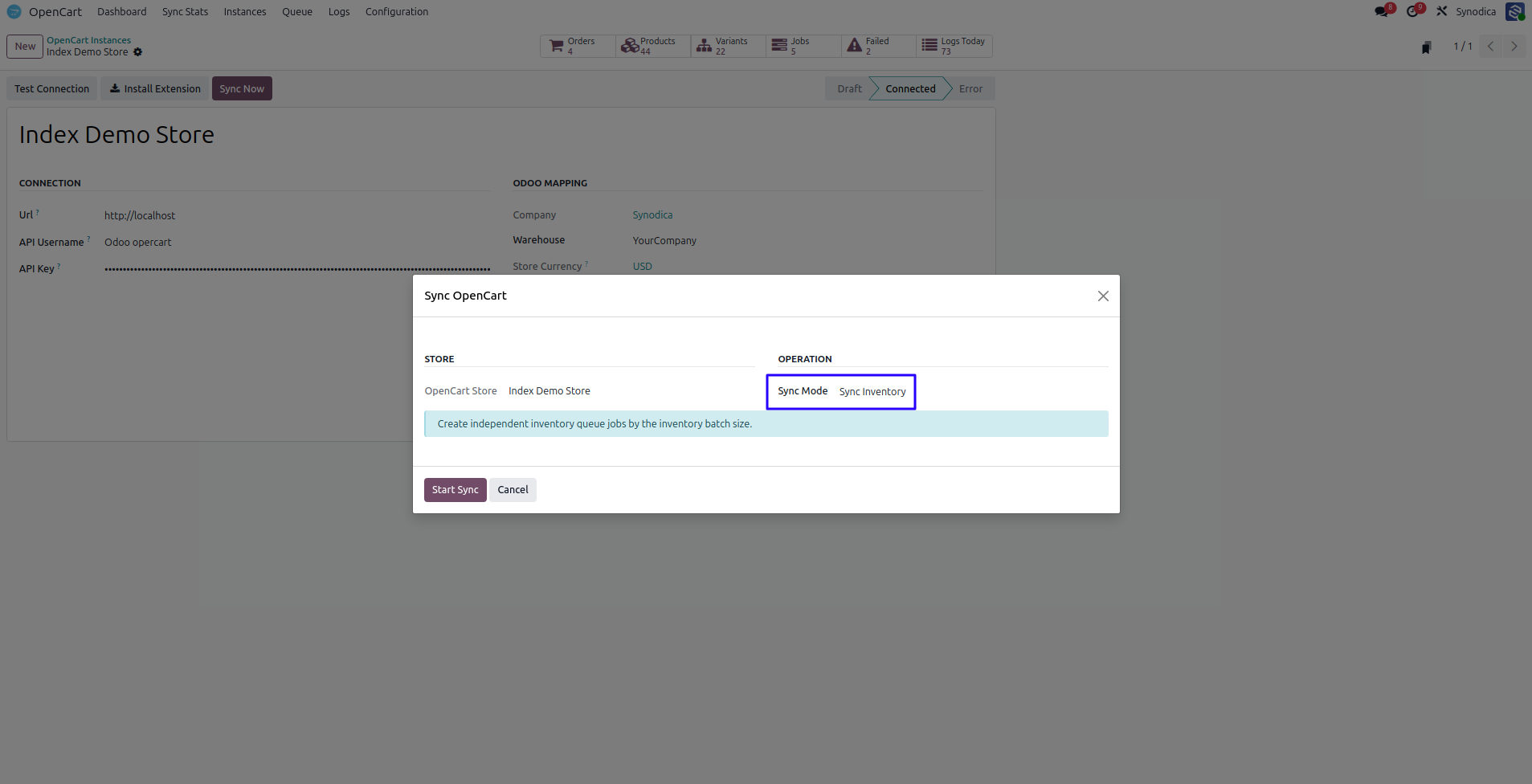
28Sync Inventory Wizard
28. Sync Inventory Wizard
Sync Now → Sync Inventory operation.
29OpenCart Quantities After Sync
29. OpenCart Quantities After Sync
OpenCart product quantities updated to 55 and 42.
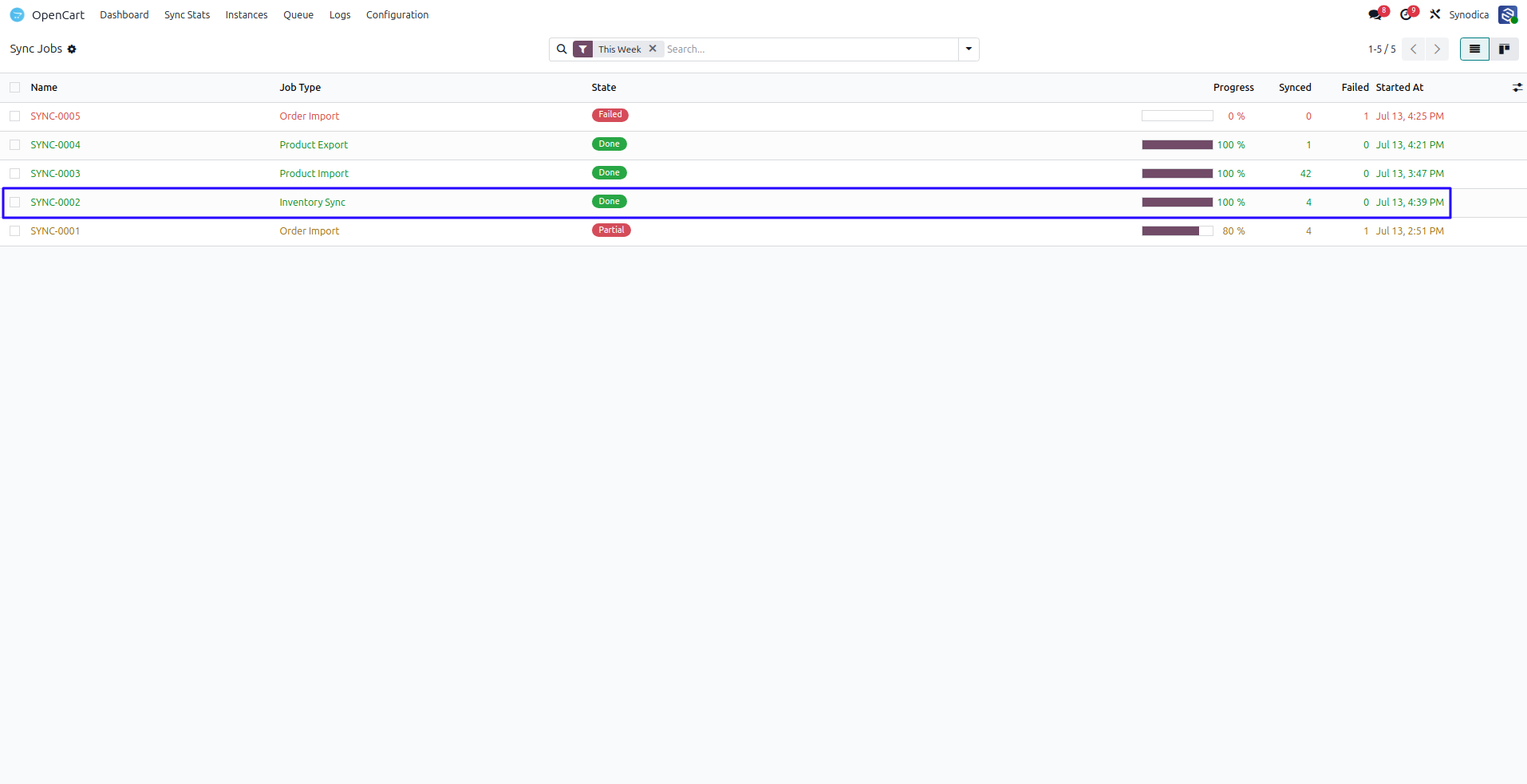
30Completed Inventory Job
30. Completed Inventory Job
Queue → Sync Jobs — finished inventory sync job.
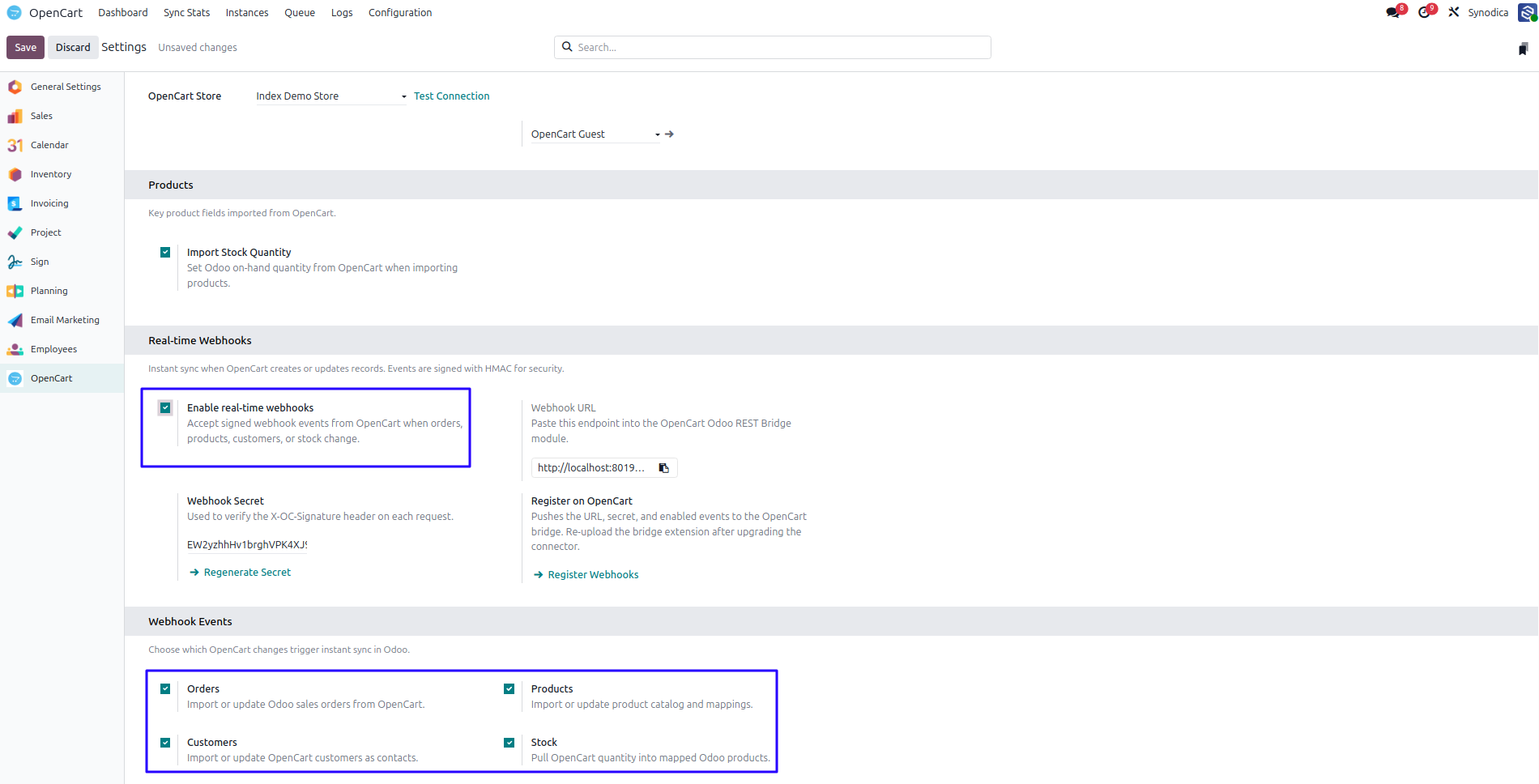
31Webhook Settings
32Webhook Job Created
32. Webhook Job Created
Order Import job created after changing order status in OpenCart.
Screenshot pending
Save as: webhook_job_created.png
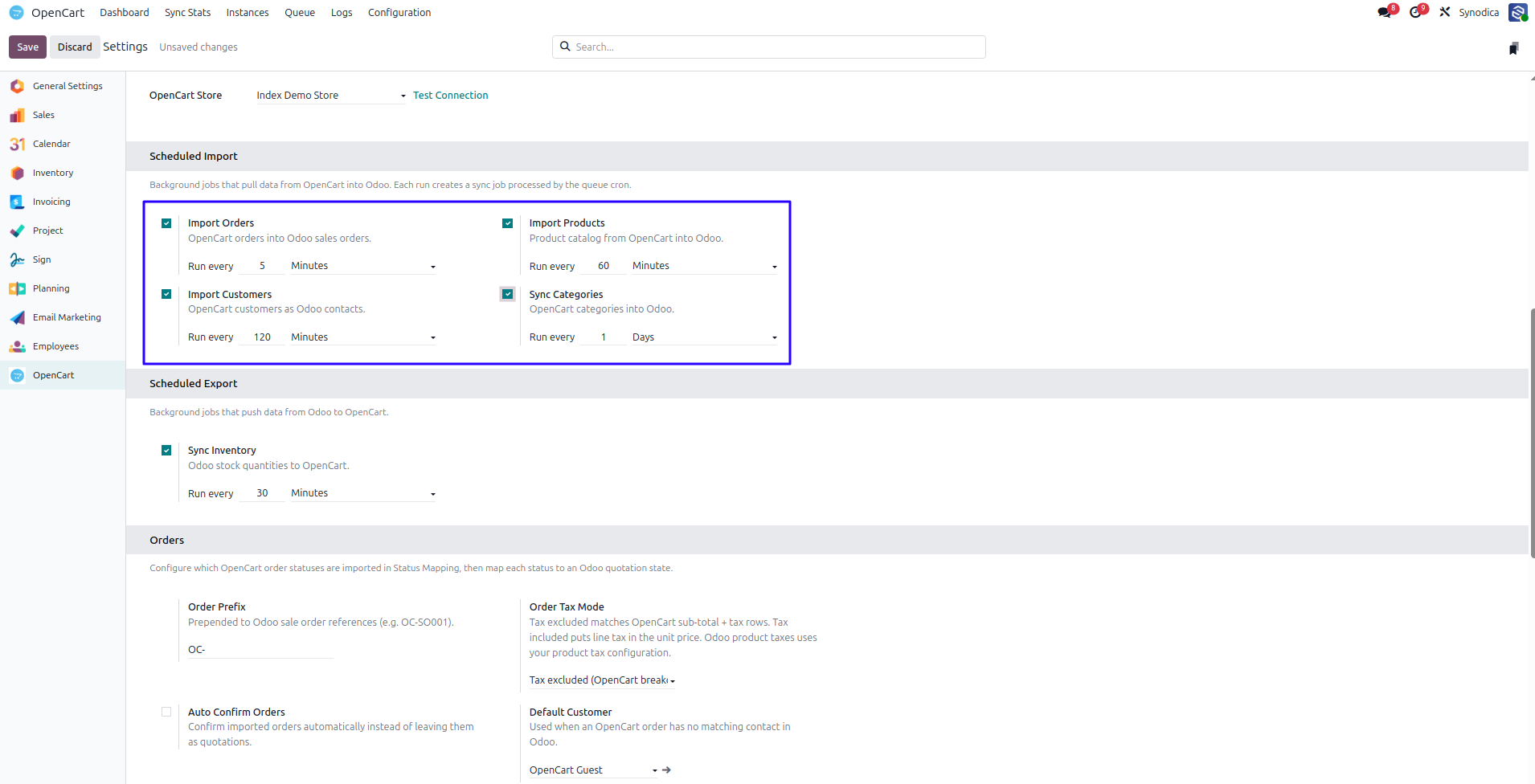
33Scheduled Import Settings
34Cron Auto Job Created
34. Cron Auto Job Created
Sync Jobs entry created by OpenCart: Import Orders cron.
OpenCart 3.x Storefront + REST Bridge |
Odoo ERP Enterprise-ready integration |
Multi-Instance Connect multiple OpenCart stores |
Running more than one OpenCart store?You can connect multiple OpenCart stores to a single Odoo database. Each store has its own settings, webhooks, and sync rules — and all Synodica Solutions connectors (Walmart, Freightcom, Dashboard and Revolut) are built on the same platform, so adding a second platform later is straightforward.
|
|


© 2026 Synodica Solutions PVT. LTD. — OpenCart Connector for Odoo
We create ERP solutions for you using Odoo ERP that will build a strong and efficient business for you. It's SYNODICA WAY